Notify your systems when support tickets change
A support webhook sends a message to an address you choose every time one of your company's support tickets changes. Use it to post new tickets to a Slack channel, copy them into a data warehouse, or open a matching item in your internal tracker. Each message is signed, so your system can check that it came from SKU.io.
Before you begin
- You're an administrator on your SKU.io account. Anyone else who opens Support → Webhooks sees "Webhooks are managed by account admins".
- Your own system can receive messages at a public web address starting with
https://(your endpoint). SKU.io won't send to anhttpaddress, or to an address that points inside a private network. - You're signed in to the SKU.io account that holds your tickets. A beta or demo environment passes its tickets on to your main account, so Webhooks doesn't appear in the menu there. Manage webhooks from your main account instead.
Steps
-
In the left-hand menu, go to Support → Webhooks.
-
Click Add webhook.
-
In Endpoint URL, paste your endpoint's address. It must start with
https://. -
Under Events, tick each change you want to hear about, and untick the rest. All four start ticked:
Event Sent when Ticket created A new ticket is opened by anyone at your company. Ticket updated A ticket's status, priority, type or assignment changes. Reply posted SKU.io support or a teammate replies on the thread. Ticket resolved A ticket is marked resolved or closed. -
Leave Start delivering immediately ticked, or untick it to create the webhook paused.
-
Click Create webhook.
-
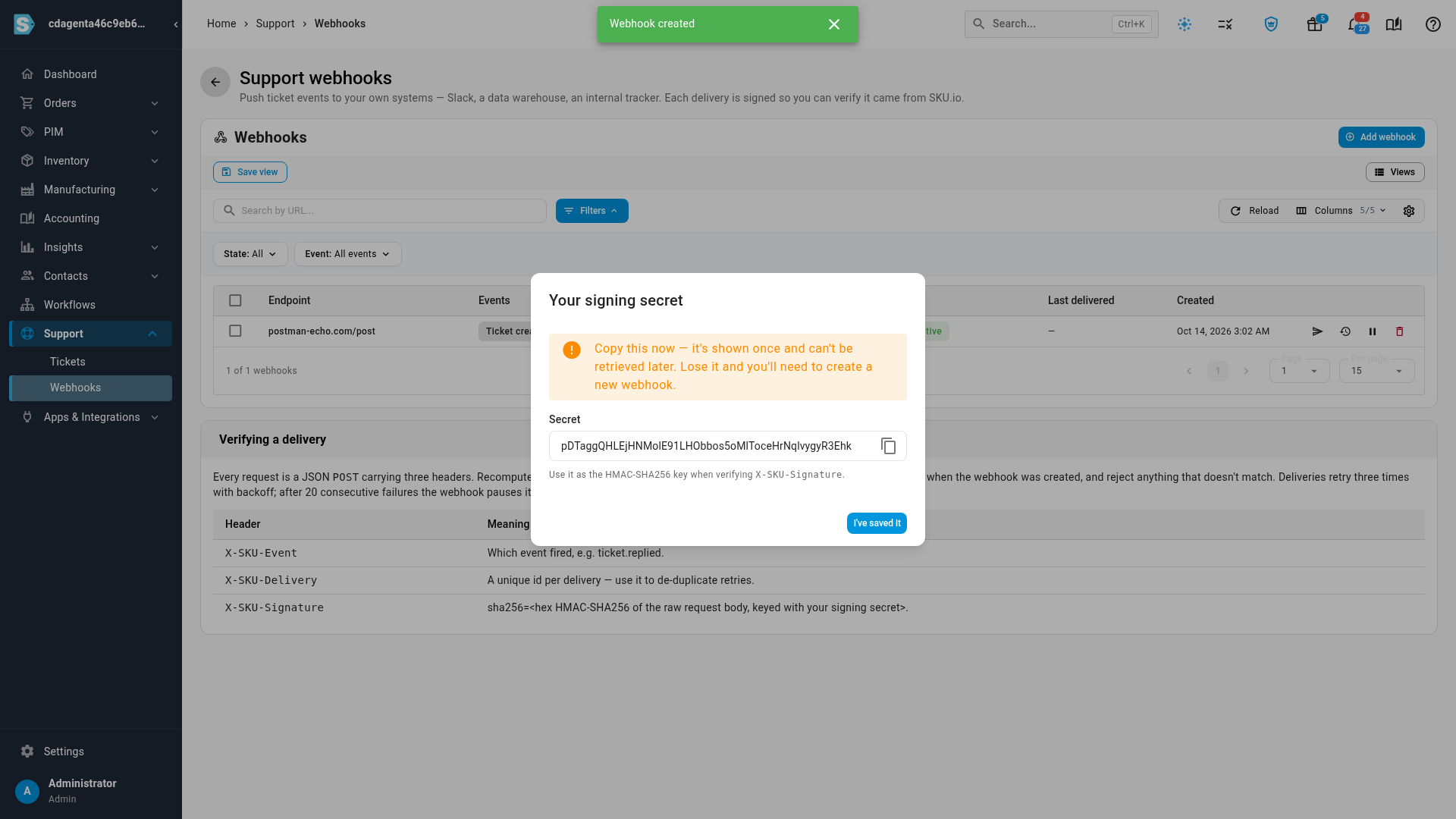
Your signing secret opens. Click the copy icon, store the secret with your endpoint's settings, and click I've saved it. The secret is shown once and can't be retrieved later. If you lose it, delete the webhook and create a new one.
-
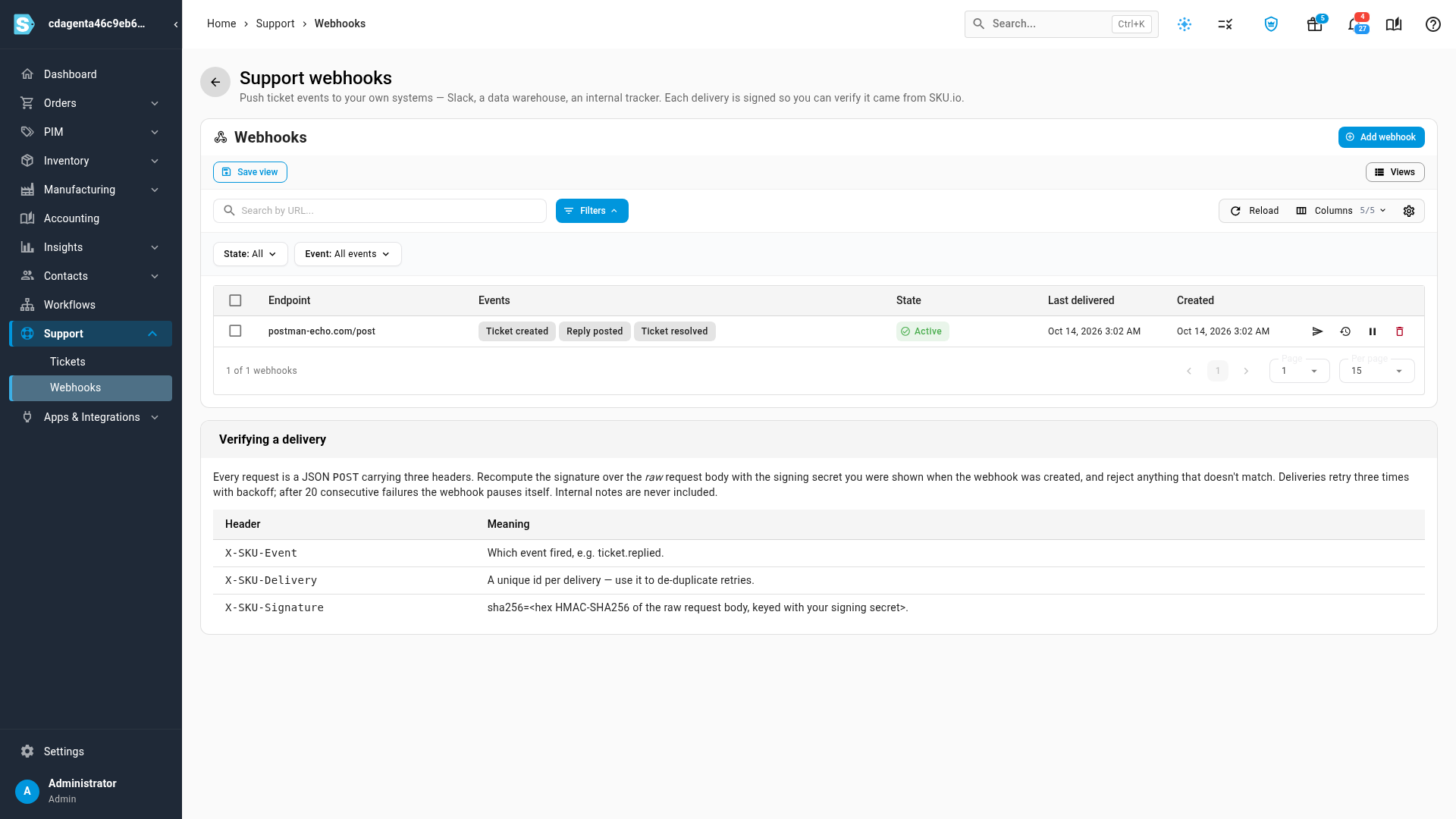
To check whether your endpoint answers, click the paper plane icon (Send a test delivery) on the webhook's row. A message confirms "Test delivery sent" with your endpoint's response code, or "Test delivery failed" with the reason.
-
Click the clock icon (Recent deliveries) to see what SKU.io has sent. See Reading recent deliveries.
Reading recent deliveries
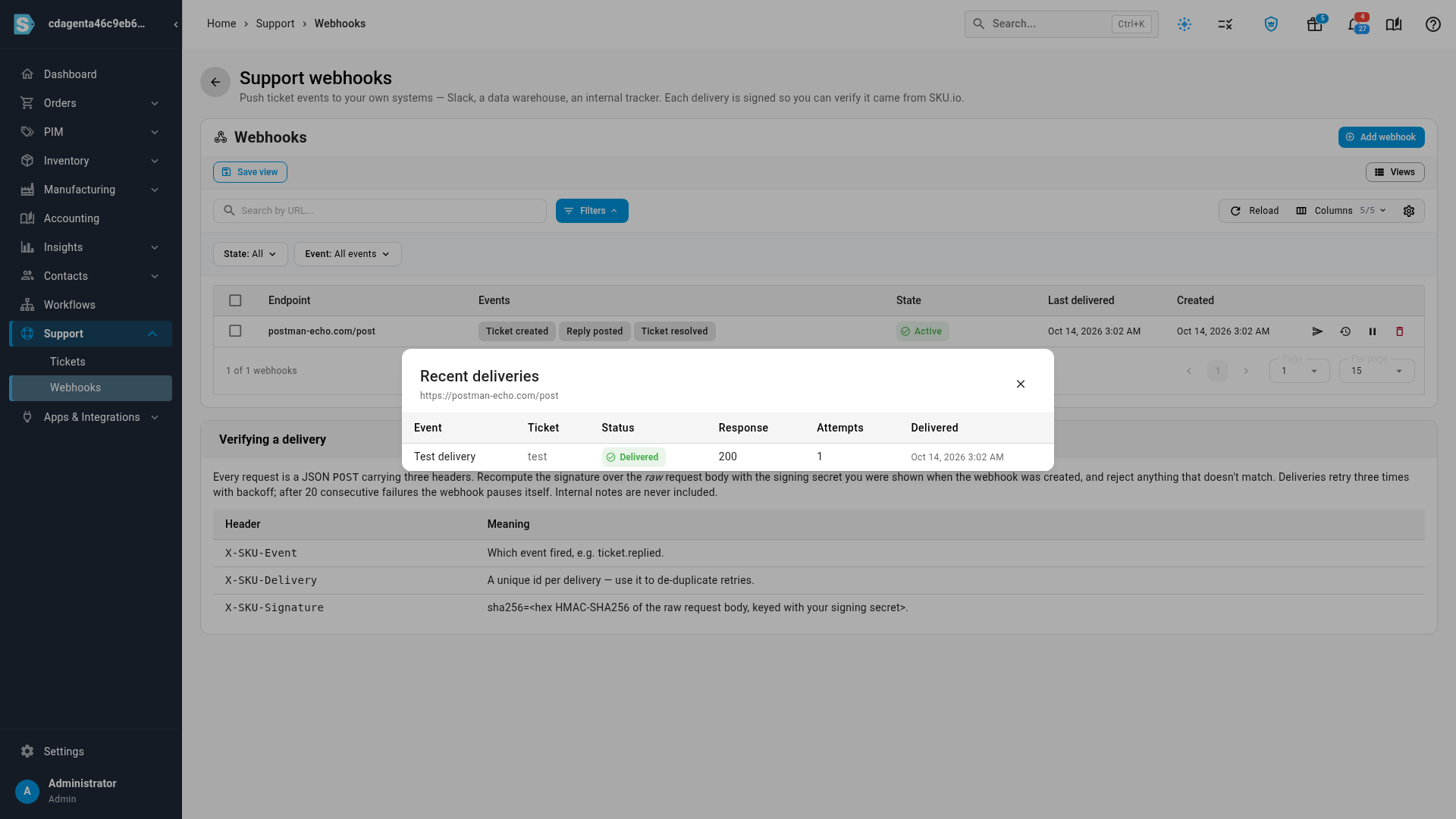
| Column | What it shows |
|---|---|
| Event | Which change was sent. Test delivery is one you sent with the paper plane icon. |
| Ticket | The ticket it's about, with a link to open it. Test deliveries show test. |
| Status | Delivered, Failed, or Pending while SKU.io is still trying. |
| Response | The response code your endpoint answered with. When a delivery fails, the error appears underneath. |
| Attempts | How many times SKU.io tried. A failed delivery is retried up to three times, with a pause between tries. |
| Delivered | When your endpoint accepted it. |
After 20 failed deliveries in a row, SKU.io pauses the webhook for you, and its State reads Paused · switched off after 20 failures. Fix your endpoint, then resume it.
Pause, resume or delete a webhook
- Pause: click the pause icon on the webhook's row. Its State changes to Paused. Changes that happen while it's paused aren't saved up and sent later.
- Resume: click the play icon. Deliveries start again from the next ticket change.
- Delete: click the delete icon, then click Delete to confirm. Past deliveries are kept for reference. Deleting can't be undone.
To pause, resume or delete several webhooks at once, tick their rows and use the buttons above the list.
Checking that a delivery came from SKU.io
Every delivery carries three headers, also listed under Verifying a delivery at the bottom of the page:
| Header | Meaning |
|---|---|
X-SKU-Event | Which event fired, for example ticket.replied. |
X-SKU-Delivery | A unique ID per delivery. Use it to ignore a retry you've already handled. |
X-SKU-Signature | sha256= followed by an HMAC-SHA256 signature of the message, keyed with your signing secret. |
Have your system compute the same signature over the message exactly as it arrived, using your secret, and reject any delivery that doesn't match. Internal notes on a ticket are never included.
Next steps
- Get help and track your support tickets
- Generate and read a Support Insights report
- Subscribe to webhooks, for messages about orders, products and other records rather than support tickets.
Video transcript
A support webhook tells your own systems when a ticket changes. You might post new tickets to Slack, or log them in a data warehouse. Open Support in the sidebar, then click Webhooks, which sits just below Tickets. The list stays empty until you add your first webhook, so let's add one now. To start, click the Add webhook button in the middle of the page. Then paste your endpoint's web address into the box labeled Endpoint URL. It must start with https. Under Events, tick each ticket change you want to hear about. Every event starts ticked, so untick any you don't need. Leave Start delivering immediately ticked, then click Create webhook. Your signing secret appears once, and only once. Copy it now, and store it with your endpoint's settings. Your endpoint uses this secret to confirm that each delivery is genuine. When it's stored safely, click the I've saved it button to close the dialog. Your webhook is now listed as Active, with the events it sends. To check your endpoint, click the paper plane icon to send a test. A message tells you whether it arrived, with your endpoint's response code. Click the clock icon to see recent deliveries. Each row shows the event, its status, your endpoint's response, and the attempts it took. If a delivery fails, its error appears under the response. A failed delivery is retried up to three times. After twenty failures in a row, the webhook pauses itself. When you have finished, close the dialog with the cross in its corner. To stop deliveries for a while, click the pause icon, and the state changes to Paused. Events that happen while it's paused are not sent later. Click the play icon to resume deliveries, and the webhook is Active again. To remove a webhook for good, click the delete icon on its row, then confirm with the Delete button. The webhook is gone, and the list is empty again.