Track logistics milestones on purchase orders
A logistics milestone is a dated step that goods pass on their way to you, such as Customs cleared or Warehouse arrival. Each milestone holds two dates for every shipment: an estimate while you plan, and an actual date once it happens. Settings → Purchasing → Logistics Tracking Fields is where you choose which milestones you track, what they're called, and their order.
Before you begin
- You need permission to manage logistics tracking fields.
- Milestones apply to your whole account. Every inbound shipment shows the active ones.
Steps
-
Click Settings at the bottom of the left sidebar.
-
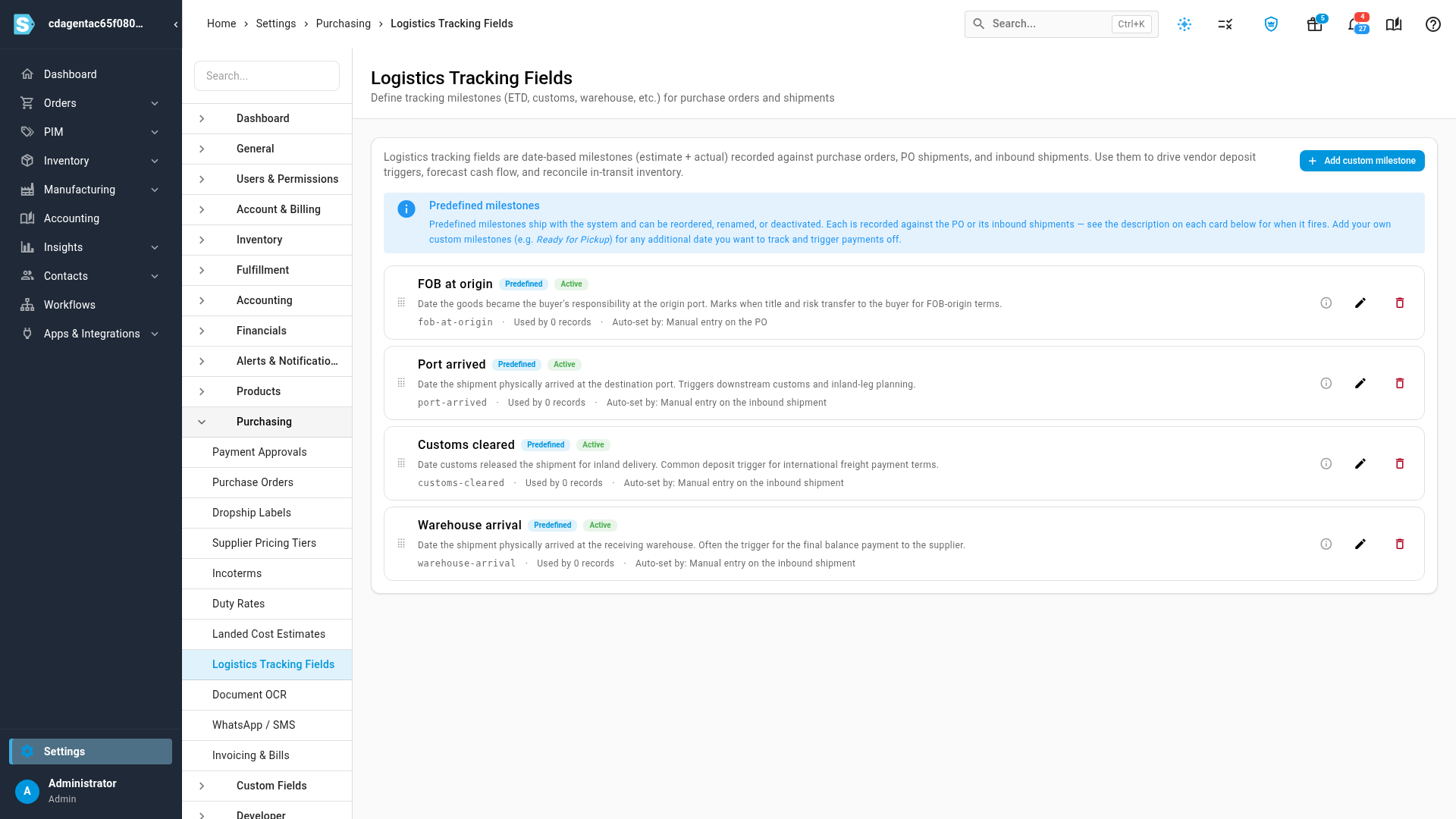
Click the Purchasing card to expand it, then click Logistics Tracking Fields.
-
To change the order milestones appear in, drag a card by the handle on its left.
-
To rename a milestone or change its description, click the pencil on its card. Change the Name or Description, then click Save.
-
To stop using a milestone, click its pencil, untick Active, and click Save.
-
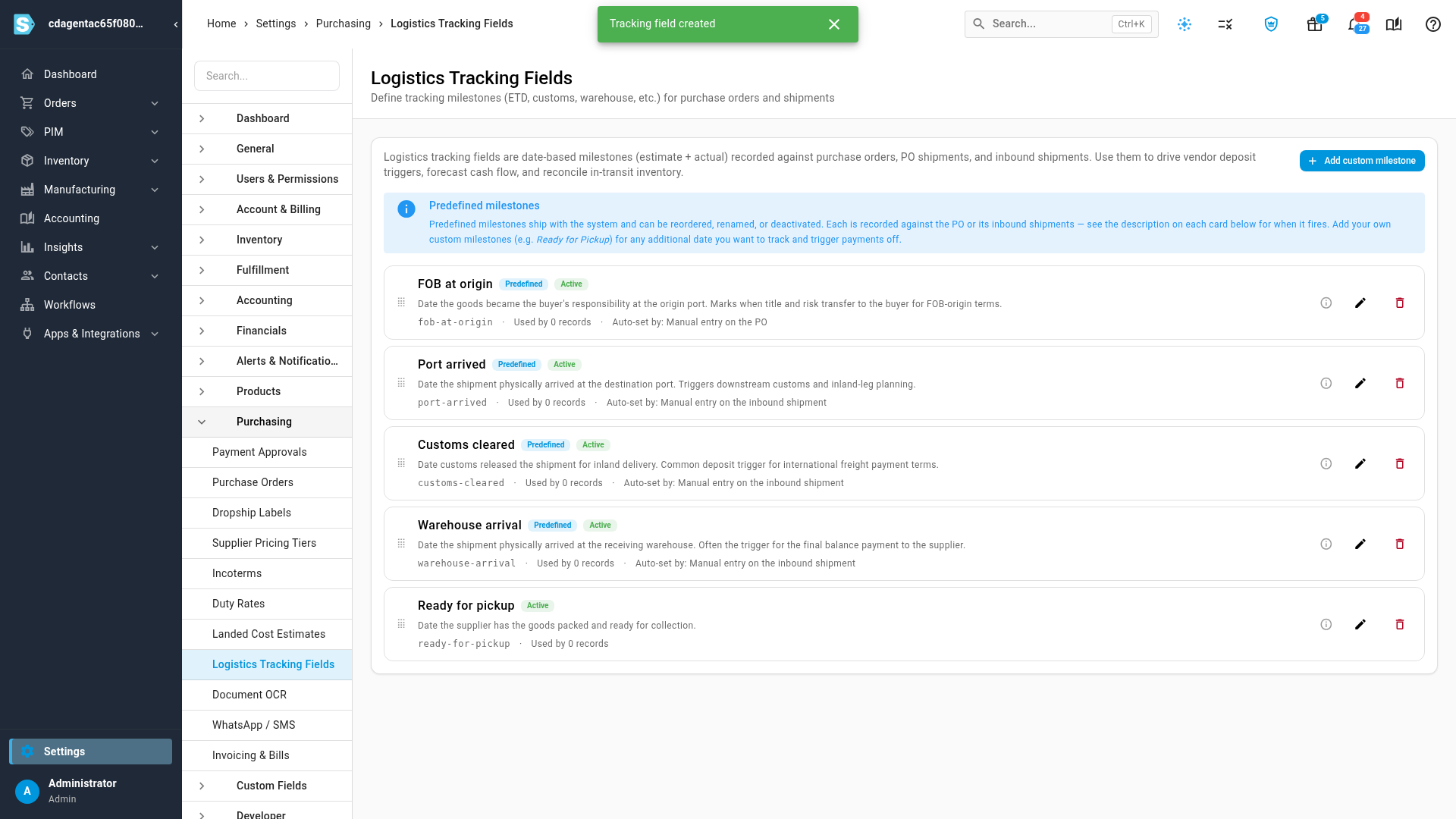
To add your own, click Add custom milestone. Enter a Name, such as Ready for pickup, and a Description that says when the date is recorded. Then click Add.
The predefined milestones
Every account starts with four milestones, marked Predefined:
| Milestone | The date it records |
|---|---|
| FOB at origin | When the goods became your responsibility at the origin port. |
| Port arrived | When the shipment arrived at the destination port. |
| Customs cleared | When customs released the shipment for inland delivery. |
| Warehouse arrival | When the shipment arrived at your receiving warehouse. |
You can rename, reorder or switch off a predefined milestone, the same as your own.
Editing and deleting
Each card shows how many records use the milestone. A milestone that's in use can't be deleted, so switch it off by unticking Active instead. Its saved dates are kept, but it no longer shows on shipment timelines. A milestone no record uses can be deleted with the bin icon on its card.
The Slug in the edit dialog is a short code for the milestone, made from its name if you leave it empty. It's what PDF templates use to print a milestone's dates.
Where the dates go
- Inbound shipments. The Logistics Timeline on an inbound shipment shows each active milestone between the shipment's departure (ETD) and its Available ETA. Click Edit beside it, or click a date, to enter estimates and actual dates. When a supplier has past shipments, an estimate can be suggested from them. Click the suggestion to use it.
- Purchase orders. A purchase order's Shipments tab shows each shipment's timeline, and you can enter the milestones when you create a shipment from the order.
- Supplier deposits. A payment term can pay a deposit On Logistics Milestone. When the actual date for that milestone is recorded, the deposit becomes due. Change or clear the date and the deposit's due date follows. A deposit still in Draft is removed when the date is cleared. See Set up a payment schedule.
- Cash flow. Estimates feed the expected payment dates in the cash flow schedule.
- Lists and exports. Each milestone adds estimate and actual columns to the purchase order list and its export.
Next steps
- Track inbound shipments: group purchase order lines into shipments and follow them to receipt.
- Set up a payment schedule: pay deposits when a milestone is reached.
Video transcript
Logistics milestones are the dated steps a shipment passes on its way to you. To get there, open Settings at the bottom of the left sidebar. Click the Purchasing card to expand it. Its list of purchasing settings opens below. Click Logistics Tracking Fields to open its settings page. Your account comes with a set of predefined milestones. They follow the goods from the origin port, through customs, to your warehouse. Each one records an estimated date and an actual date. Drag a card by its handle to change the order milestones appear in. To rename a milestone, click the pencil on its card. You can change the name and description here, or untick Active to stop using it. A milestone already in use can't be deleted, so switch it off instead. To track another date, click Add custom milestone. In the Name box, type a name like Ready for pickup for the new milestone. Then describe when this date gets recorded on a shipment. Click Add, and the new milestone joins the list below the others. Your milestones now appear on the logistics timeline of every inbound shipment. Planners enter an estimate first, and the actual date later. Recording an actual date can also release a supplier deposit.