Manufacture with a contract manufacturer
When a co-packer, filler, or contract manufacturer does the building for you, nothing about the accounting gets easier — you still own the components, you still owe a cost for every finished unit, and you still have to answer a recall. What changes is where the stock physically sits and who invoices you.
SKU.io models that with two pieces. A site warehouse holds the stock you own at the contractor's facility — it is your inventory, on your books, at your cost, in a building you don't own. And a purchase order, created with the manufacturing order and linked to it, carries what the contractor charges you. Put those together and an outsourced build behaves like an ordinary build with the middle step moved off-site.
The one idea worth reading twice: on an outsourced order, receiving the contractor's shipment is recording production. There is no separate Record Production step. Each receipt books the finished goods, consumes the components you own at the contractor's site, and costs the batch, in one action.
This guide runs the whole chain end to end. It activates a contractor, gets components to their site both ways — a purchase order shipped straight there, and a transfer of stock you already own — creates an outsourced order and its backing PO, receives the run in two partial shipments (overriding what the contractor actually consumed on the second), reads what each batch cost, traces a finished lot backward to its parents and a component lot forward into the finished goods, then reverses a receipt and cancels a build.
Before you begin
- You need the Manufacturing module, plus manufacturing and purchasing read-write access.
- The contractor has to already exist as a supplier. Activating them as a contractor doesn't change that — it flags an existing supplier as one you can put on a manufacturing order.
- You need an active bill of materials for the finished good. See Create a recipe (bill of materials).
- Lot tracking is optional but is what makes the genealogy half of this guide work. If your components and finished good aren't tracked yet, turn it on first — Set up lot and expiration tracking.
- If you only build in-house, you want Build with a manufacturing order instead. Everything below is about the outsourced path.
DOC-COLDBREW-1L — Cold Brew Concentrate 1L is built from the recipe Cold Brew Concentrate — 1L batch: 0.25 bags of DOC-COFFEE-1KG and 1 × DOC-BOTTLE-1L per litre. All three are lot tracked; the coffee is FEFO with a 180-day shelf life on the finished good. Harbor Fill Works is the contractor, and the run is 300 litres for a $600 service fee.
Activate a contractor
- Open Manufacturing → Contractors. Every contractor you've already activated is listed here with its Site Warehouse, its default Cost Basis, and how many manufacturing orders it is running.
- Click Activate New Contractor and pick the supplier.
- Leave Warehouse name blank and SKU.io names the site warehouse from the supplier —
Harbor Fill Works (Contractor). Fill it in only if you want something else. - Click Activate Contractor.
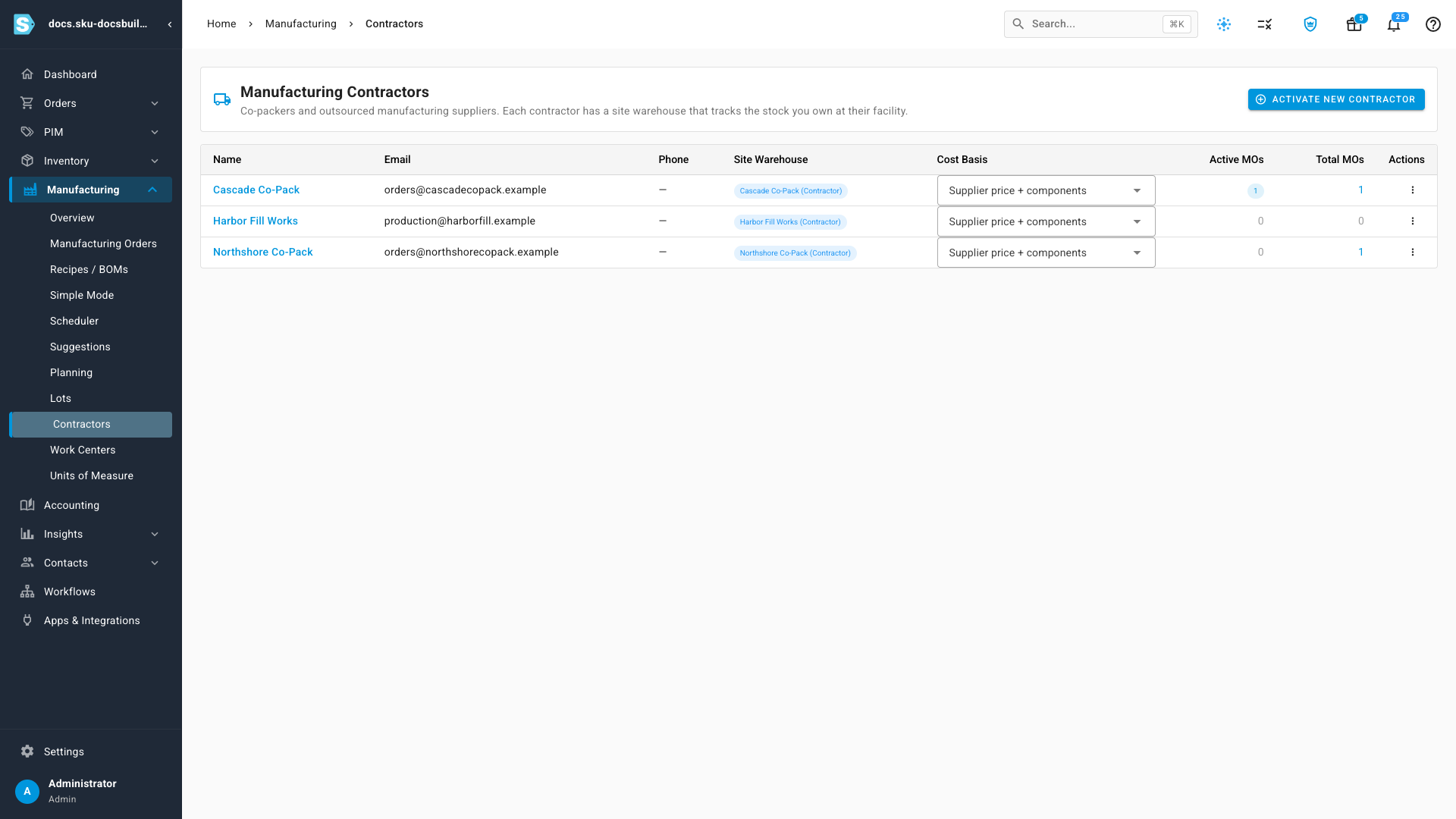
The contractor now has a site warehouse of its own. Stock you send there stays yours — on your books, at your cost, in a warehouse that happens to be theirs.
Get components to the contractor
Nothing gets built until the contractor is holding your components. There are two routes, and which one you use depends on where the stock is right now.
Buy them straight to the contractor's site
This is the common one. The components have not been bought yet, so you buy them and have your supplier deliver them directly to the contractor. Nothing ever touches your own warehouse.
- Open Orders → Purchase Orders → Add Purchase Order.
- Pick the Supplier you buy the component from.
- Set Destination to the contractor's site warehouse. Every contractor site you've activated is in that list, alongside your own warehouses.
- Click Create Draft.
- Add the component. The unit cost comes across from the supplier —
$14.20a bag in the example. - Set the quantity — 80 bags, enough for a 300 litre run with margin.
- Click Approve.
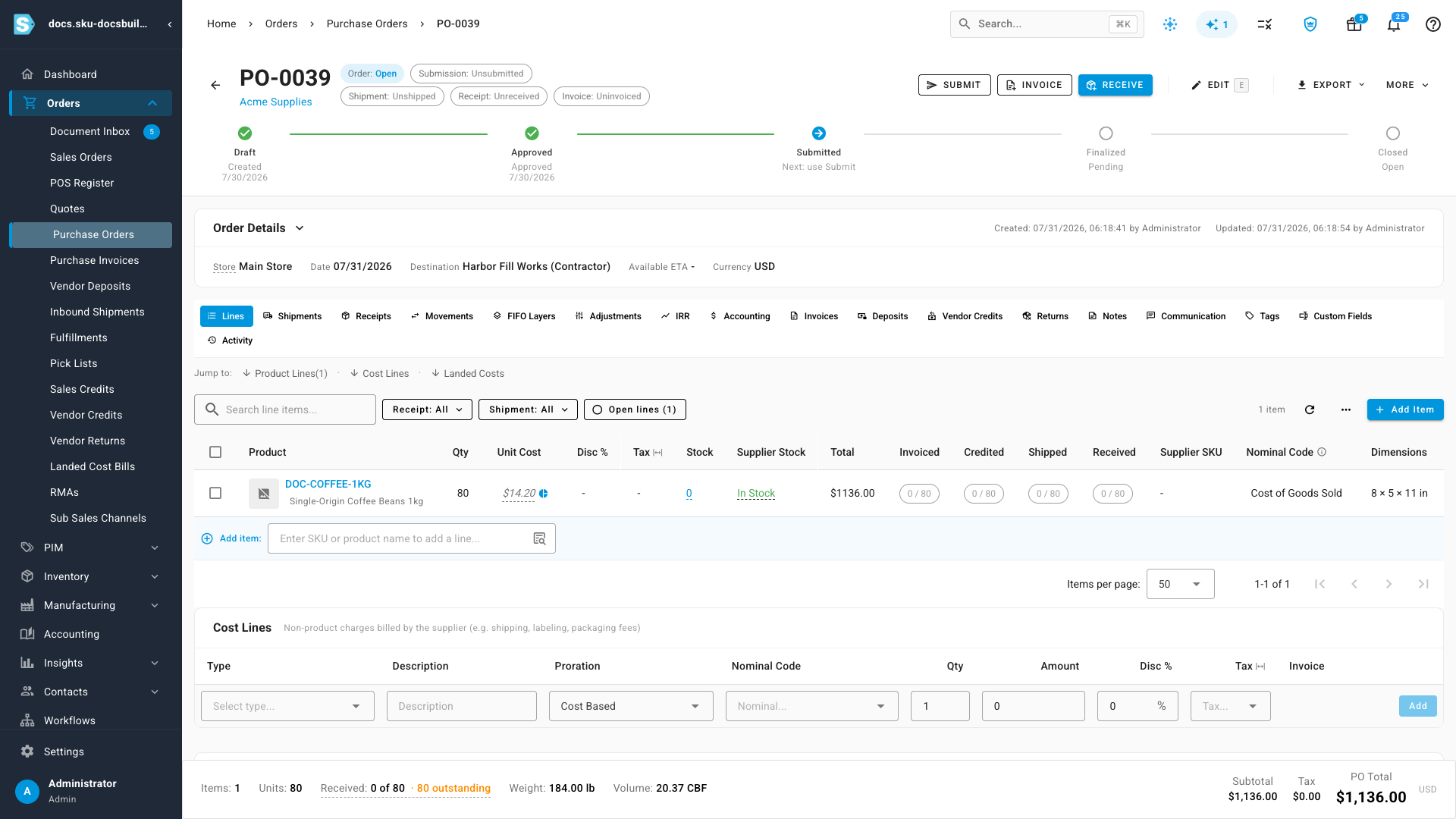
Nothing about this order is special. It is an ordinary purchase order that happens to deliver somewhere you don't own.
Receive it as two lots
When the shipment lands, receive it as you would any other PO — Receive, with the destination warehouse already set to the contractor's site because that is where the order was going.
This is where lot tracking starts, and it is worth doing properly: a supplier will often ship more than one production lot on a single line.
- Under Lot / Expiry Details, type the first supplier batch number and its manufacture date, then its quantity.
- Click Add Another Lot and enter the second.
- Expiry fills itself in from the shelf life on the product, so nobody types a date twice — a December manufacture date on a 365-day component gives a December expiry a year out.
- Check the allocation reads Allocated 80 of 80, then click Receive Items and confirm.
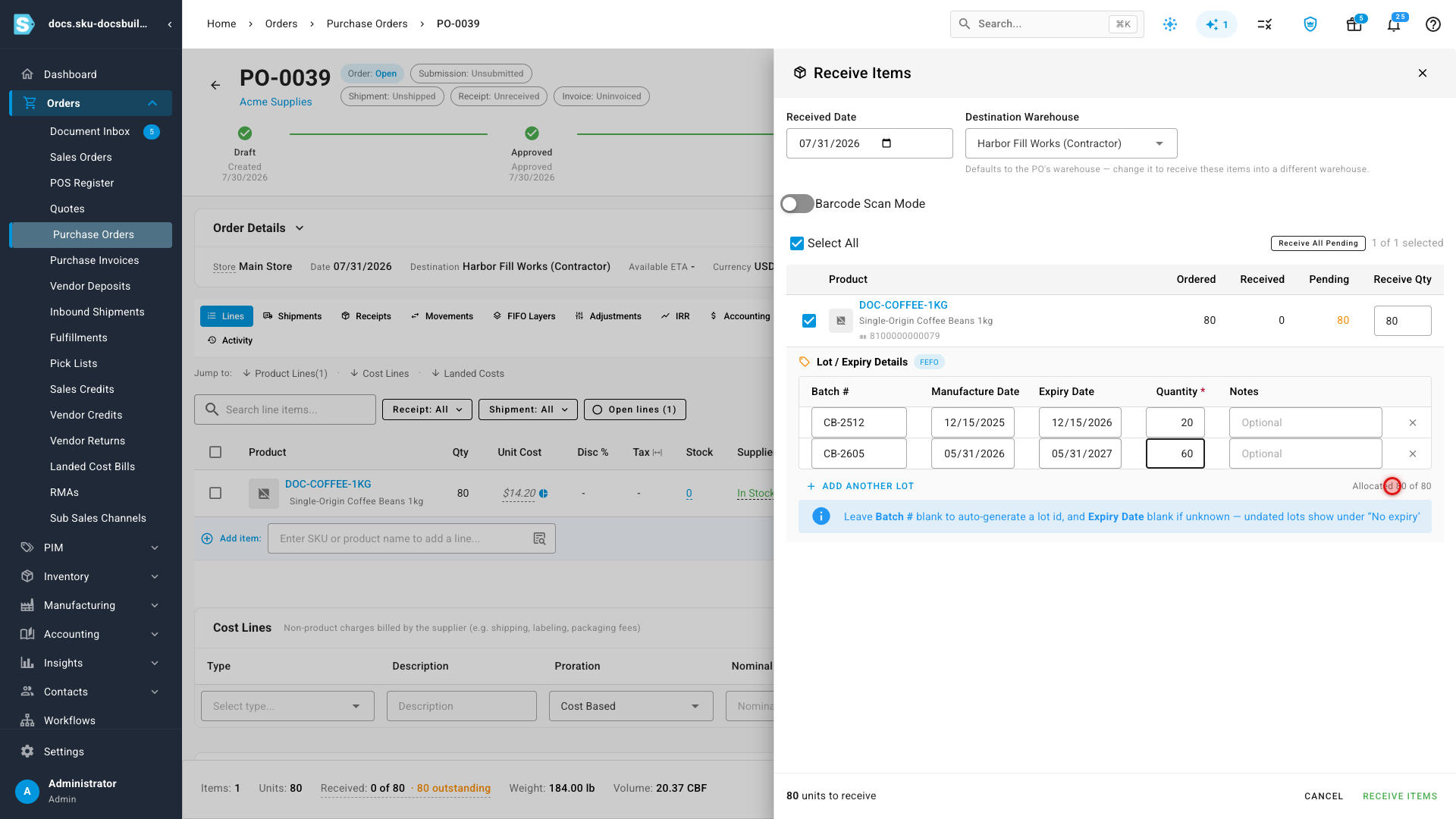
Eighty bags of coffee are now sitting at the contractor's site — on your books, at your cost, in a building you don't own.
Or move stock you already own
Sometimes the components are already yours, sitting in your own warehouse. Those move on a warehouse transfer instead. A transfer is not a sale — there is no supplier on it and no price to agree, because nothing is being bought. The unit cost and goods value it shows are what the stock is already carried at on your books, not something you pay a second time.
- Open Inventory → Warehouse Transfers → Create.
- Set Origin to the warehouse the stock sits in today and Destination to the contractor's site.
- Add the component and the quantity — 320 bottles in the example.
- Click Create Transfer, open it, and confirm.
- Click Ship. If the stock is lot tracked, SKU.io has already picked the layers — FIFO for the glass, which has no expiry to sort by. Edit Allocation is there if you need to overrule it.
- Click Create Shipment, then Receive at the other end and confirm.
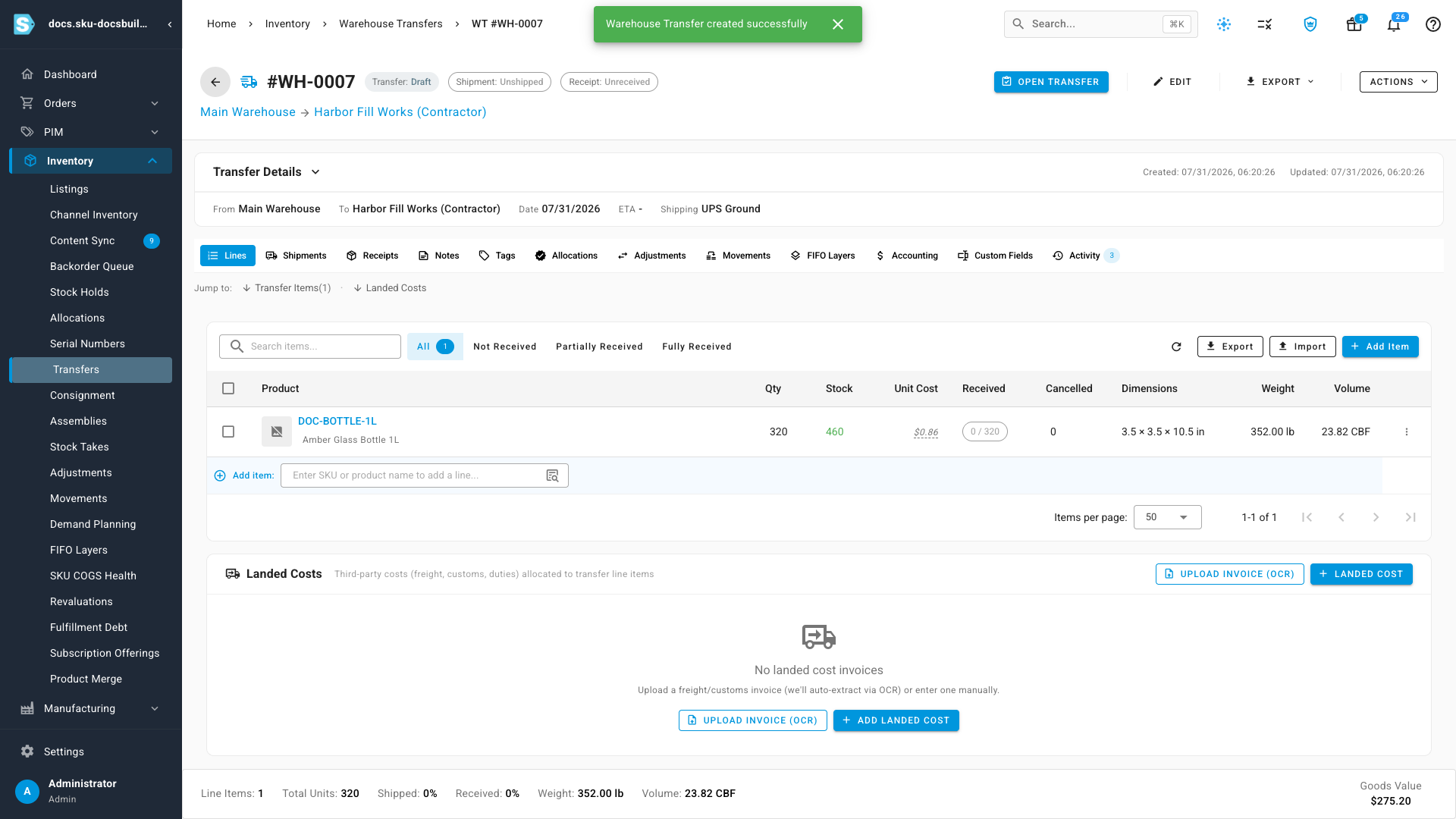
Receiving is what actually puts the stock on the contractor's site. Until it lands there, the manufacturing order has nothing to consume.
Both routes end in the same place: components you own, sitting in somebody else's building.
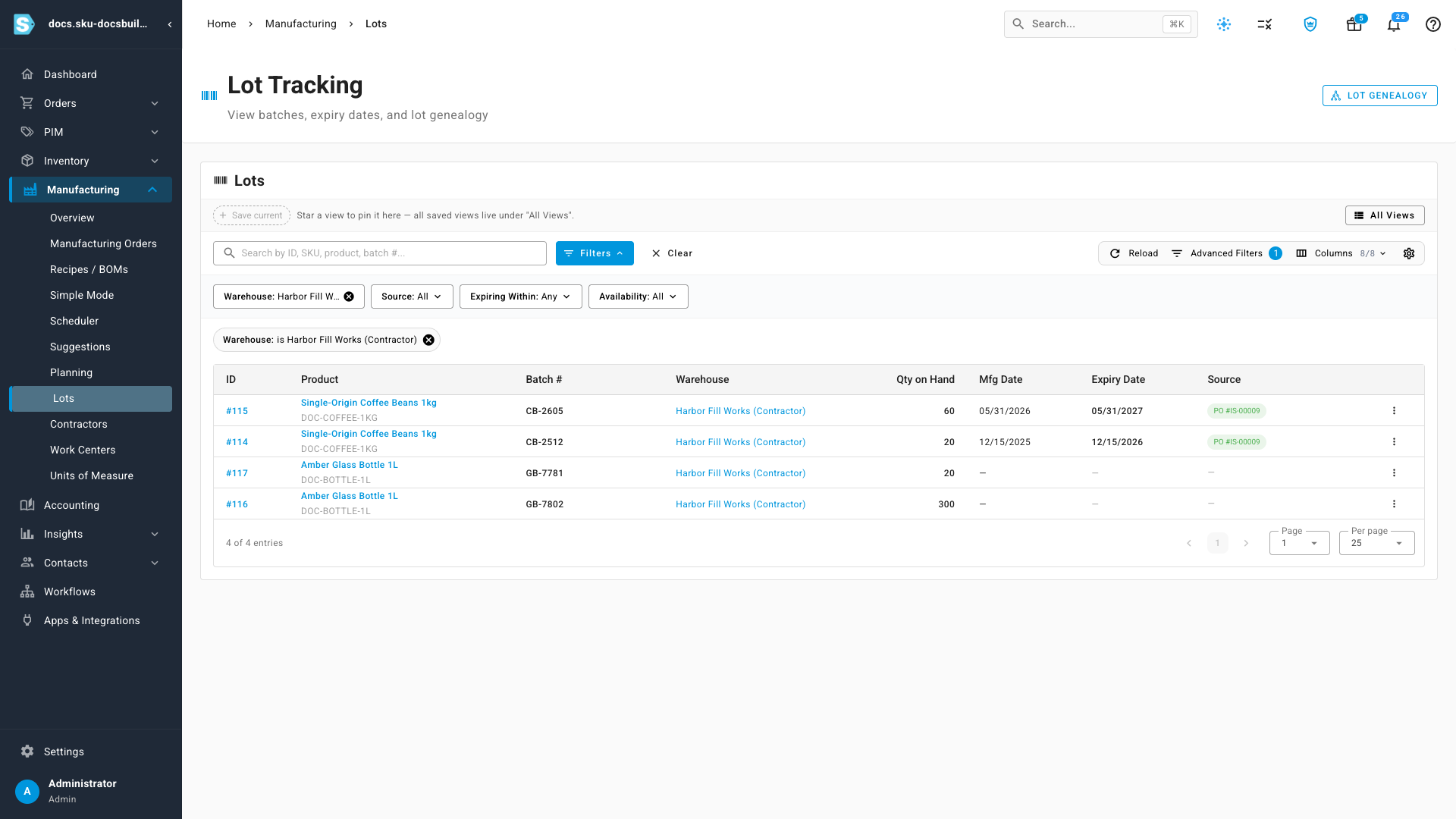
To check what arrived, open Manufacturing → Lots and filter Warehouse to the contractor's site. Two batches were delivered straight there by the supplier and two came over on the transfer; the list doesn't care which. The batch numbers, expiry dates and quantities are intact either way — a transfer moves stock, it doesn't rename it.
Create the outsourced order
-
Open Manufacturing → Manufacturing Orders → New Manufacturing Order and pick the finished good. If you've built this product before, SKU.io prefills the whole dialog from your last order and says so — everything stays editable.
-
Set the Quantity.
-
Set Method to Outsourced and pick the Contractor.
-
Choose an Output Cost Basis. This decides what the finished goods are worth:
Cost basis What it means Value from your components Toll manufacturing. You own every input; the contractor supplies only labour. The finished good is worth the components consumed, plus whatever service fee you enter. Supplier price + your components Hybrid. The contractor adds materials of their own and bills you for them, so the finished good is worth their per-unit price on the PO plus your components. -
Enter the Contractor service fee for the order —
$600in the example. -
Note that there is no Source Warehouse field. An outsourced order doesn't offer one: it prints "Components consumed from: Harbor Fill Works's site (set automatically)" instead, because that is the only place you own the stock.
-
Set the Destination Warehouse — where the finished goods come home to.
-
Click Create Draft.
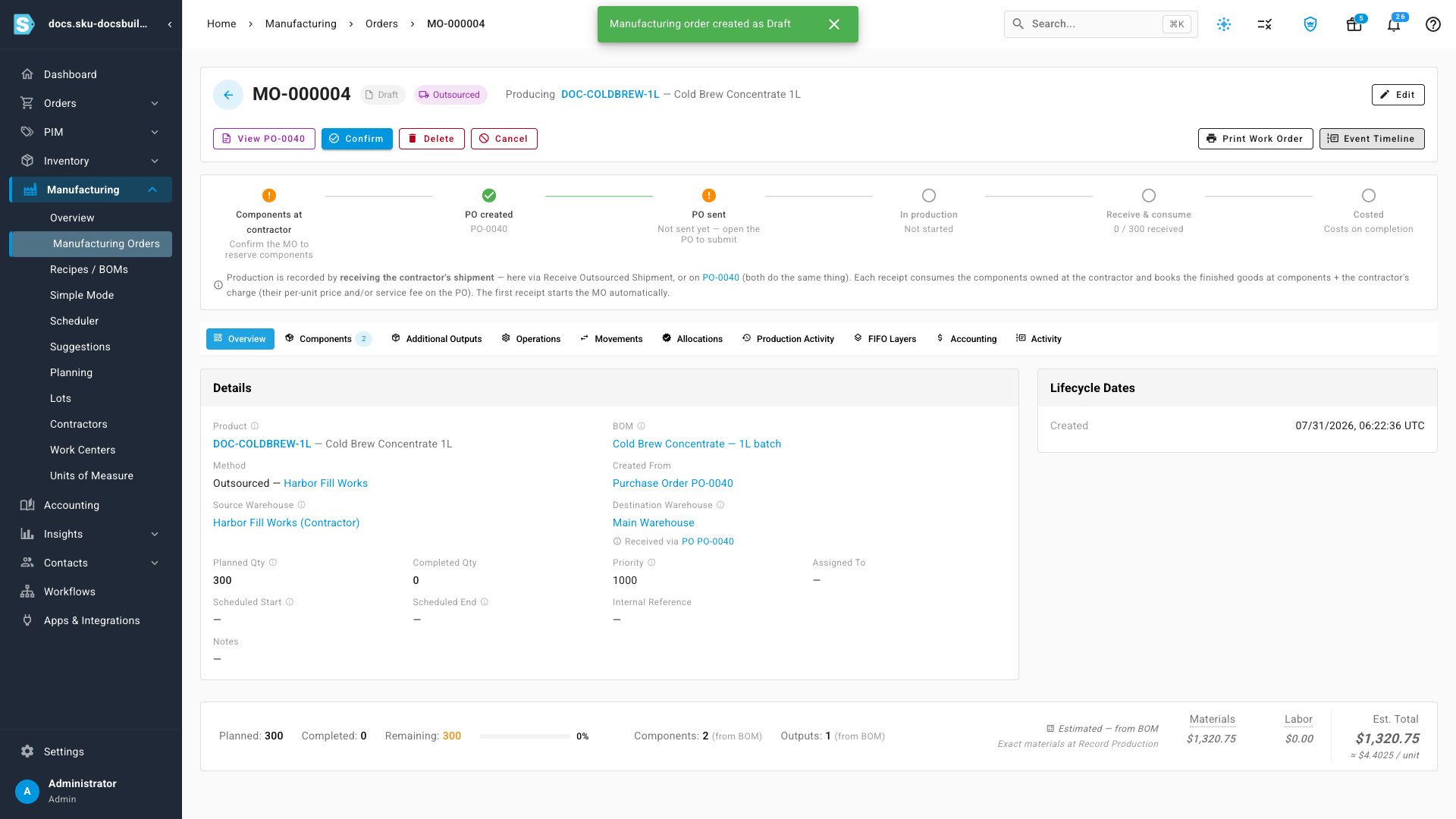
The manufacturing order and the purchase order behind it are created together. The PO is what carries the contractor's charge; the MO is what carries the build.
Read the lifecycle strip
An outsourced order shows its whole lifecycle as one strip across the top, in words rather than a status code:
Components at contractor → PO created → PO sent → In production → Receive & consume → Costed
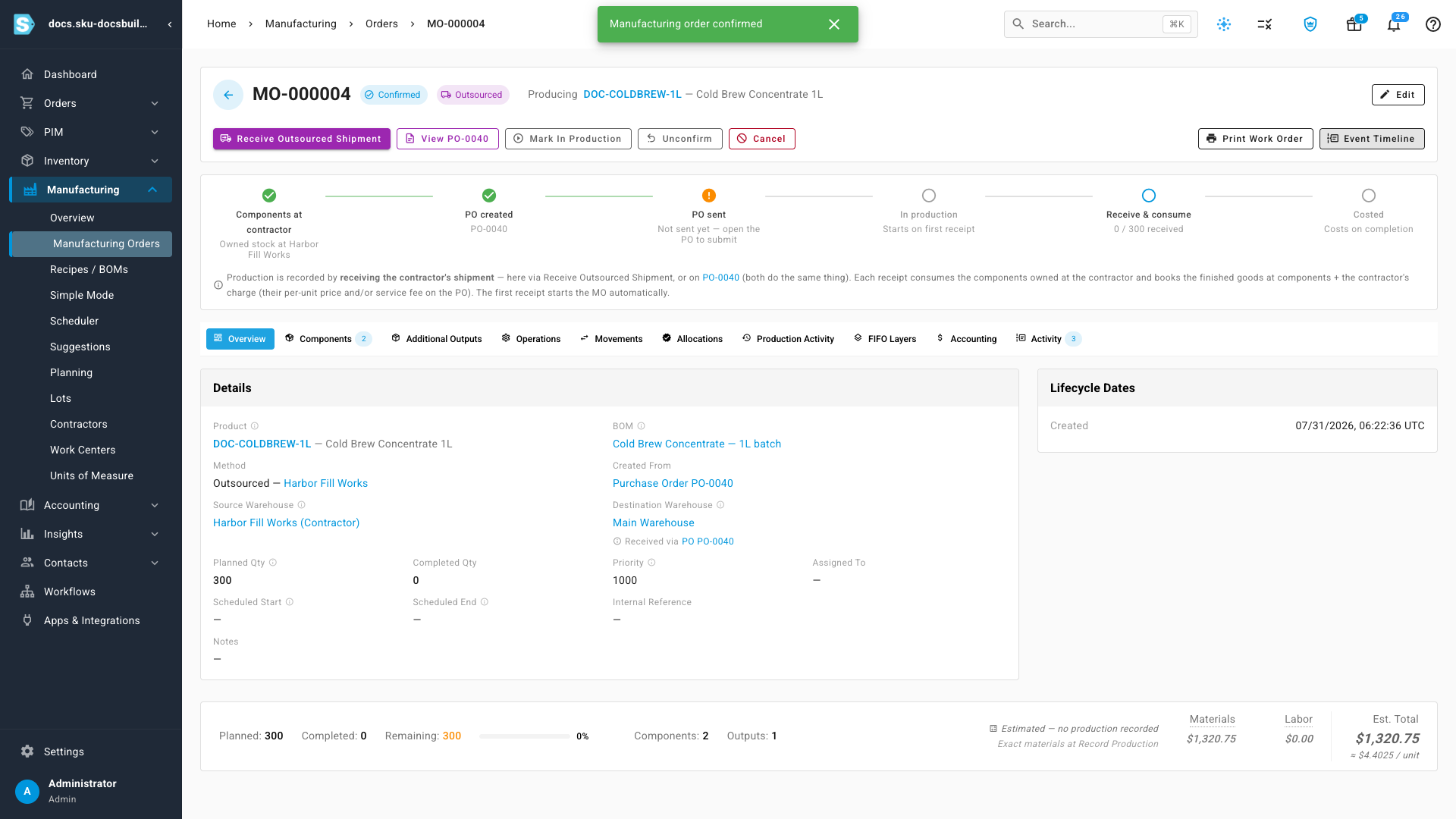
Read the line underneath it, because it's the whole model in one sentence: production is recorded by receiving the contractor's shipment — either via Receive Outsourced Shipment on the order or by receiving the linked PO. Both do the same thing. The first receipt starts the order automatically.
Click Confirm to reserve your components at the contractor's site. The first step turns green and names where the stock is sitting, and Receive Outsourced Shipment appears on the toolbar.
Receive the first shipment
The contractor calls with a partial run ready. On the order, click Receive Outsourced Shipment.
-
Set Receive Qty to what actually arrived —
180of the 300. -
Watch three things move at once:
- Planned consumption scales with it. Will consume drops to 45 bags and 180 bottles, and Remaining shows what's left at the contractor.
- The service fee prorates. The field is the fee for the whole order, and the caption tells you exactly what this shipment takes: "This receipt takes $360 of it."
- A batch number is issued. Leave Batch Number on Auto-generate and SKU.io names the finished lot for you.
-
Click Receive Items. The confirmation restates what gets received, what gets consumed, and where. Confirm.
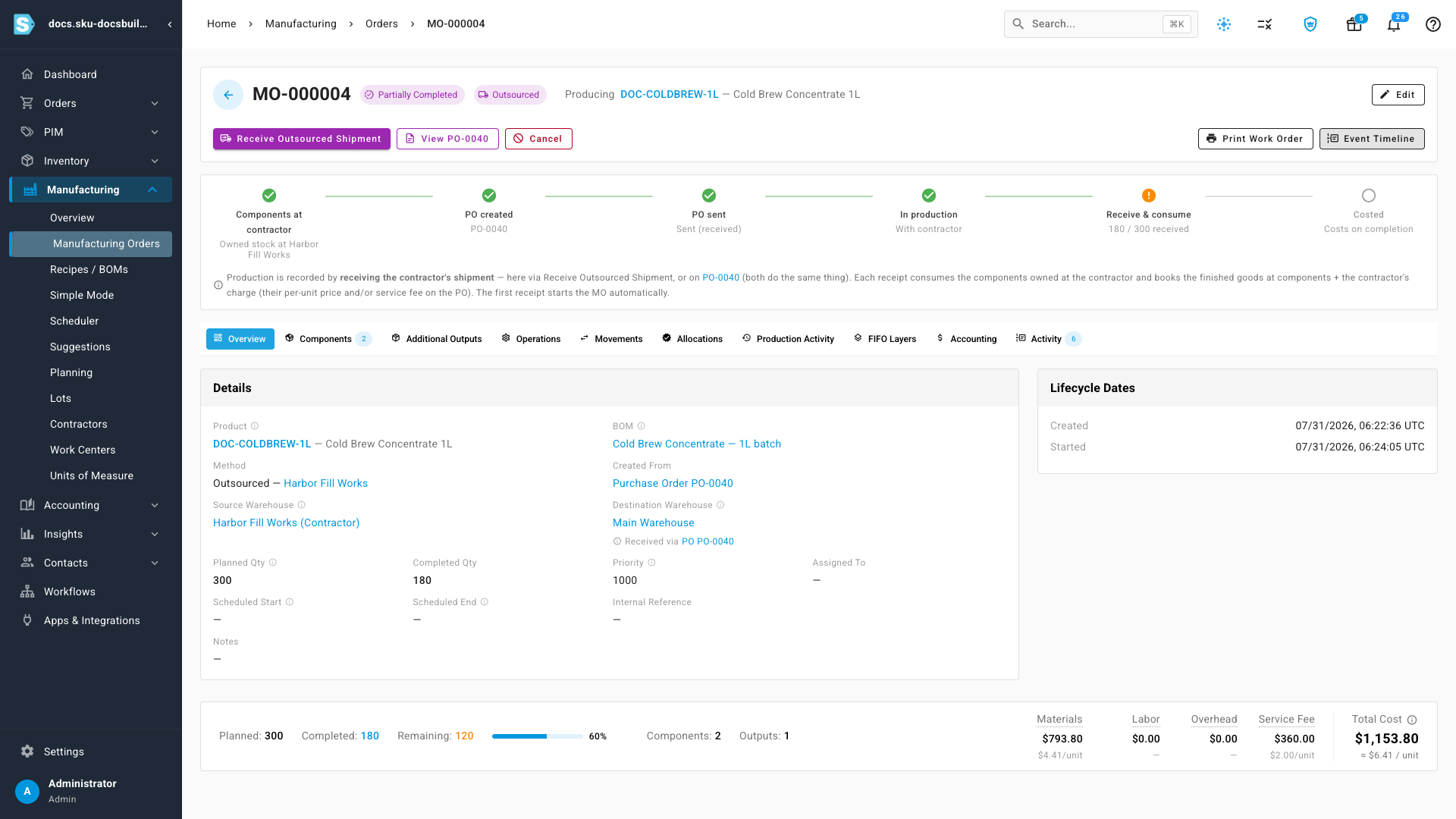
That one click received finished goods, consumed components at somebody else's warehouse, and costed the batch. The order reads 180 / 300, Partially Completed.
Read what the batch cost
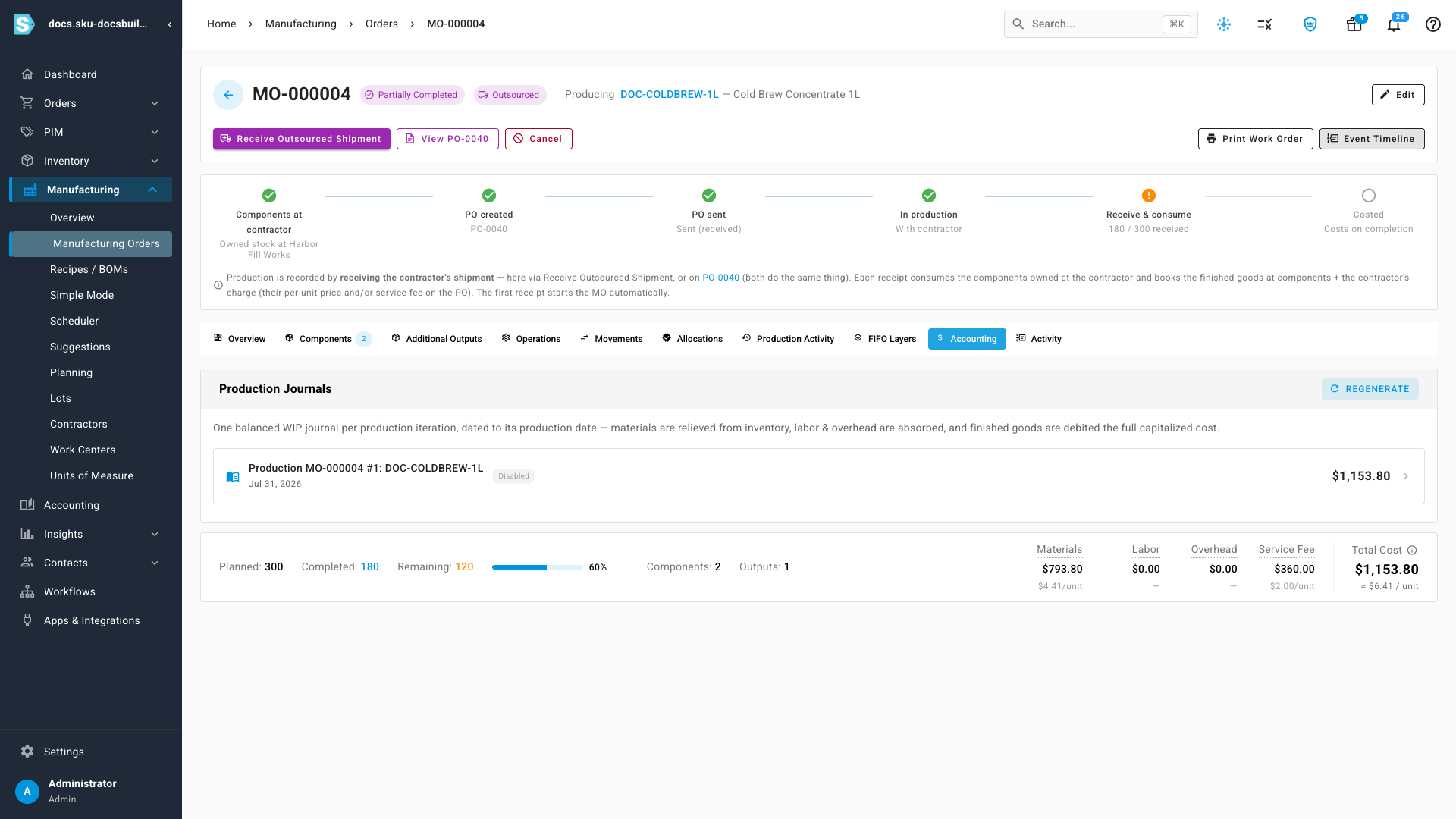
Open the FIFO Layers tab. The receipt booked one layer — 180 litres at $6.41 each, $1,153.80 total, sourced from Receipt #12.
That number is built from what actually happened, not a standard cost:
- Materials $793.80 — the real FIFO cost of the lots consumed at the contractor.
- Service fee $360.00 — this receipt's prorated share of the $600.
- Total $1,153.80.
The cost card along the foot of the order carries that same breakdown per unit, and the Accounting tab carries the journal: one balanced entry per receipt, dated to that receipt, rather than one entry smeared across the whole order.
Expiry is inherited from the shortest-lived component
Open Manufacturing → Lots and find the batch you just made. Its expiry date is 12/15/2026 — not the 180 days of shelf life on the recipe, which would land in January.
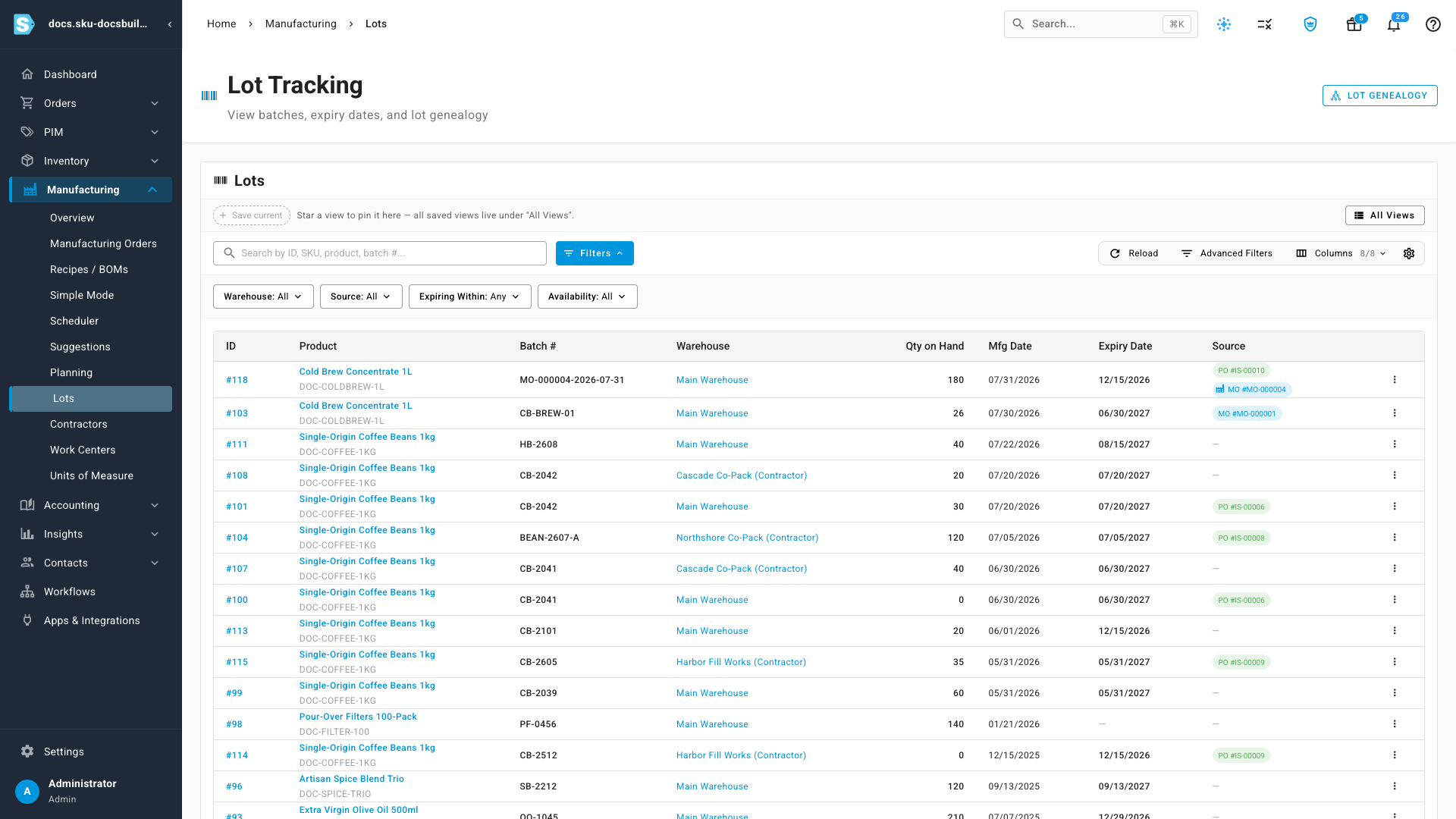
December 15th is the expiry of CB-2512, the short-dated coffee that went into the batch. A finished lot inherits the earliest expiry among its components: a batch is only as good as the shortest-lived thing inside it.
Override consumption when the contractor uses more
The rest of the run arrives, and the contractor used more coffee than the recipe expected — 32 bags on the last 120 litres, not 30.
- Click Receive Outsourced Shipment again and set Receive Qty to the remaining
120. - Type the real figure straight over the planned one in Will consume. Remaining updates as you type.
- The confirmation reads the overridden number too, so there is no surprise at the point of commit. Confirm.
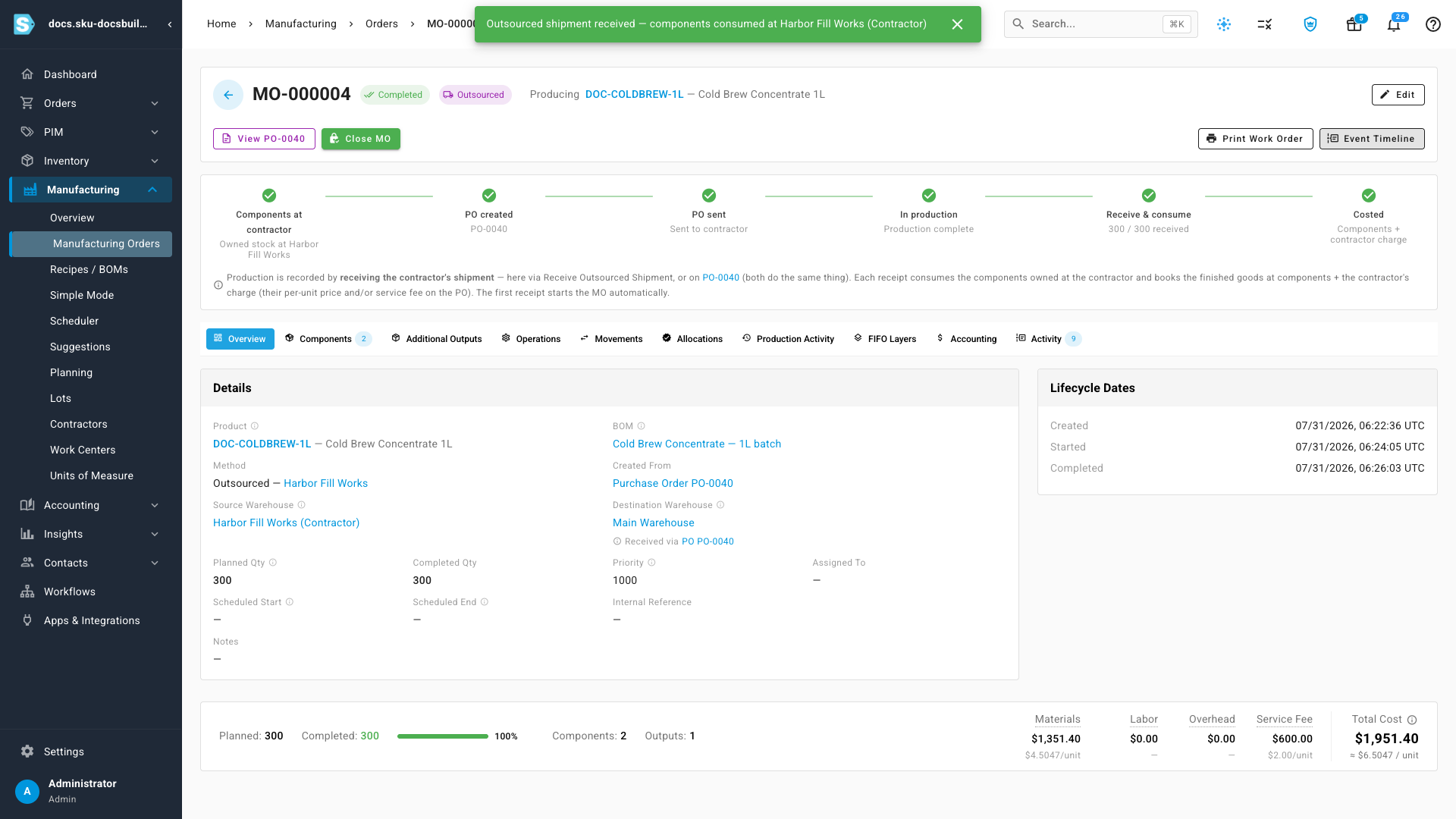
Your books now follow what actually happened at their facility, not what the recipe hoped for. That is the point of recording consumption at receipt time.
The order completes at 300 / 300 — and the two receipts left two finished lots at two different costs:
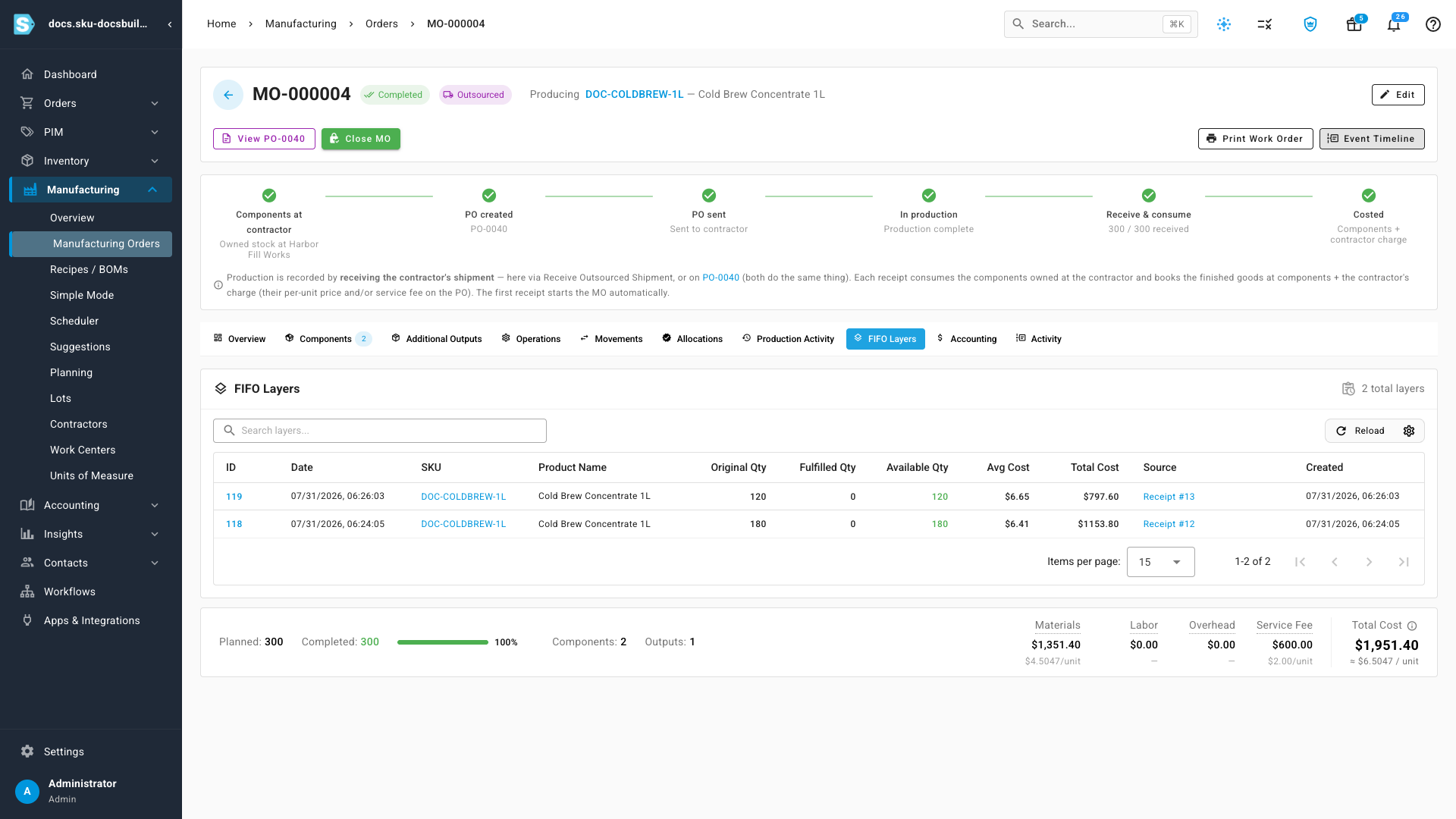
| Layer | Qty | Unit cost | Total | Source |
|---|---|---|---|---|
| 118 | 180 | $6.41 | $1,153.80 | Receipt #12 |
| 119 | 120 | $6.65 | $797.60 | Receipt #13 |
The second batch drew from different coffee and the contractor used more of it. Both numbers are real; neither is an average, and receiving the second shipment does not revalue the first.
Order totals: materials $1,351.40, service fee $600.00, total $1,951.40 — about $6.5047 a unit.
Trace a lot for recall
Open Manufacturing → Lots → Lot Genealogy. You can trace by Batch Number or by Sales Order(s), in either direction.
Backward — what went into this batch
Choose Backward (trace to sources), pick the finished batch, and click Trace. This answers the question an auditor asks first: what went into this?
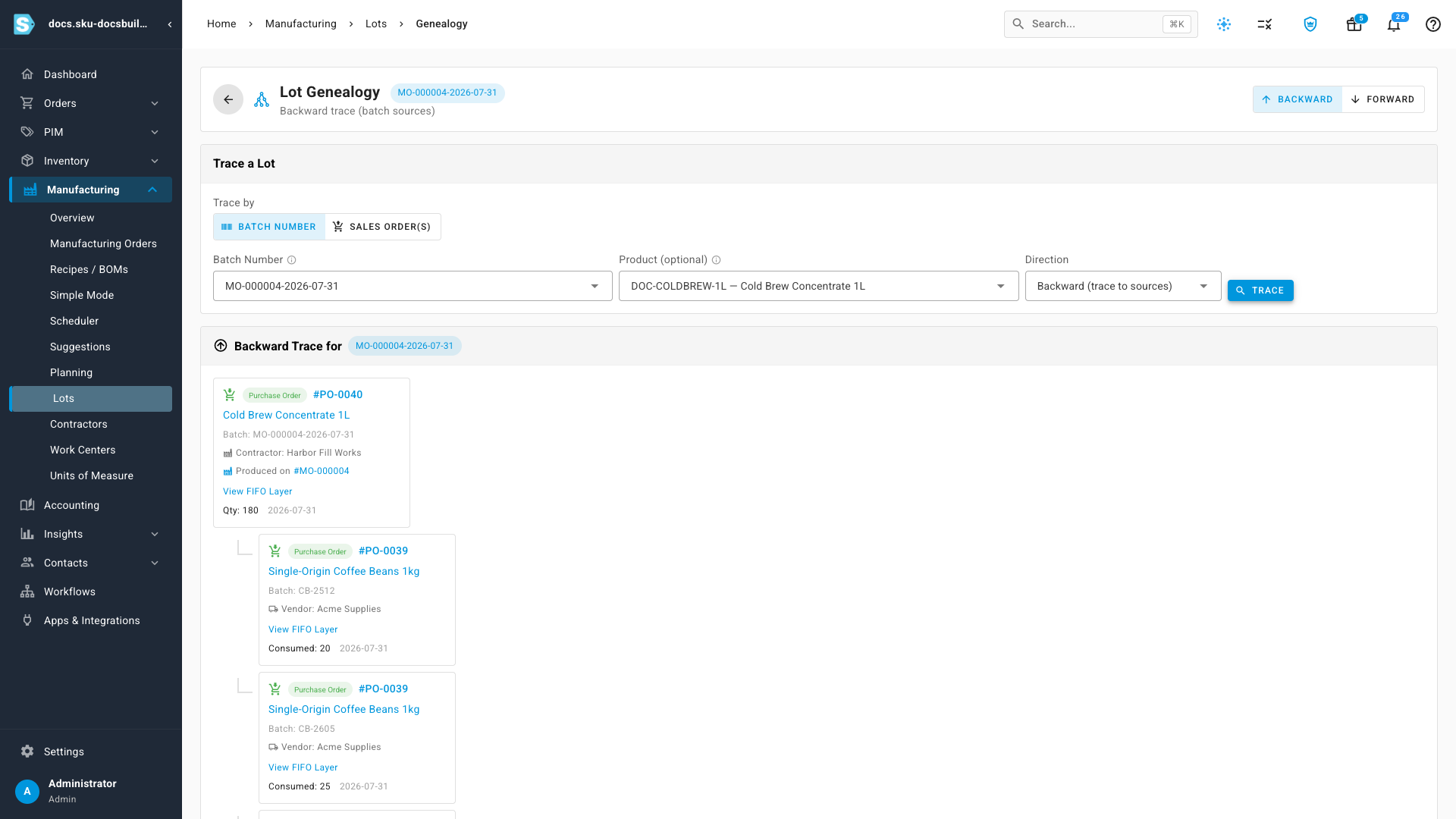
Three parents: 20 bags of the December coffee, 25 of the May coffee, 180 bottles. Those are the only lots this batch touched.
Run the same trace on the second batch off the same order and the answer is completely different — 32 bags of coffee and 120 bottles. Genealogy is scoped to the production iteration, not the manufacturing order. Scoping a recall to the order would pull back every lot the order ever touched; scoping it to the batch pulls back only what's actually implicated.
Forward — where did this component end up
Switch to Forward (trace to consumers), pick a component lot, and trace. This is the direction you get asked about when a supplier calls: your batch CB-2512 has a problem — where did it go?
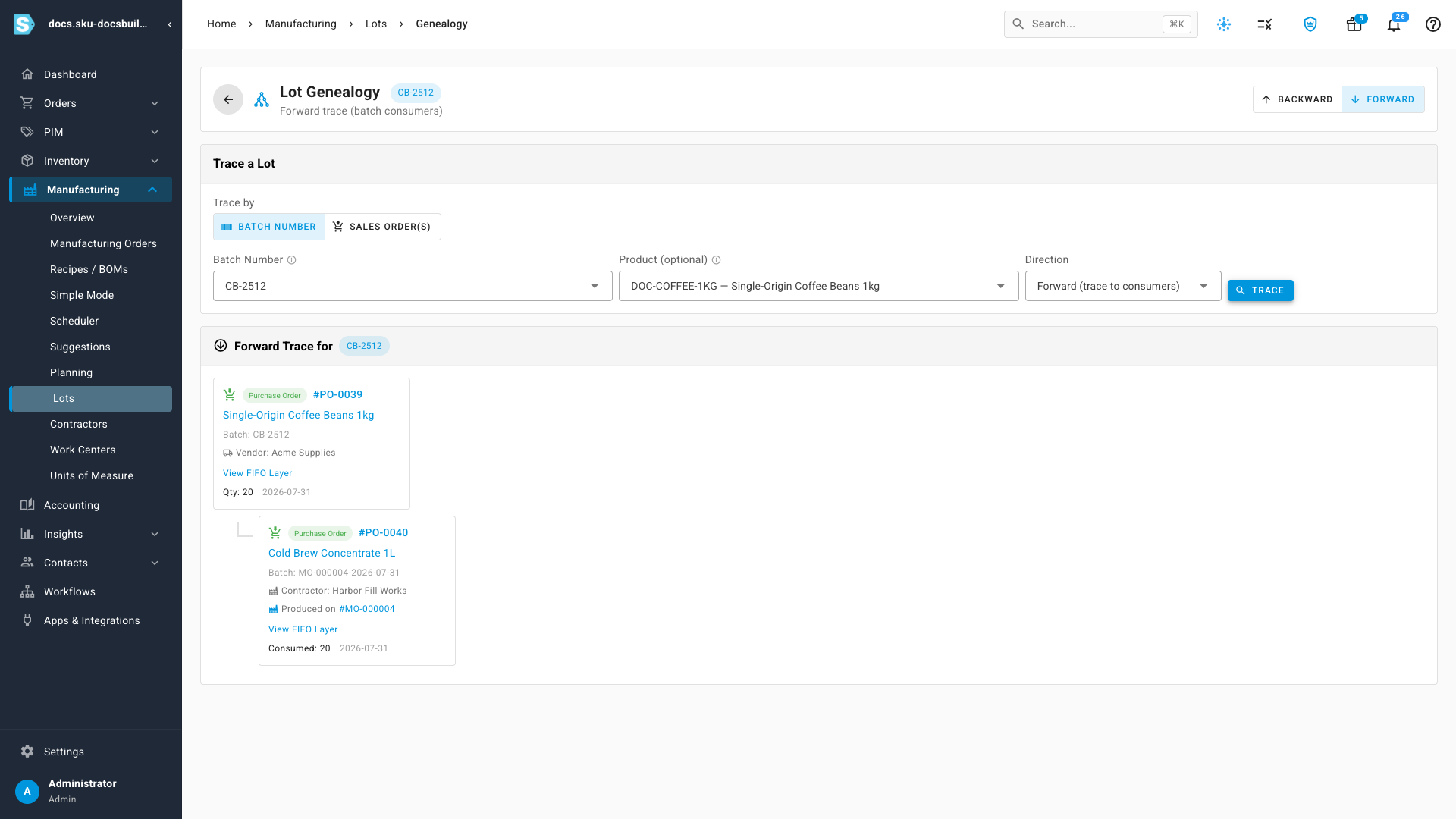
That batch never entered a warehouse of yours — it was delivered straight to the contractor and consumed there — and the trail still holds: CB-2512 on PO-0039 → Harbor Fill Works → MO-000004 → finished cold brew lot. Traceability follows the stock, not your buildings.
A component that did come over on a transfer traces the same way, with the transfer as one more hop in the chain.
Undo a receipt
A receipt can be reversed without losing the history.
- Open the order's Production Activity tab. Every receipt is an iteration.
- Click Reverse on the one you want to undo. The dialog is specific about what it will do: restore the consumed input layers, delete the produced FIFO layer, and roll the completed quantity back.
- Give it a reason and confirm. This takes a moment — it's unwinding real inventory movements, not flipping a flag.
Afterwards:
- The iteration is marked Reversed, not deleted — the history survives.
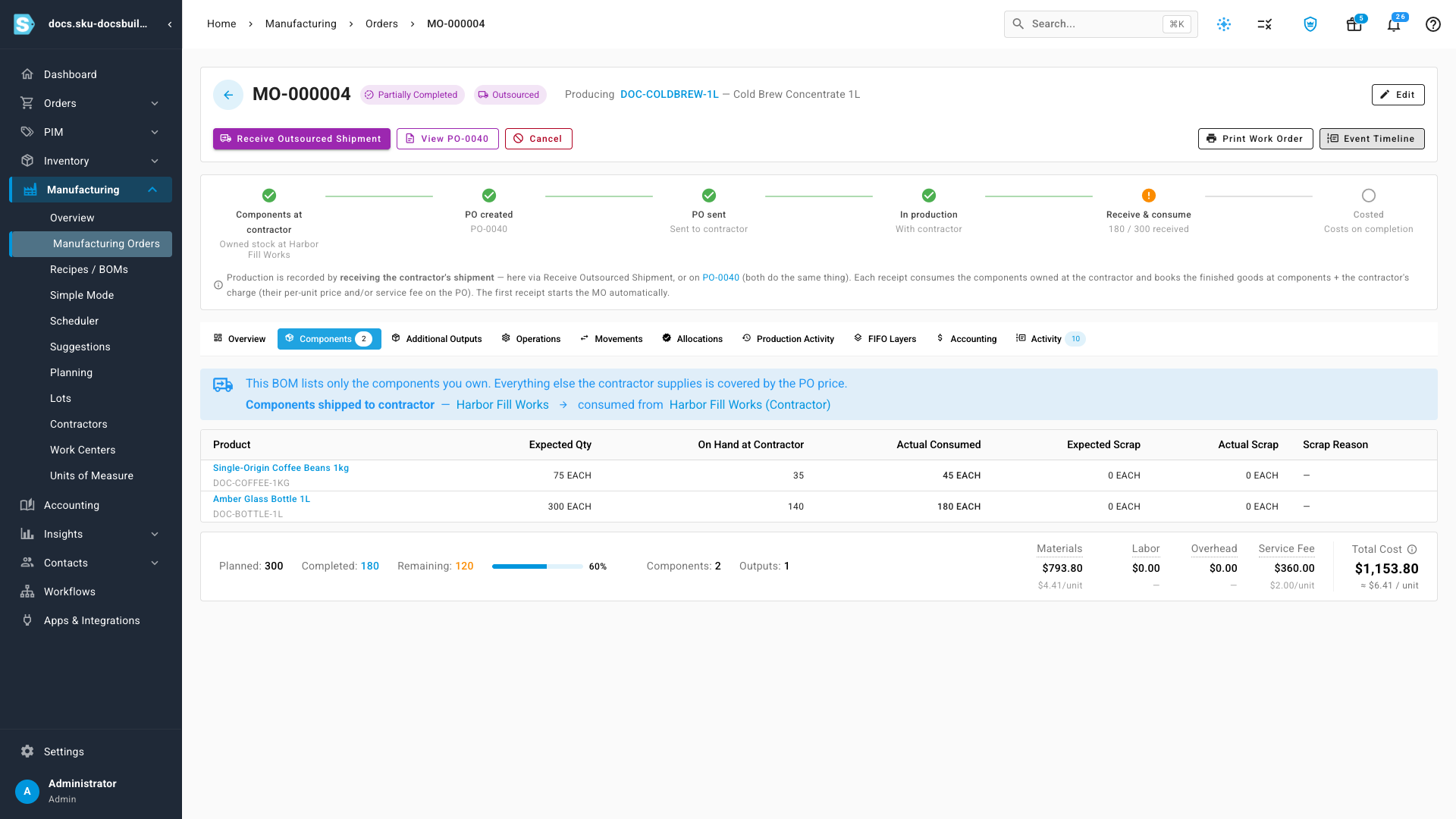
- The order drops back to 180 / 300, Partially Completed.
- The components are back on hand at the contractor's site (check the Components tab).
- The finished lot is gone, and the backing PO drops back to partially received.
Call off a build
Cancelling an outsourced order unwinds both halves of the model.
- Open the order and click Cancel.
- Pick a reason code and write a note. This is the record your contractor will ask you about later, so write it like somebody will read it.
- Click Confirm Cancel.
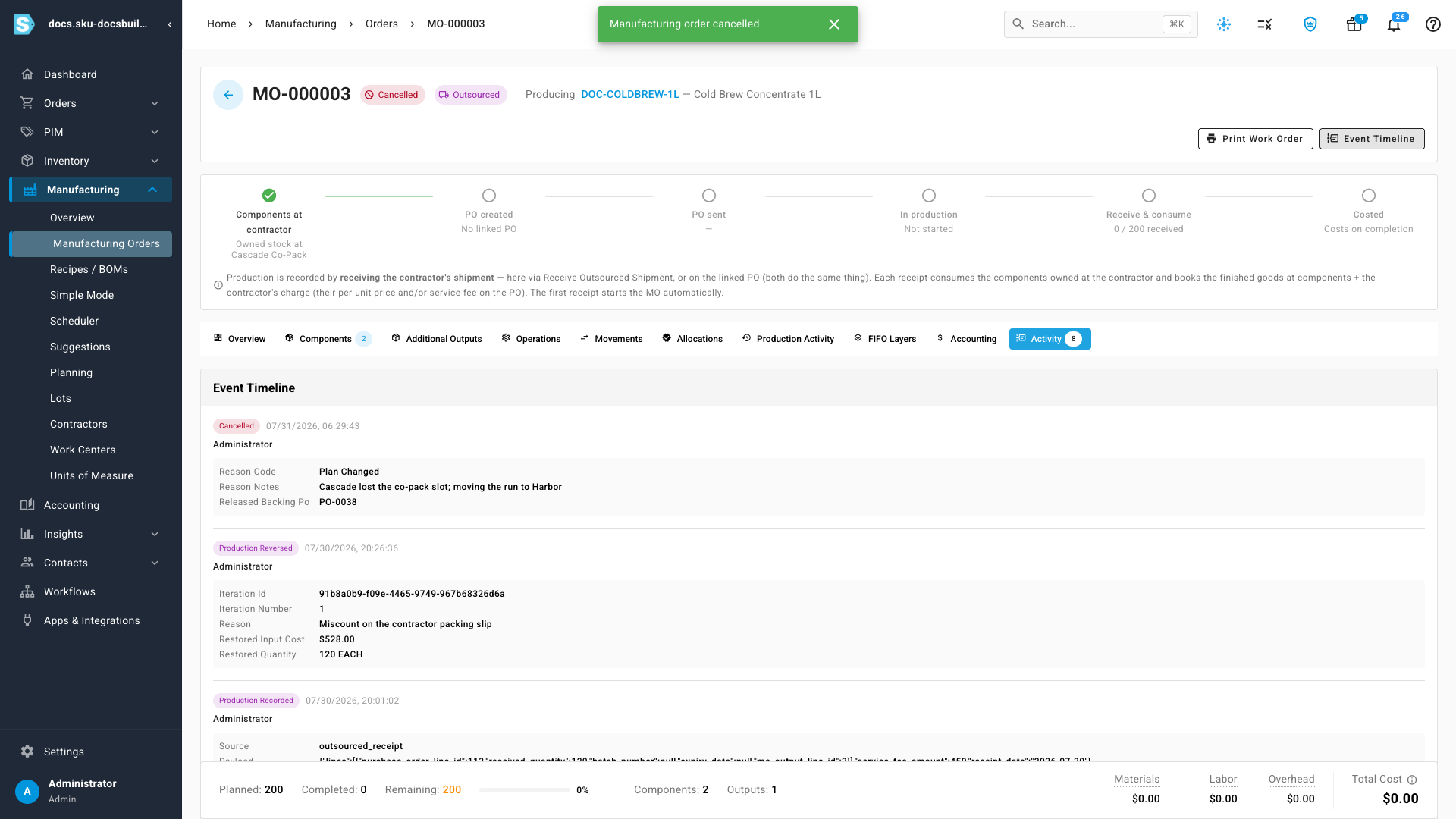
Two things happen:
- The reserved components are released back to the site warehouse they came from.
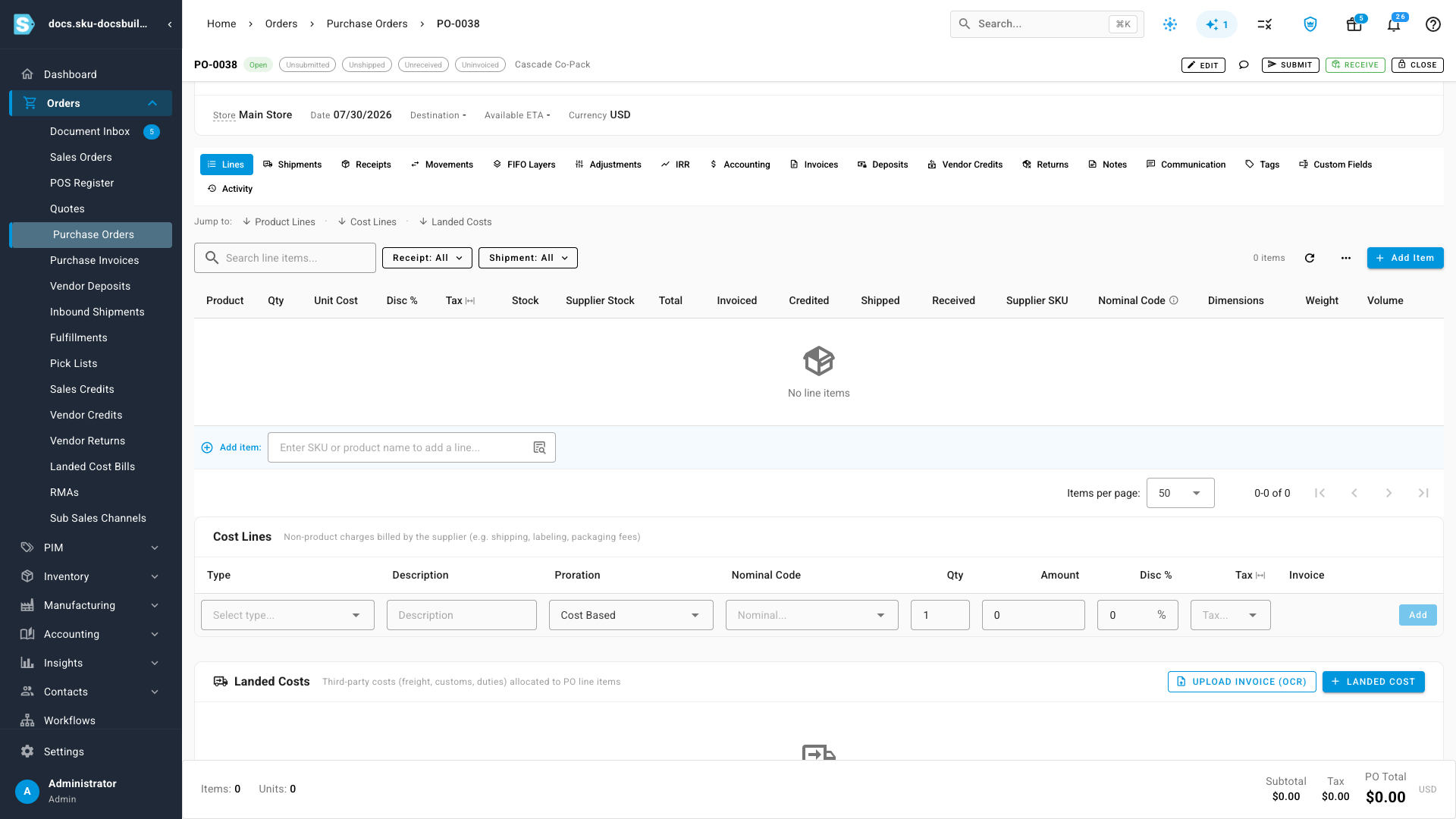
- The backing purchase order is released. The lifecycle strip now reads No linked PO, and the Activity tab logs Released Backing PO: PO-0038.
Open that purchase order and it has no lines and a $0.00 total. It still exists, so you can close it out with the contractor properly — but there is no longer a build behind it to receive against.
Next steps
- Build with a manufacturing order — the in-house path, where you record production yourself.
- Manufacturing order status reference — every status and what each action does to inventory.
- Create a recipe (bill of materials) — the BOM an outsourced order builds from.
- Set up lot and expiration tracking — turning on the tracking that makes genealogy work.
- Create a transfer — the transfer mechanics used to stock the contractor's site.
- FIFO layers and COGS — how each receipt's cost lands in inventory.
Video transcript
What contract manufacturing means here — Contract manufacturing in SKU works like this. You still create a manufacturing order, but the build happens at somebody else's facility. On the manufacturing orders list the Method column tells you which is which. One order is In-House, at Main Warehouse. The other two are Outsourced, and their warehouse is not yours at all. It is the contractor's site. There is a Contractor filter next to Method, so you can pull up everything one co-packer is running for you. Two things make this work: a site warehouse that holds the stock you own at their facility, and a purchase order that carries what they charge you.
Activate a contractor — A contractor is just a supplier you have flagged. Open Manufacturing, Contractors. Cascade and Northshore are already activated, and each one has a site warehouse of its own. Click Activate New Contractor and pick Harbor Fill Works. They are already a supplier, and this does not change that. It only flags them as one you can put on a manufacturing order. Leave the warehouse name blank and SKU names it from the supplier. Activate. Harbor now has a site warehouse. Stock you send there stays yours, on your books, at your cost, sitting in a warehouse that happens to be theirs.
Buy components straight to the contractor — Nothing gets built until the contractor has your components. The common way to get them there is a purchase order that ships straight from your supplier to the contractor's site. Orders, Purchase Orders, Add Purchase Order. The supplier is the one you already buy the beans from. Then change the destination, and every contractor site is in that list. These components are going to Harbor. Create the draft. Add the coffee, and the unit cost comes across from the supplier at $14.20. Eighty bags, enough for a 300 liter run with a little margin. Approve it, and the order is open with your supplier. Nothing about this is special: it is an ordinary purchase order that happens to deliver somewhere you do not own. When the shipment lands, receive it. Look at the destination warehouse: it is already the contractor's site, because that is where the order was going. This is where lot tracking starts. The supplier sent two production lots on this one order, and each has its own batch number and manufacture date. Twenty bags off an older run, and sixty off a fresh one. Add another lot, and type the second one in. Expiry fills itself in from the shelf life on the product, so nobody types a date twice. December 15th on the old batch, May of next year on the new one. Allocated 80 of 80, so the whole line is accounted for. Confirm, and 80 bags of coffee are sitting at Harbor, on your books, at your cost, in a building you do not own.
Or move stock you already own — Sometimes the components are already yours, sitting in your own warehouse. The bottles are. Those move on a warehouse transfer instead, and a transfer is not a sale. Inventory, Warehouse Transfers, Create. Origin is Main Warehouse, where the glass sits today. Destination is the Harbor site. Add the bottles. Nothing here is priced, because nothing is being sold: this is your own inventory moving to a building you do not own. 320 of them, enough for the run with some spare. Create the transfer. A new transfer starts as a draft. Open it and confirm. Now ship it, and SKU picks the layers for you. The bottles are FIFO, oldest layer first, because glass has no expiry to sort by. Edit Allocation is there if you ever need to overrule the machine, but the default is almost always what you want. Create the shipment, then receive it at the other end. Receiving is what actually puts the stock on the contractor's site, and until it lands there the manufacturing order has nothing to consume. 320 units, one line. Confirm, and the transfer closes. Both routes end in the same place: components you own, sitting in somebody else's building.
What lands at the contractor — Now look at what landed. Filter the lots list to the Harbor site. Four batches, with their expiry dates and quantities intact. The December coffee, the May coffee, and both bottle lots. Two of them were delivered straight here by your supplier, and two came over on the transfer. The list does not care which. Everything you own at their facility is still yours, still traceable, and still on your books.
The outsourced order and its PO — Now the manufacturing order. New Manufacturing Order, and pick the cold brew. Watch what happens: SKU prefills the whole dialog from your last order for this product, and tells you so. Method is already Outsourced and the contractor is already Cascade. Everything is editable, so retarget it. Quantity, 300. Contractor, Harbor Fill Works. Output Cost Basis decides what the finished goods are worth. Value from your components is toll manufacturing, where you own everything and they supply only labor. Supplier price plus your components is the hybrid, where they add materials of their own and bill you for them. Take the hybrid, and add a $600 service fee. Notice the source warehouse. You do not pick it. Components come from Harbor's site, because that is where you own them. Destination is Main Warehouse, where the finished goods come home. Create the draft, and the order and the purchase order behind it are created together.
Read the lifecycle strip — The manufacturing order exists, and so does a purchase order. PO-0040, created for you, pointing back at the build. The Event Timeline across the top is the whole lifecycle in one strip: components at the contractor, PO created, PO sent, in production, receive and consume, costed. Nothing has shipped yet, so the strip says so, in plain words rather than a status code. Look at the line underneath it, because it is the one idea in this entire video. Production is recorded by receiving the contractor's shipment. There is no extra Record Production step on an outsourced order. Confirm the order, and the strip updates. Your components are sitting at Harbor, and production starts on the first receipt.
Receiving is production — Harbor calls. 180 liters are ready. Click Receive Outsourced Shipment. Set the received quantity to 180, and three things happen at once. Planned consumption scales with it, to 45 bags and 180 bottles. The service fee prorates, and the caption tells you this receipt takes $360 of the $600. And the confirmation spells all of it out before you commit. What gets received, what gets consumed, and where. Confirm. That one click received finished goods, consumed components at somebody else's warehouse, and costed the batch. It took the December coffee first, because first expired is first out, exactly the way it would have at your own warehouse. 180 of 300 done, and the order is now partially completed.
What the batch cost — Here is what it cost. FIFO Layers holds one layer. 180 liters at $6.41 each. Materials, $793.80, taken from the actual lots consumed rather than a standard cost. Service fee, $360.00, the prorated share of the contractor's charge. Total, $1,153.80. Accounting carries the journal. One balanced entry per receipt, dated to that receipt, not smeared across the whole order. One more thing about this batch. Open the lots list and find the cold brew you just made. Its expiry date is December 15th. That is not the shelf life. The recipe allows 180 days, which would put it in January. December 15th is inherited from the earliest component lot in the batch, the short-dated coffee. A batch is only as good as the shortest-lived thing inside it.
When the contractor uses more — The rest arrives, and reality intrudes. Harbor used 32 bags of coffee on the last 120 liters, not the 30 the recipe expected. Type 32 straight over the planned figure. The remaining column drops to 3. Open the confirmation and it reads 32 as well, so there is no surprise at the point of commit. Your books follow what actually happened at their facility, not what the recipe hoped for. Confirm. That is the whole point of recording consumption at receipt time. The number in SKU is the number they used. 300 of 300, and the order is complete. Two receipts, two finished lots. Look at what they cost. The first lot cost $6.41 a unit, the second $6.65, because the second batch drew from different coffee and the contractor used more of it. Both numbers are real. Neither is an average.
Trace a lot for recall — Recall. Manufacturing, Lots, Genealogy. Choose Backward, pick the finished batch you want to investigate, and trace it. Backward answers the question an auditor asks, and the one you will be asked first in a recall: what went into this? Not what did this order touch, but what went into this specific batch. Here it is. The parents are all there. 20 bags of the December coffee, 25 of the May coffee, and the bottles that went with them. Those are the only lots this batch touched. Now do the second lot off the same order. Same screen, same steps. Backward, pick the batch, trace. This matters more than it looks. If you scoped a recall to the manufacturing order instead of the batch, you would pull back every lot the order ever touched. Scoped to the batch, the answer is completely different. 32 bags of coffee and 120 bottles. Two lots, one order, and two completely different recall scopes. Forward runs the other way, and it is the question you actually get asked. Your coffee supplier calls about batch CB-2512. Where did it end up? Switch to Forward, pick that lot, and trace. This is the direction that proves your traceability actually works, because it has to follow the stock through every hop it made, including the ones that happened inside somebody else's building. That batch was delivered straight to Harbor on a purchase order, went into the cold brew run there, and came out the other side as a finished lot with its own number. The trail crosses your supplier, the contractor's facility, and your own warehouse, and it does not break anywhere along the way.
Undo a receipt — Things go wrong. Harbor reports a fault on that last run. Open Production Activity. Every receipt is an iteration you can undo. Reverse iteration #2. The dialog is specific about what it will do. Restore the consumed input layers, delete the FIFO layer it produced, and roll the completed quantity back by 120. Give it a reason and reverse it. This takes a moment, because it is unwinding real inventory movements rather than flipping a flag. The iteration is marked Reversed rather than deleted, so the history survives. The order drops back to 180 of 300, partially completed. Open Components, and the coffee and the bottles are back on hand at Harbor. The finished lot is gone, and the purchase order behind the order drops back to partially received.
Call off a build — And sometimes the build is called off entirely. The Cascade order is confirmed, in production, and nothing has been received against it. Cancel it, with a reason code and a note. This is what your contractor will ask you about later, so write it like somebody will read it. Cancelling releases the reserved components back to the site warehouse they came from. And because this build is not happening, it releases the backing purchase order too. The strip now reads no linked PO, and PO-0038 is named in the activity log as released. Open that purchase order and it is empty. No lines, no total. It still exists, so you can settle it with the contractor properly, but it will never again offer Receive against a build that is not happening. That is contract manufacturing in SKU. A contractor with a site warehouse, components bought straight to it, an order backed by a purchase order, and receipts that are production.