Bulk import recipes (BOMs)
If you're setting up manufacturing for the first time, building every recipe by hand adds up fast. Import Recipes takes a spreadsheet and creates them in bulk — one row per component, so a recipe with four components is four rows.
You can import recipes for products that already exist. Create the products first, then bring their recipes in.
Before you begin
- The finished product and every component already exist as products. The import matches on SKU and won't create products for you.
- Products you're building recipes for should have their Type set to Manufactured. A recipe on another type still imports, but you'll see a warning, and manufacturing orders expect a manufactured product.
Steps
- Go to PIM → Products.
- Click Import.
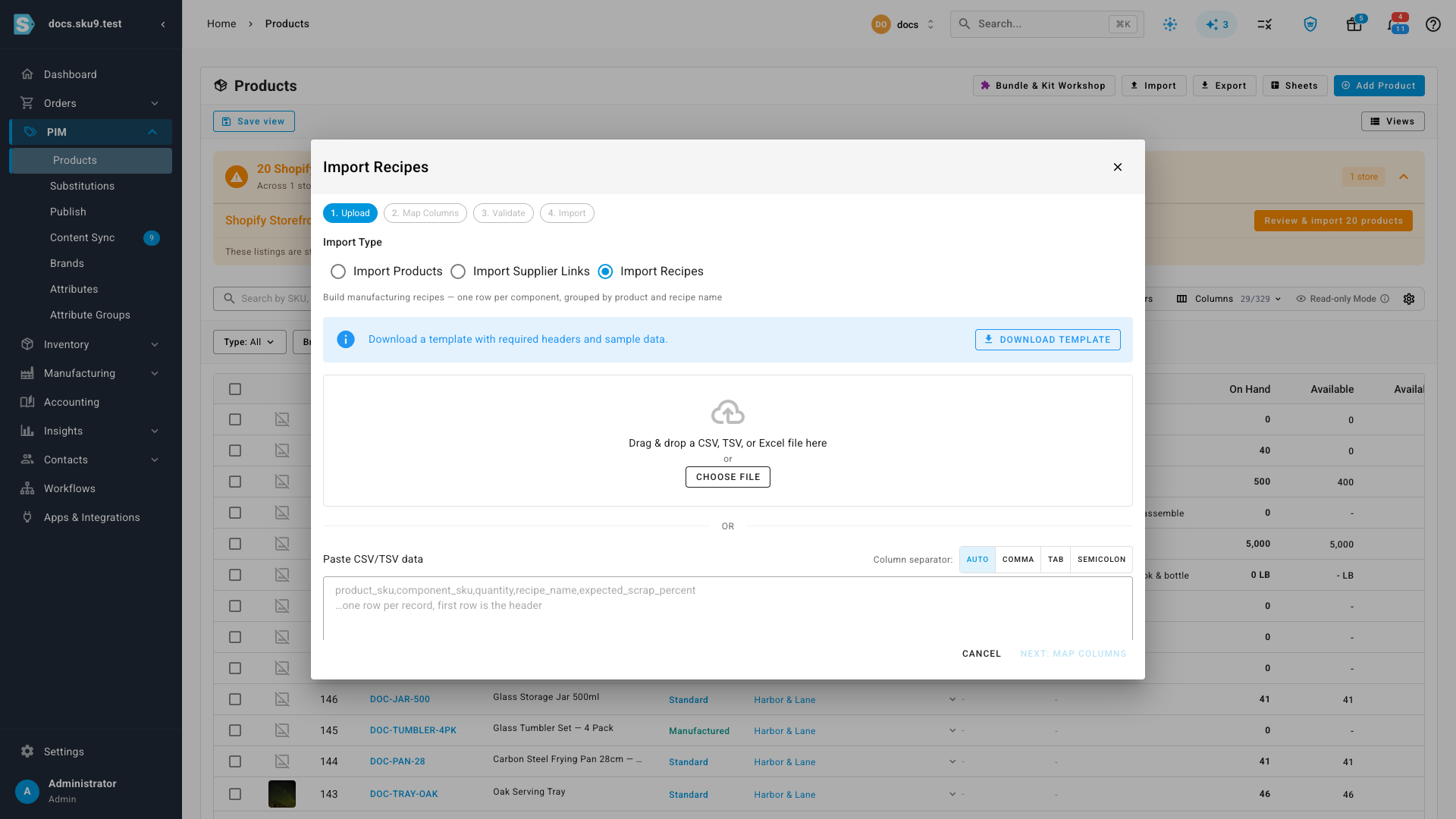
- Under Import Type, choose Import Recipes.
- Click Download Template to get a spreadsheet with the right column headers, a field guide, and a Reference Data sheet listing your existing recipes and product SKUs. Fill in your rows, or paste the data straight into the box on this screen.
- Click Next: Map Columns. If your headers match the template, every column maps itself — check the Maps To side and correct anything that didn't.
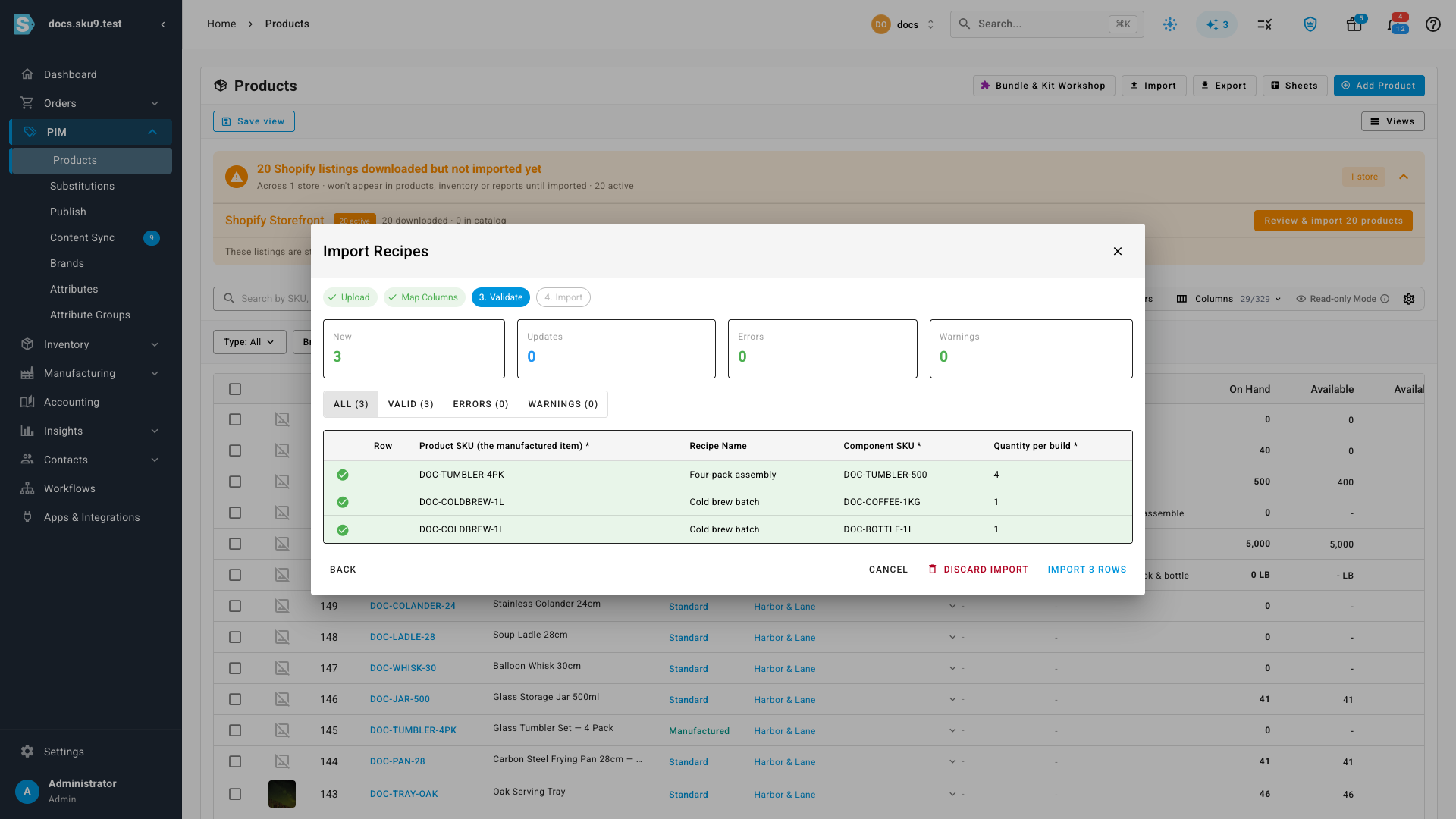
- Click Next: Validate. Your rows are checked in the background and come back marked valid, warning, or error, with the reason on the row.
- Review the counts, then click Import. Recipes are created and the finished count appears when it's done.
One row per component
This is the part worth getting right. A recipe is not one row — each of its components is a row, and rows are grouped into a recipe by two columns together: product_sku and recipe_name.
So this file is two recipes from three rows:
product_sku,recipe_name,component_sku,quantity
DOC-TUMBLER-4PK,Four-pack assembly,DOC-TUMBLER-500,4
DOC-COLDBREW-1L,Cold brew batch,DOC-COFFEE-1KG,1
DOC-COLDBREW-1L,Cold brew batch,DOC-BOTTLE-1L,1
Repeat product_sku and recipe_name on every row of the same recipe. Because a row isn't a recipe, the button counts rows — "Import 3 rows" — while the finished screen reports the recipes actually created.
Leave recipe_name blank and the recipe is named after its product, as <SKU> Recipe.
Columns
Only the first three are required. Everything else is optional, and a blank cell means "leave it alone".
| Column | Required | Format | Accepted values | Notes |
|---|---|---|---|---|
product_sku | Yes | Text | An existing product SKU | The product the recipe makes. Repeat it on every row of the recipe. |
component_sku | Yes | Text | An existing product SKU | One component the recipe consumes. Add a row per component. |
quantity | Yes | Number | Greater than zero | How much of this component one build uses. |
recipe_name | No | Text, up to 255 | Any text | Names the recipe. Defaults to <product_sku> Recipe. A product can have several recipes — see below. |
expected_scrap_percent | No | Number | 0–100 | How much of this component you expect to lose in a build. |
consumption_method | No | Text | forward flush, backflush | Whether an operator issues this component during production, or it's consumed automatically from the output recorded. |
is_optional | No | Text | yes, no | Marks a component a build can go ahead without. |
component_notes | No | Text | Any text | A note against this component line. |
effective_from | No | Date | e.g. 2026-10-01 | The date the recipe takes effect. Defaults to today. |
yield_percent | No | Number | 0–100 | Expected yield for the whole recipe. |
leadtime_days | No | Whole number | e.g. 3 | How many days a build takes. |
version_notes | No | Text | Any text | A note describing this version of the recipe. |
The last four describe the recipe rather than one component, so put them on any row of that recipe.
Re-importing, and products with more than one recipe
A product can hold several recipes at once — a standard build and a rush build, say. The recipe name is what tells them apart, and it decides what a repeat import does:
| You import | What happens |
|---|---|
| The same recipe, unchanged | Nothing. Re-running a file is safe. |
| The same recipe name, with different components | A new version of that recipe. The previous version is kept. |
| A different recipe name for the same product | A separate recipe, sitting alongside the first. |
Only a product's first recipe becomes its default. Importing a second one won't quietly take the default away from the recipe you're already using.
When rows don't pass
Validation runs before anything is created, and every row is judged on its own:
- Errors stop that row only — the rest of the file still imports. You'll see the reason on the row: a SKU that doesn't exist, a quantity that isn't a positive number, a component listed twice in one recipe, or a recipe using its own product as a component.
- Warnings don't stop anything. The common one is a recipe on a product whose Type isn't Manufactured.
- If a recipe's first row has an error, the rest of that recipe still imports — the error doesn't take the whole recipe down with it.
Fix the flagged rows in your spreadsheet and import again. Because re-importing an unchanged recipe does nothing, you can safely re-upload the whole file rather than picking out the rows that failed.
Recipes on the products list
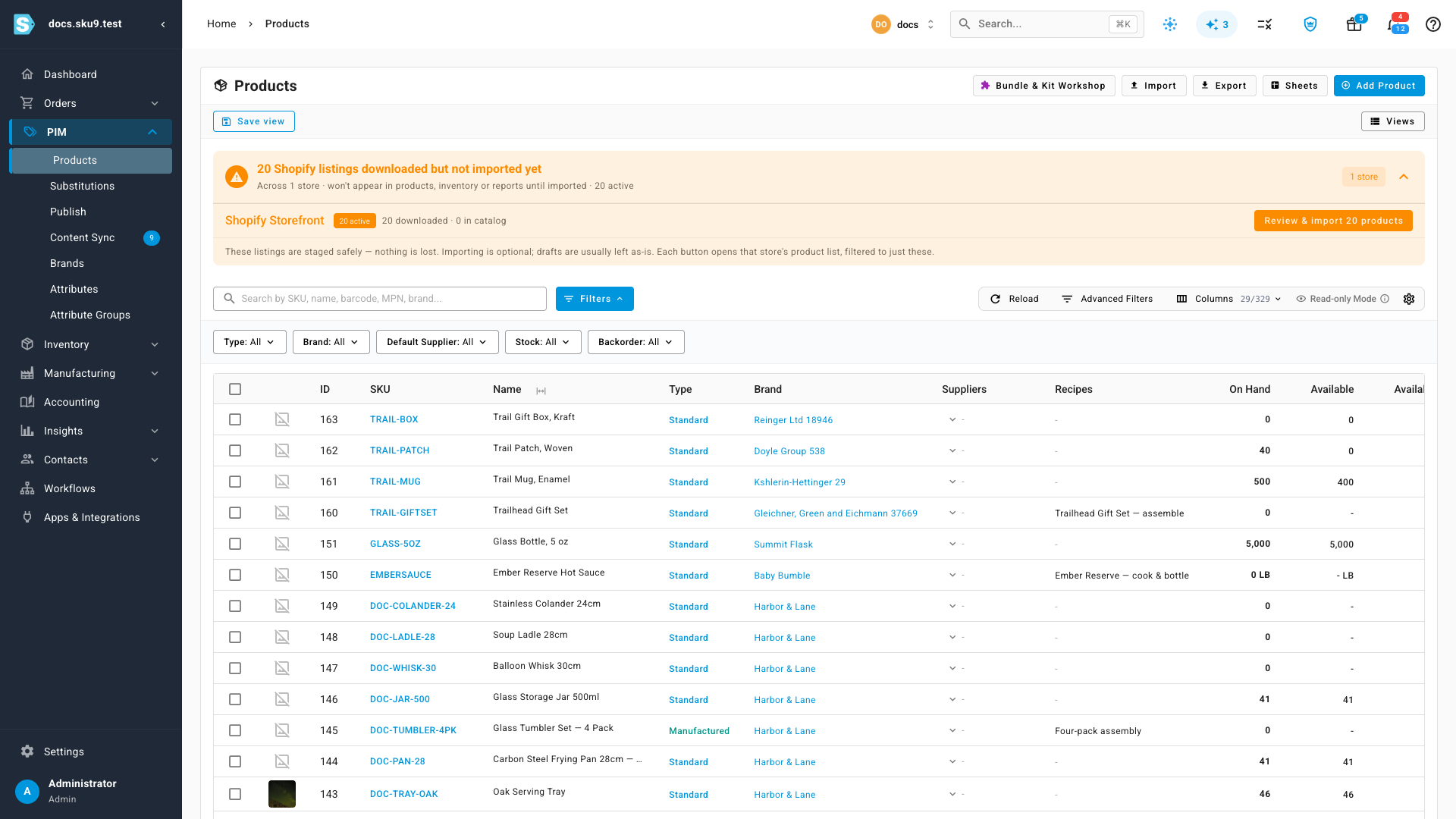
Once imported, the Recipes column on PIM → Products shows each product's recipe by name, or "N recipes" when it has more than one. Click through to see the recipe itself.
Importing a recipe alongside the product itself
If you're setting products up from scratch, you can bring a product's main recipe in on the same sheet as the product, using Import Products instead. It uses the same SKU->QTY shorthand as kits and bundles:
| Column | Format | Notes |
|---|---|---|
recipe_component_skus | SKU->QTY, SKU->QTY | e.g. DOC-TUMBLER-500->4. Components can be defined on other rows of the same file. |
recipe_name | Text | Defaults to <SKU> Recipe. |
recipe_effective_from | Date | Defaults to today. |
recipe_yield_percent | Number, 0–100 | |
recipe_leadtime_days | Whole number |
One row is one product, so this route carries one recipe per product per file. For several recipes on the same product, or for per-component detail like scrap and consumption method, use Import Recipes.
A new product that arrives with a recipe and no Type set is created as Manufactured.
Exporting recipes
The same columns come back out. On PIM → Products, click Export and include the recipe columns — you'll get each product's default recipe in the same SKU->QTY shorthand the product import accepts, so you can export, edit in a spreadsheet, and import the changes back.
Next steps
- Create a recipe (bill of materials) — building one by hand, and what versions and activation mean
- Build with a manufacturing order — using a recipe to actually make something
Video transcript
Building every recipe by hand is slow work. A spreadsheet import does the whole set in one pass. Start on the Products page. Click Import at the top of the products list, then choose Import Recipes from the three types on offer. The template carries the right headers and a field guide. You can also paste rows straight into the box. One detail matters more than the rest. Each component of a recipe gets its own row. The product and the name together decide which lines belong to which build. So the file on screen is three rows, and exactly two recipes. Move on to Map Columns. Headers that match the template map themselves. Check the right-hand side for any gaps. Validation runs before anything is created. Each row is judged on its own merits. An error stops that row alone. The rest of the file still imports. Notice the button counts rows, not recipes. Import, and the work runs in the background. For a file this size it takes barely a moment. Three rows became two recipes, and the summary reports the count. Back on the products list, the Recipes column shows the name, or a count when a product has more than one build. Re-importing an unchanged file changes nothing, so you can safely upload the whole sheet again after fixing a row.