Handle component shortfalls on a manufacturing order
Confirming a manufacturing order commits its components. Where you have the stock, SKU.io reserves it against the order straight away. Where you don't, it records the gap as backorder demand rather than silently ignoring it — so the missing quantity is tracked, arriving stock can reserve itself to the order automatically, and the shortfall is visible before you try to start.
This guide covers reading that picture on a confirmed order, the effect a shortfall has on what you can sell, and how to clear it.
Before you begin
- The order must be Confirmed or later. Confirming is the step that commits components — a Draft order has no component lines yet, so it has nothing to be short of.
- Components are reserved from the order's Source Warehouse. Stock sitting in a different warehouse doesn't count until you transfer it.
Check materials readiness
Open the order and select the Components tab. The strip above the table summarizes the whole order at a glance.

Materials: 1/3 ready counts the components that are fully reserved, and the chips break the rest down:
| Chip | What it means |
|---|---|
| Ready | Fully reserved from your stock. Nothing about this component blocks starting. |
| Partial | Some of the quantity is reserved; the remainder is backordered and will reserve to this order automatically as stock arrives. |
| Backordered | Nothing is reserved yet and the order is waiting on incoming stock. Arriving stock reserves to this order automatically. |
| Short | Nothing is reserved and no backorder demand was recorded, so arriving stock will not reserve itself here. See When a component reads "Short". |
| Contractor | Supplied by the contract manufacturer from their own stock, so it's never reserved from your inventory and never counts as short. |
When something is on its way, the strip also shows the earliest cover — Next: PO-TRAIL-BOX-1 · ETA 09/18/2026 — linking straight to that purchase order. View in Backorder Queue → opens the queue filtered to this order.
Read the components table
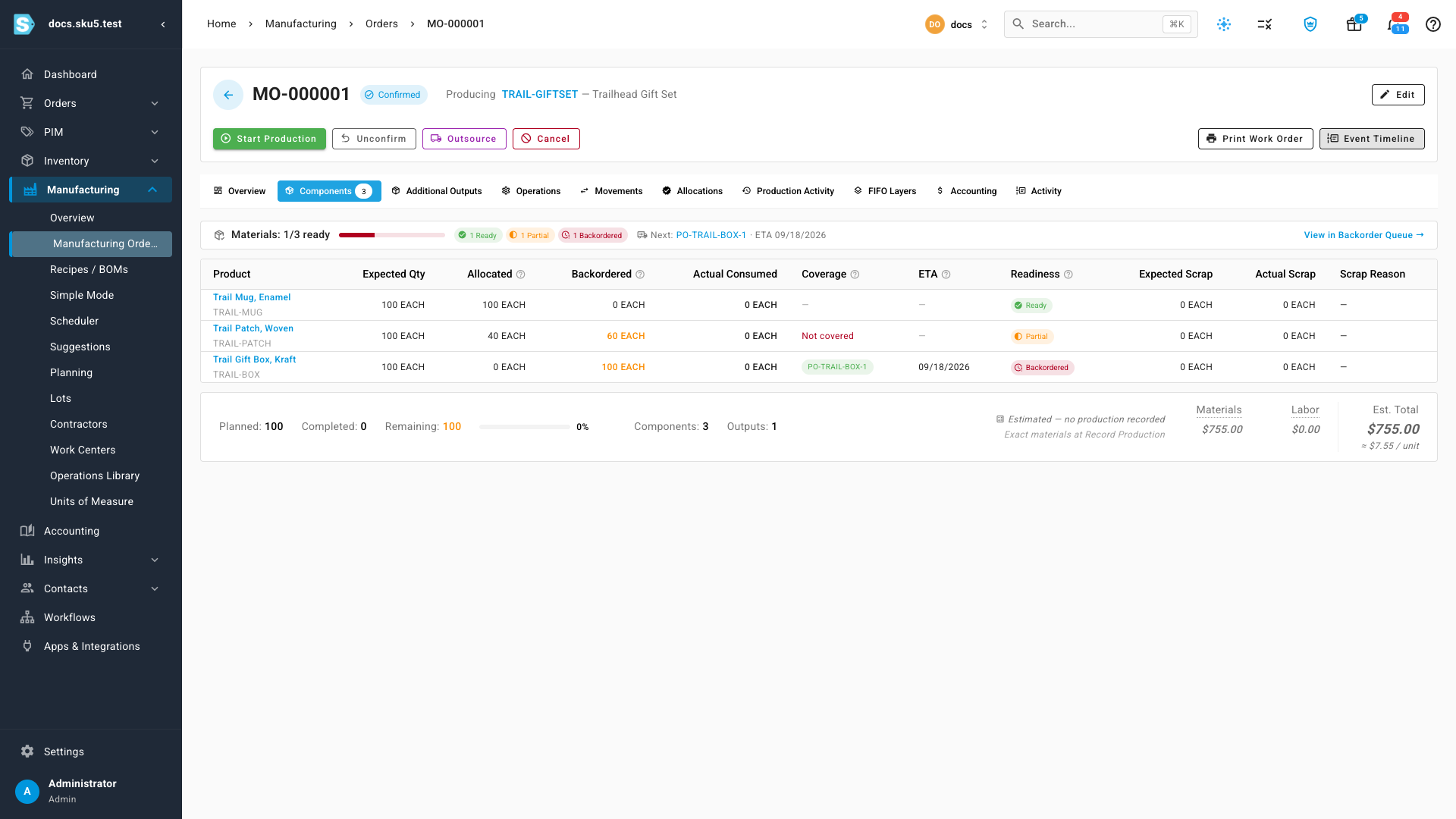
The columns that describe the shortfall are:
| Column | What it tells you |
|---|---|
| Expected Qty | How much the recipe needs for the planned quantity, including expected scrap. |
| Allocated | How much is reserved from stock right now. |
| Backordered | The remainder — demand recorded with no stock behind it yet. |
| Coverage | The purchase order that will supply the backordered quantity, or Not covered when nothing inbound matches. |
| ETA | When that covering purchase order is expected. |
| Readiness | The same Ready / Partial / Backordered / Short state as the chips above. |
In the example above the order needs 100 of each component. The mug is fully reserved, the patch is half reserved with 60 backordered and nothing inbound to cover it, and the gift box is entirely backordered but covered by a purchase order arriving on 18 September.
What a shortfall does to what you can sell
This is the part worth internalizing: backordered component demand reduces what SKU.io will sell that component through your sales channels, even though the physical stock on your shelf hasn't moved.
Open the component and look at its Inventory tab:
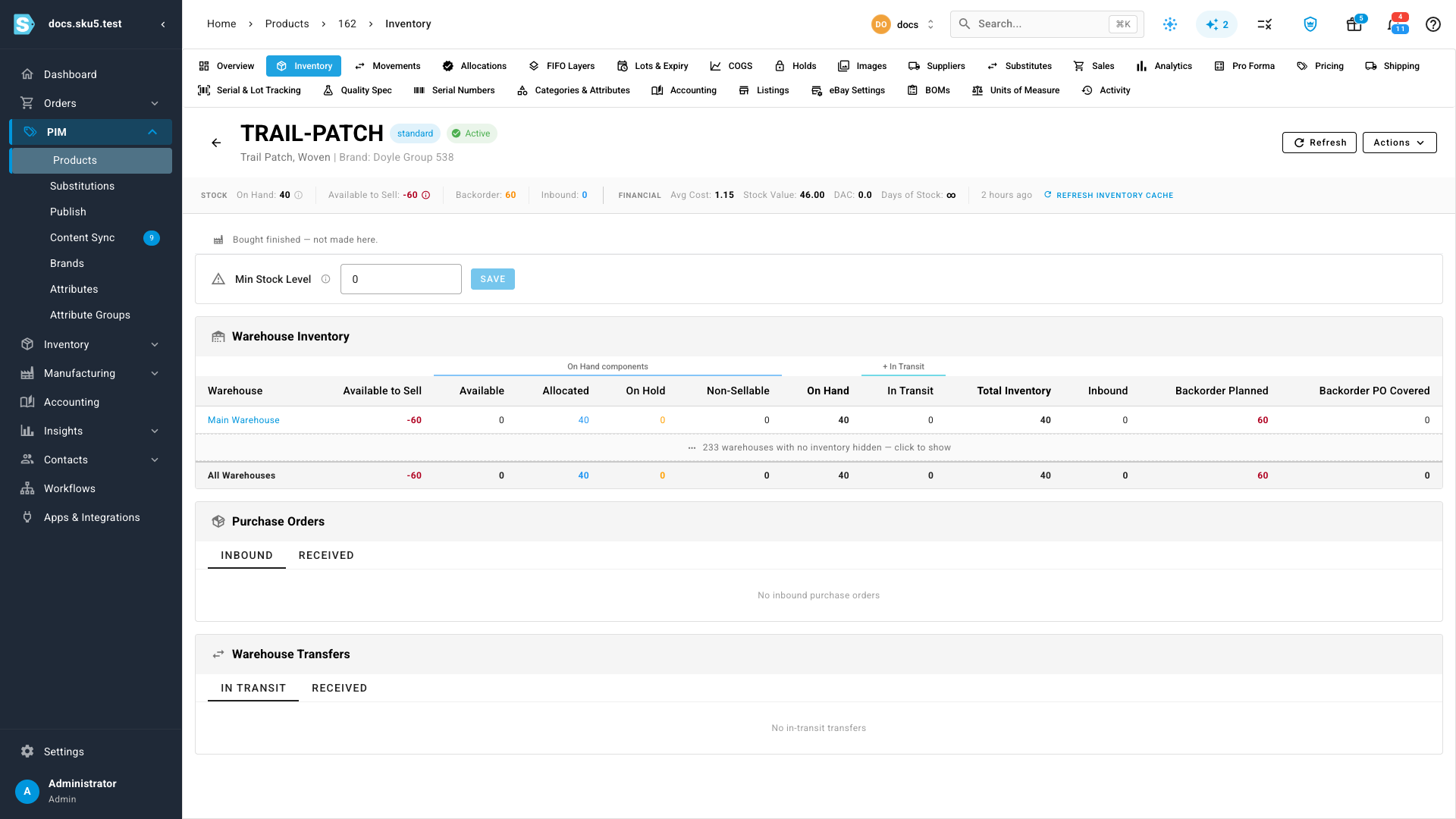
The patch still has On Hand: 40 — nothing has been consumed. But Available to Sell reads −60 and Backorder reads 60, because the manufacturing order has committed 100 and only 40 existed. The warehouse table splits the same story into Allocated 40 and Backorder Planned 60.
Available floors at zero — it's the honest shelf count. Available to Sell is allowed to go negative, and that's the number your sales channels are pushed. A component that reads −60 has 60 units of demand behind it that you can't currently cover, so listings using that component will be reduced accordingly.
If that component is also something you sell directly, confirming a manufacturing order for it will pull down its channel quantities. That's intended — you've promised those units to a build — but it's worth knowing before you confirm a large order against thin stock.
For the full derivation of these numbers, see Stock states and Allocations and backorders.
Follow it in the Backorder Queue
Manufacturing demand shares one queue with sales-order demand, so you can work every shortfall in the business from a single screen.
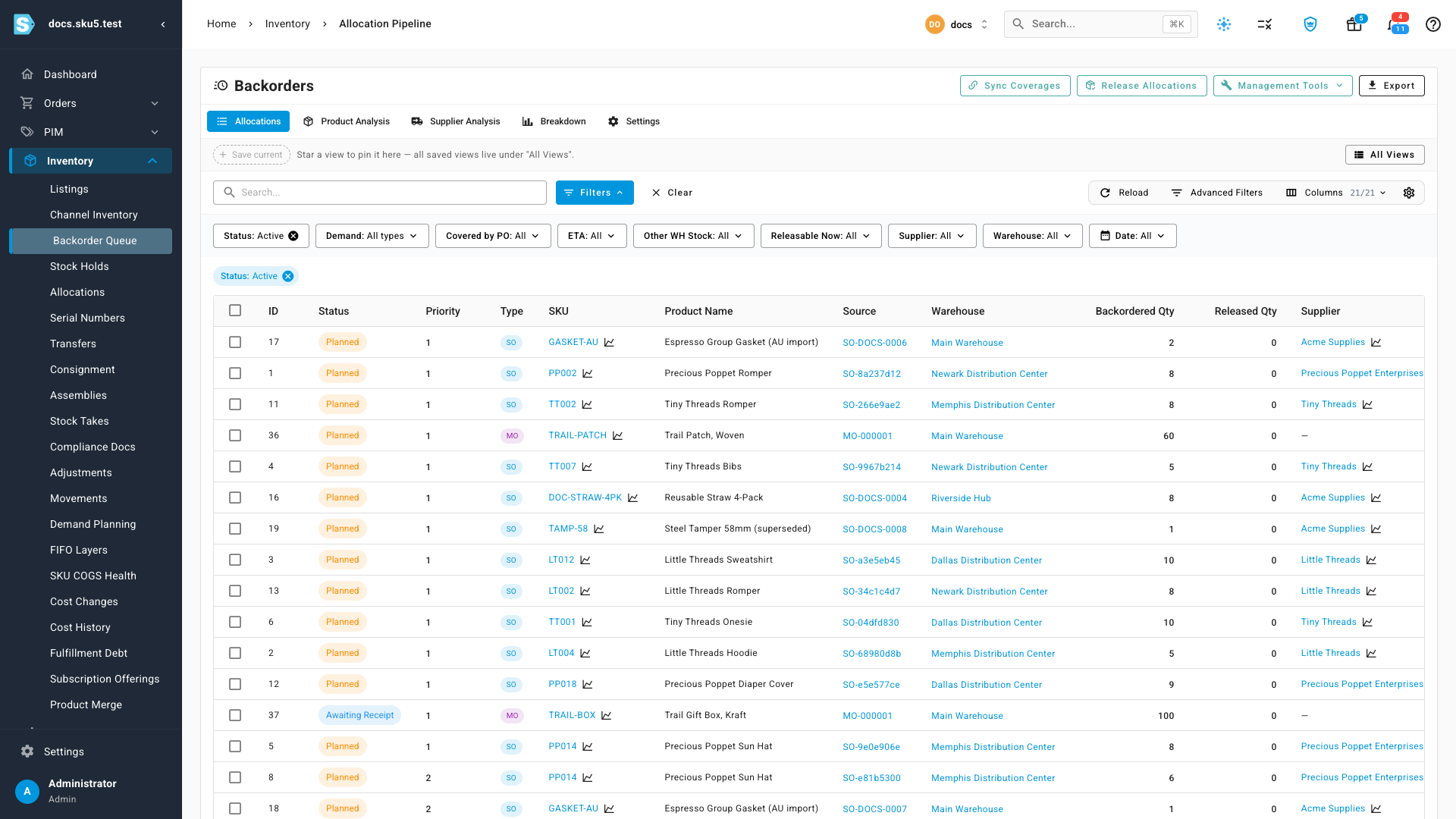
Go to Inventory → Backorder Queue. Component rows carry an MO tag in the Type column and name the order in Source; sales-order rows carry SO. Use the Demand: All types filter to narrow to one or the other, and Covered by PO to separate what's on its way from what nobody has ordered yet.
Working the queue itself — priority, coverage reassignment, releasing stock — is covered in Work the backorder queue.
Clear the shortfall
Any of these will close the gap, and none of them need you to touch the order:
- Receive the covering purchase order. Arriving stock reserves itself to the backordered demand automatically, and the component flips to Ready.
- Bring stock into the source warehouse — a transfer in, a stock adjustment, or a return to stock. The reservation follows on arrival.
- Reduce the planned quantity. Fewer units means less required. You'll need to Unconfirm first, since the planned quantity locks on confirmation.
If stock is already sitting in the warehouse but the component still reads short, use Sync Coverages on the Backorder Queue to re-run the matching pass.
When a component reads "Short"
Short and Backordered look similar but behave differently. Backordered means the demand was recorded, so arriving stock finds it. Short means nothing was reserved and no demand was recorded — usually an order confirmed before this behavior existed — so arriving stock will pass it by.
To fix it, edit and re-save the order, or Unconfirm and Confirm it again. Either records the demand, and the chip becomes Backordered.
Start production anyway
An order that isn't fully reserved won't start normally. Selecting Start Production opens a summary of exactly what's missing instead:
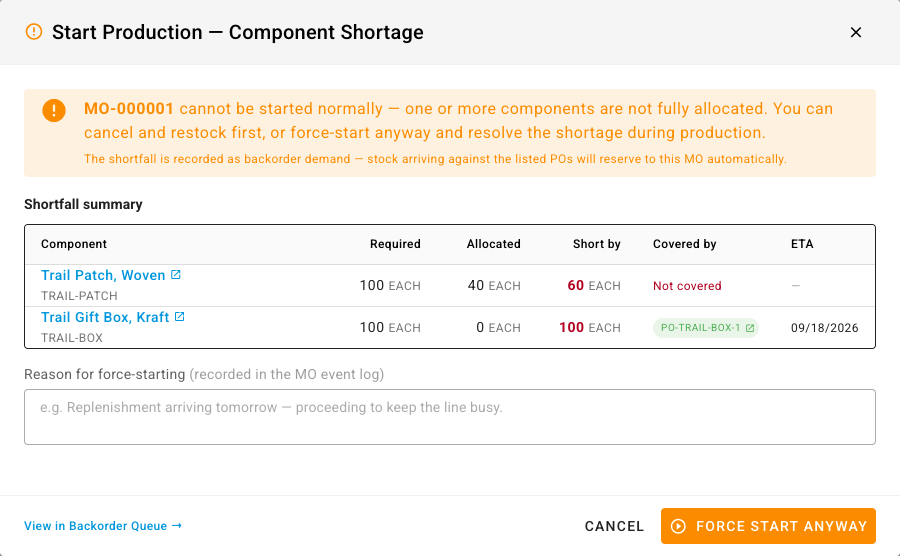
Shortfall summary lists each component with Required, Allocated, Short by, Covered by and ETA — the same picture as the components table, narrowed to what's blocking you.
From here you can CANCEL and restock first, or FORCE START ANYWAY and resolve the shortage during production. Force-starting asks for a Reason for force-starting, which is recorded in the order's event log so the decision is auditable later.
Force-starting doesn't erase the shortfall. The backordered demand stays on the order, and arriving stock still reserves against it — you're recording that you began the run knowing materials were short.
Next steps
- Build with a manufacturing order — the full order lifecycle this fits into.
- Work the backorder queue — prioritizing and covering backordered demand.
- Stock states — how On Hand, Available and Available to Sell relate.
- Allocations and backorders — the commitment lifecycle behind these numbers.
- Manufacture with a contract manufacturer — where contractor-supplied components come from.
Video transcript
Confirming a manufacturing order commits its components to the build. To review one, open Manufacturing, then Manufacturing Orders. Open the order you want to check. Then choose the Components tab, which summarizes coverage for the whole build. The strip above the table summarizes every component on the order. One of them is fully covered by inventory you already hold, another only partly. Anything you cannot cover becomes tracked backorder demand. The third component here is waiting entirely on incoming stock. Allocated is the quantity already reserved for this build. Backordered is the size of the remaining gap. Coverage names the purchase order that will supply it, along with its expected arrival date. An order that is not fully covered will not start normally. The dialog lists exactly what is missing, and what will supply each gap. Restock first, or force the run through with a recorded reason. A shortfall also changes what you are able to sell. Open a short component, and look at its inventory tab. Nothing at all has physically left the shelf. But Available to Sell has gone negative, because the build already claimed those units. Manufacturing demand shares one queue with your sales orders, so open Inventory and then Backorder Queue. Component rows carry an MO tag in the Type column. Each one names the build that needs it, so every shortfall is worked from a single place.