Store credentials for workflows
Some workflow steps reach outside SKU.io: they watch a partner's FTP folder, call a supplier's API, or write to a Google Sheet. Those steps need a login. You save each login once under Workflows → Credentials, give it a name, and then pick it by name in any workflow. The secret itself is never shown again.
Before you begin
- Have the login details from the other system to hand: a host, username, and password for FTP or SFTP; a key or token for an API; or a Google Cloud OAuth client ID and secret for Google Sheets.
- Credentials belong to your account, not to one workflow, so several workflows can use the same login. Once saved, a secret can be replaced but never read back.
Credential types
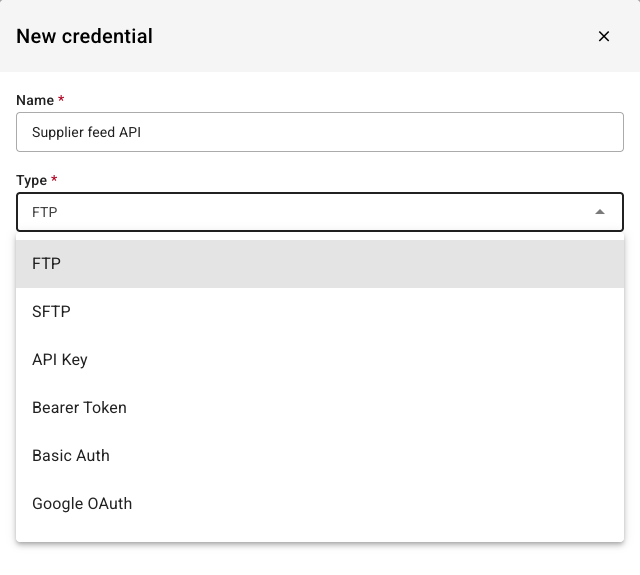
| Type | Use it for | What you enter |
|---|---|---|
| FTP | Watching, downloading from, or uploading to an FTP folder | Host, Port (21 if blank), Username, Password, and the passive-mode options |
| SFTP | The same jobs over SFTP | Host, Port (22 if blank), Username, Password |
| API Key | Calling an API that expects a key in a header | Header name (for example X-API-Key) and the Key |
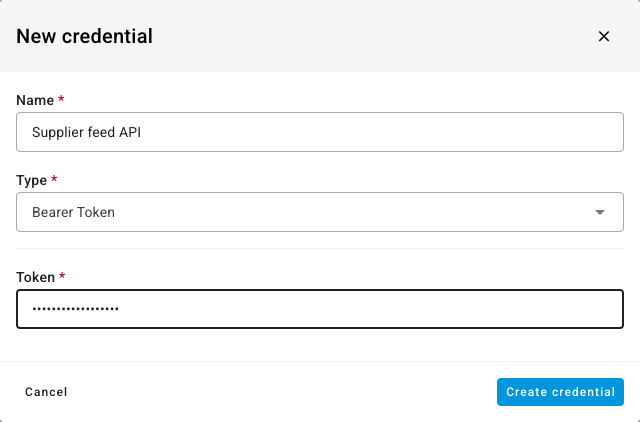
| Bearer Token | Calling an API that expects a bearer token | Token |
| Basic Auth | Calling an API or URL protected by a username and password | Username and Password |
| Google OAuth | Reading or writing Google Sheets | Client ID and Client Secret, then Connect with Google |
| Webhook Token | Keeping a token that a receiving service gave you | Token |
FTP and SFTP credentials are used by the FTP / SFTP: File Available trigger and the FTP download and upload steps. API Key, Bearer Token, and Basic Auth are used by the HTTP Request and download-from-URL steps. Google OAuth is used by the Google Sheets trigger and the Google Sheets: Write Rows step.
Add a credential
-
Go to Workflows and click Credentials.
-
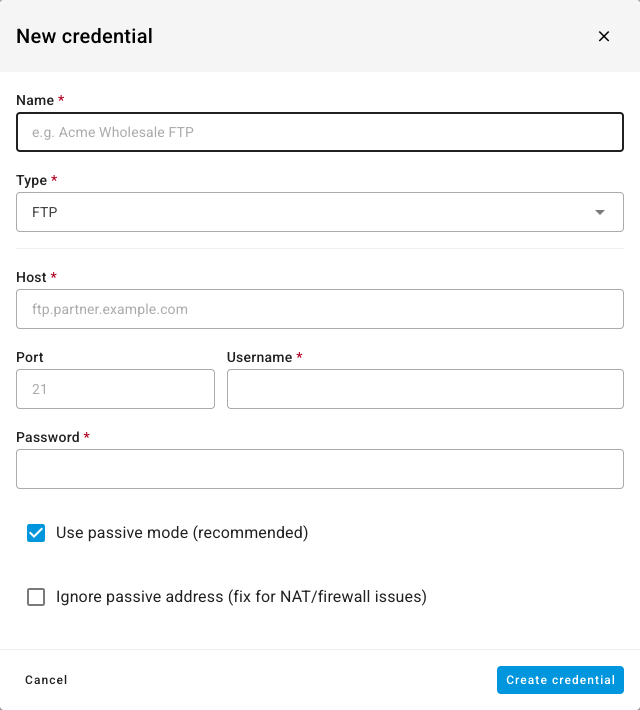
Click New Credential.
-
Type a Name your team will recognize, such as Acme Wholesale FTP. This is the name you pick inside a workflow.
-
Choose the Type.
-
Fill in the fields for that type. Secret fields are masked as you type.
-
For Google OAuth, enter the Client ID and Client Secret, then click Connect with Google and approve access in the Google window. If you already have a refresh token, open Or enter refresh token manually (advanced) and paste it instead.
-
Click Create credential.
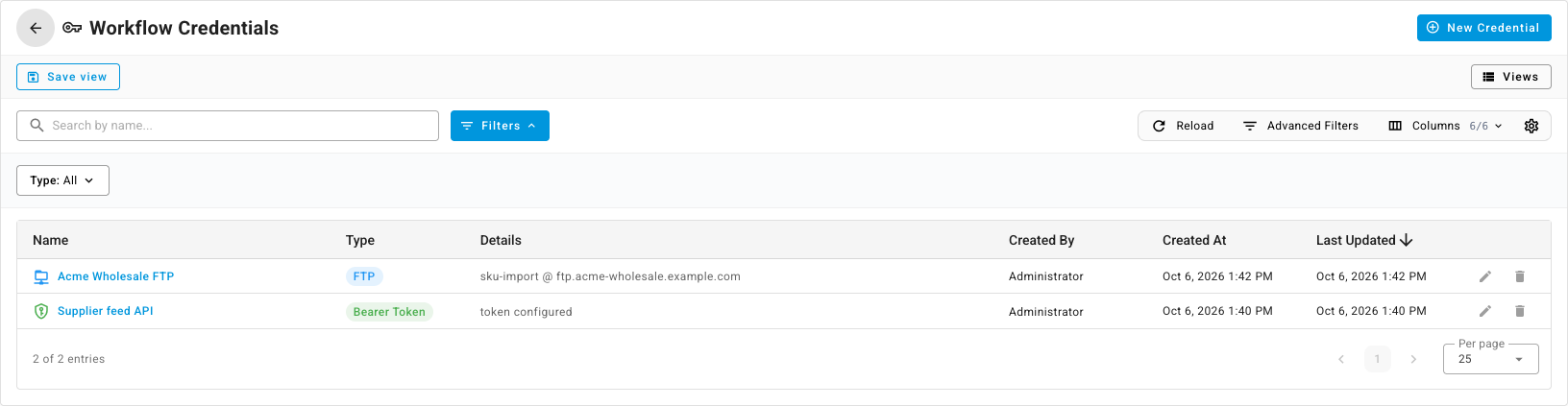
The credential appears in the list with its type and a safe summary, such as the username and host for FTP, or token configured for a token. The secret is encrypted and isn't shown again.
Use a credential in a workflow
-
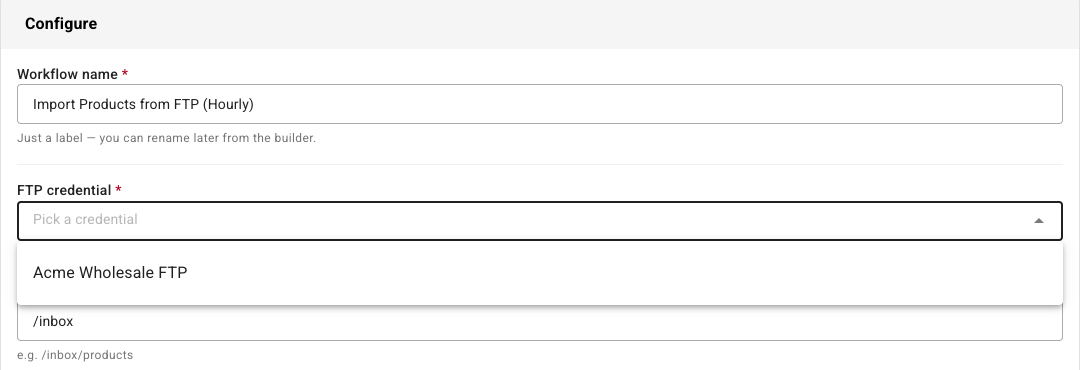
From a template. When a template needs a login, its set-up page asks for it. Pick the credential by name. If the list says there are none yet, add one first, then come back.
-
In the builder. Open the step that talks to the other system and choose the credential in its Credential field. The field only lists credentials of the types that step accepts.
Change or replace a secret
-
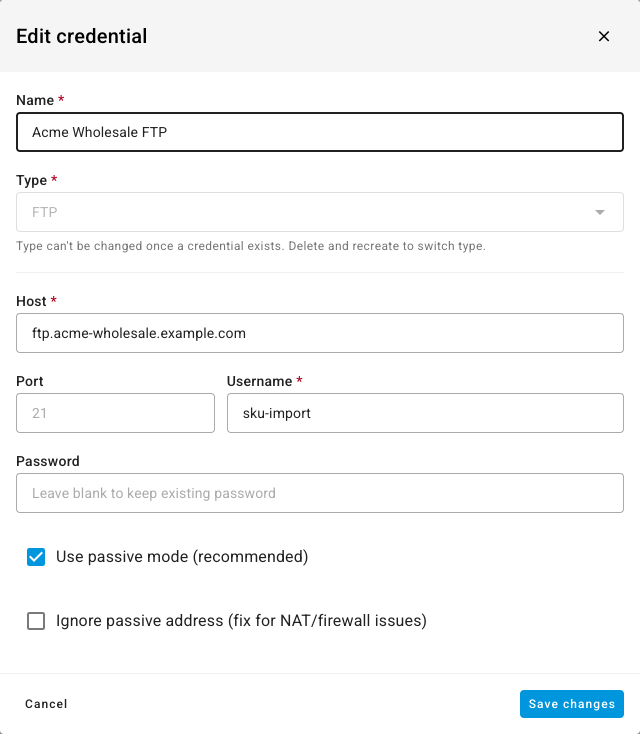
Click the credential's name, or its pencil icon.
-
Change what you need. Leave a secret field blank to keep the saved value, or type a new one to replace it.
-
Click Save changes.
Workflows pick up the new details on their next run. You can't change a credential's Type once it exists. To switch type, add a new credential and delete the old one.
Delete a credential
-
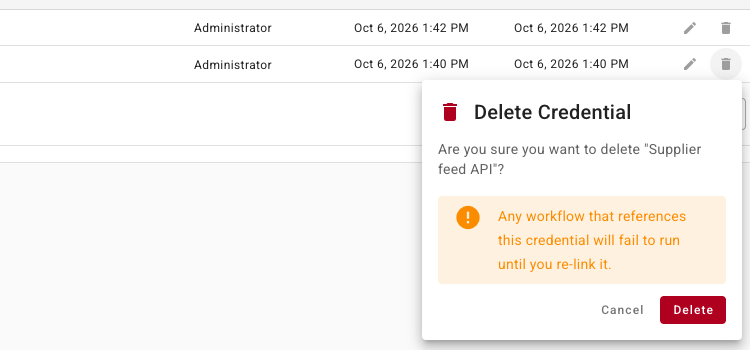
Click the bin icon on the credential's row.
-
Click Delete.
Any workflow that uses the credential fails at that step until you pick another one. Check the workflow's run history after you delete one, see Review a workflow's run history.
Next steps
- Create a workflow from a template — templates ask for the credentials they need.
- Workflow templates reference — which templates need a credential.
- Review a workflow's run history — see a failed login and run it again.