Approve a discounted quote
A quote whose discount is more than 20% of its subtotal can't go to the customer until someone with discount-approval permission signs off. The salesperson requests approval, an approver approves or rejects it on the quote itself, and the quote can be sent once the discount is approved.
Before you begin
- The quote is a Draft (or Revised) and already carries its discount. See Create & send a quote.
- To approve or reject, you need the
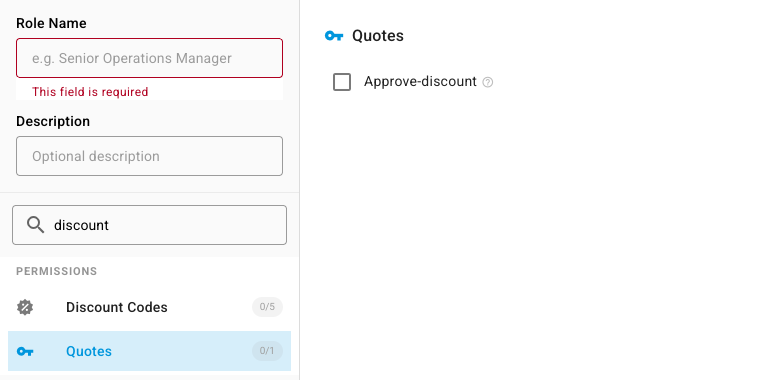
quotes.approve-discountpermission. Admins have it. To give it to another role, go to Settings → Users & Permissions → Roles, open the role, and tick Approve-discount under Quotes.
How SKU.io decides a quote needs approval
SKU.io compares the quote's Discount total with its Subtotal, both shown in the footer of the quote. Line discounts and order discounts both count. When the discount is more than 20% of the subtotal, the quote needs approval.


If you click Send on a quote that needs approval and doesn't have it, the quote stays a draft and SKU.io shows: Quote Q-000001 requires discount approval before it can be sent.
Request approval
-
Open the quote from Orders → Quotes.
-
Click More → Request Approval.

An orange banner appears at the top of the quote with the discount being requested.

-
Let your approver know the quote number. SKU.io doesn't notify them for you. Users without approval permission see the banner without the Approve and Reject buttons.
Approve the discount
- Open the quote that's waiting for approval.
- In the banner, click Approve. SKU.io confirms Discount approved — the quote can now be sent, and the banner disappears.
- Click Send. The quote moves to Sent and goes to the customer as usual.
The approval covers the discount you approved. If someone raises the discount afterward, the quote needs approval again before it can be sent. Lowering the discount to 20% or less removes the need for approval.
Reject the discount
-
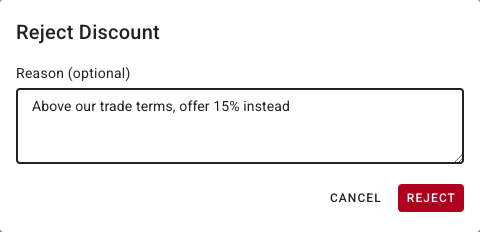
In the banner, click Reject.
-
Optionally, type a Reason. The salesperson sees it on the quote.
-
Click Reject. A red banner replaces the request, with the reason you gave.

The salesperson can then lower the discount and send the quote, or change it and click More → Request Approval again.
Next steps
- Create & send a quote: accept the quote and turn it into a sales order.
- Create a role: decide who can approve discounts.