Set transfer numbering and shipping defaults
Every warehouse transfer gets a number when you create it, such as WH-0042. The Warehouse Transfers settings decide what that number looks like, and which shipping method a new transfer starts with. Set them once, before your team starts creating transfers, so the numbers stay consistent.
Before you begin
- You need permission to change settings.
- The changes apply to new transfers only. Transfers you've already created keep their numbers and shipping methods.
- To offer a shipping method as the default, it must already exist under Settings → General → Shipping Methods.
Steps
-
Go to Settings, open Inventory, then click Warehouse Transfers.
-
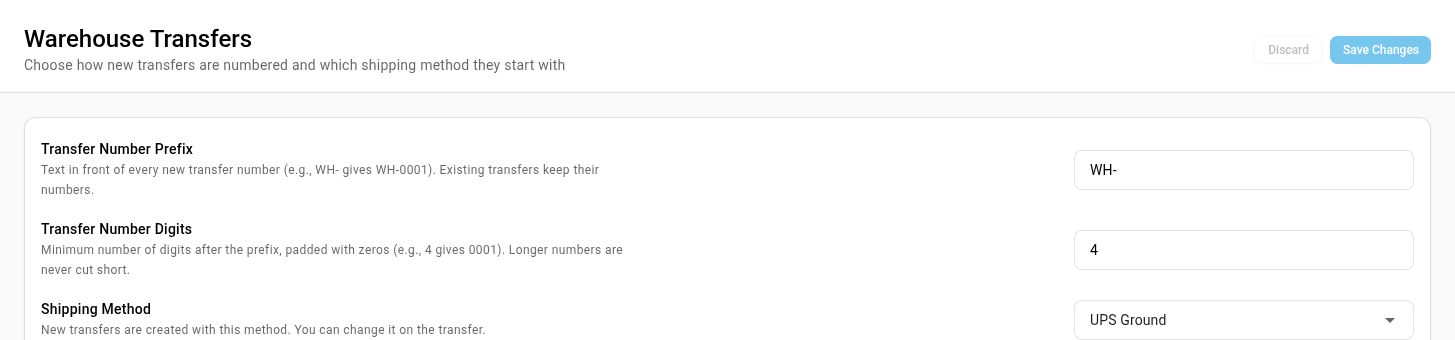
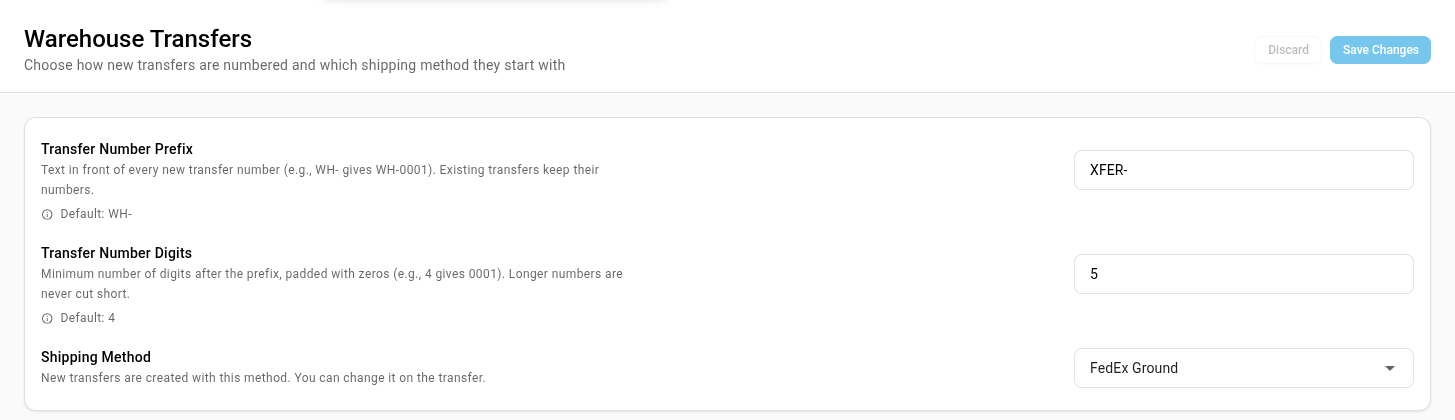
In Transfer Number Prefix, type the text you want in front of every number, including any separator. The default is
WH-. Up to 20 characters. -
In Transfer Number Digits, enter the minimum number of digits after the prefix. Shorter numbers are padded with zeros:
4gives WH-0042. A longer number is never cut short, so transfer 12345 is still WH-12345. -
In Shipping Method, choose the method new transfers should start with, or leave it empty for no default.
-
Click Save Changes.
What changes, and what doesn't
| Setting | New transfers | Existing transfers |
|---|---|---|
| Transfer Number Prefix and Transfer Number Digits | Numbered with the new format | Keep their numbers |
| Shipping Method | Created with it. Change it on the transfer's Transfer Details if one needs another method | Keep the method they have |
The number after the prefix is the transfer's own record number, which SKU.io assigns in order. You can't restart it or choose it.
To check, create a transfer: on Inventory → Transfers, click Create, choose an Origin and a Destination, and click Create Draft. The new draft's number uses your prefix and digits, and Transfer Details shows your default shipping method.

Next steps
- Create & open a warehouse transfer: build a transfer, which gets its number when you create it.
- How warehouse transfers work: the transfer lifecycle and in-transit stock.
Video transcript
When you create a warehouse transfer, it gets its own number. You decide how it looks. Open Settings, at the bottom of the sidebar. Click the Inventory card to expand its list. Then click Warehouse Transfers, to open the settings for transfers. Transfer Number Prefix is the text in front of every number. Type your own, including any separator. Transfer Number Digits is the shortest number allowed after the prefix. Shorter numbers are padded with zeros. Shipping Method sets how each new transfer will ship. Click into the field, then type a few letters of the method you want. Pick it from the list as soon as it appears below. Then click Save Changes at the top, and wait for the confirmation. Existing transfers keep their numbers, so try the settings on a new draft. Open Inventory in the sidebar, then click Transfers, about halfway down its list. Click Create, at the top right of the page. Under Origin, search for the warehouse the stock ships from, and pick that warehouse. Under Destination, do the same for where the stock is going. Then click Create Draft, and the new transfer opens. Its number starts with your prefix, and is padded to five digits. And its shipping method is already filled in, straight from your setting.