Configure advanced shipment notice emails
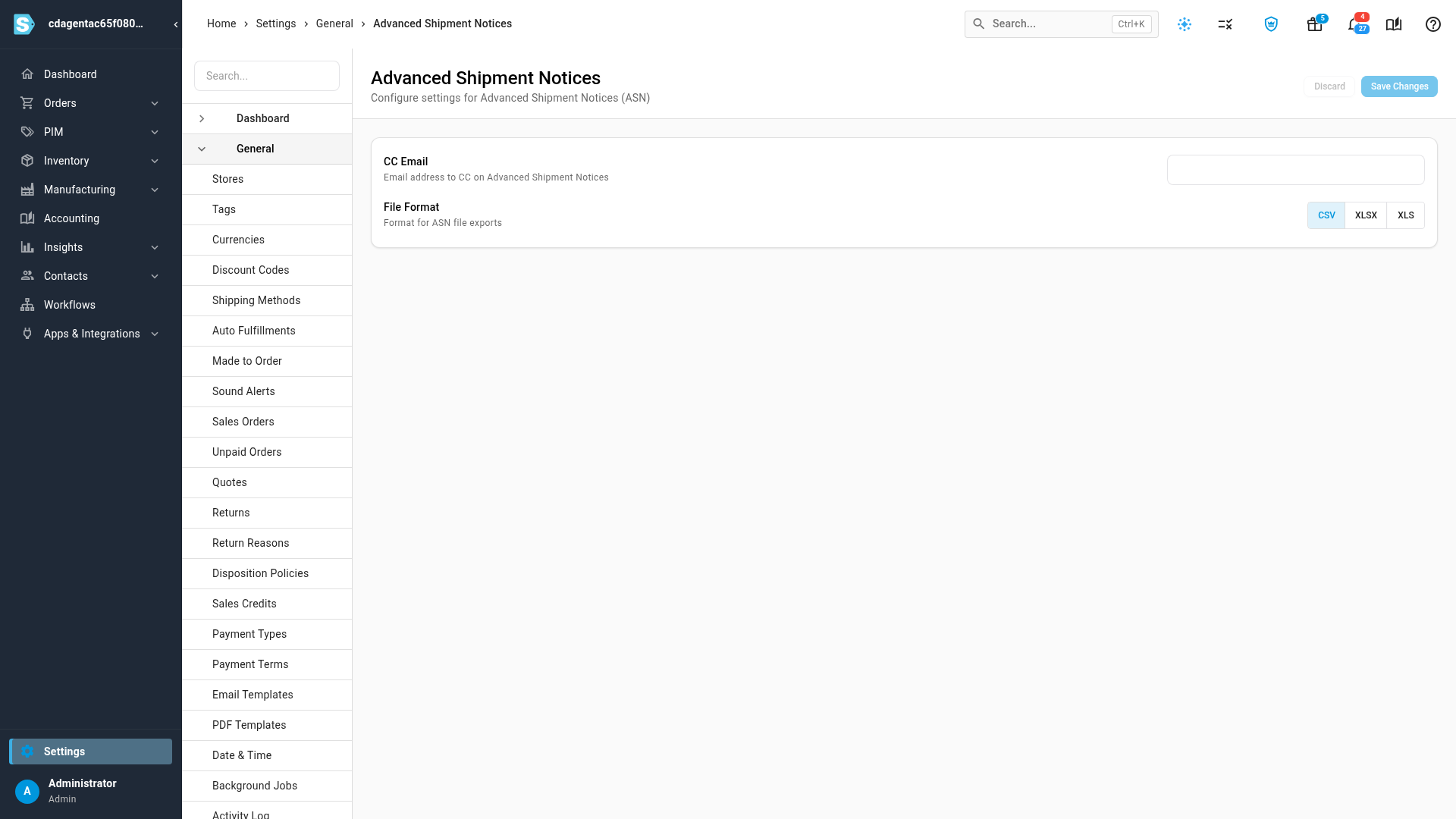
An advanced shipment notice (ASN) is an email that tells a third-party logistics (3PL) warehouse what stock is on its way, so it can plan receiving. You send one from a warehouse transfer or a purchase order. Settings → General → Advanced Shipment Notices sets who is copied on every notice, and the format of the item file it carries.
Before you begin
- You need permission to change settings.
- ASNs go only to warehouses of the 3PL type that have an email address on their address. To check, open the warehouse under Contacts → Warehouses.
- The email uses the ASN template under Settings → General → Email Templates. Notices for stock coming back from Amazon FBA use the ASN (FBA) template. A template that's turned off blocks the send, and the screen tells you which one.
Steps
-
Click Settings at the bottom of the left sidebar.
-
Click the General card to expand it. Scroll to the bottom of its list, and click Advanced Shipment Notices.
-
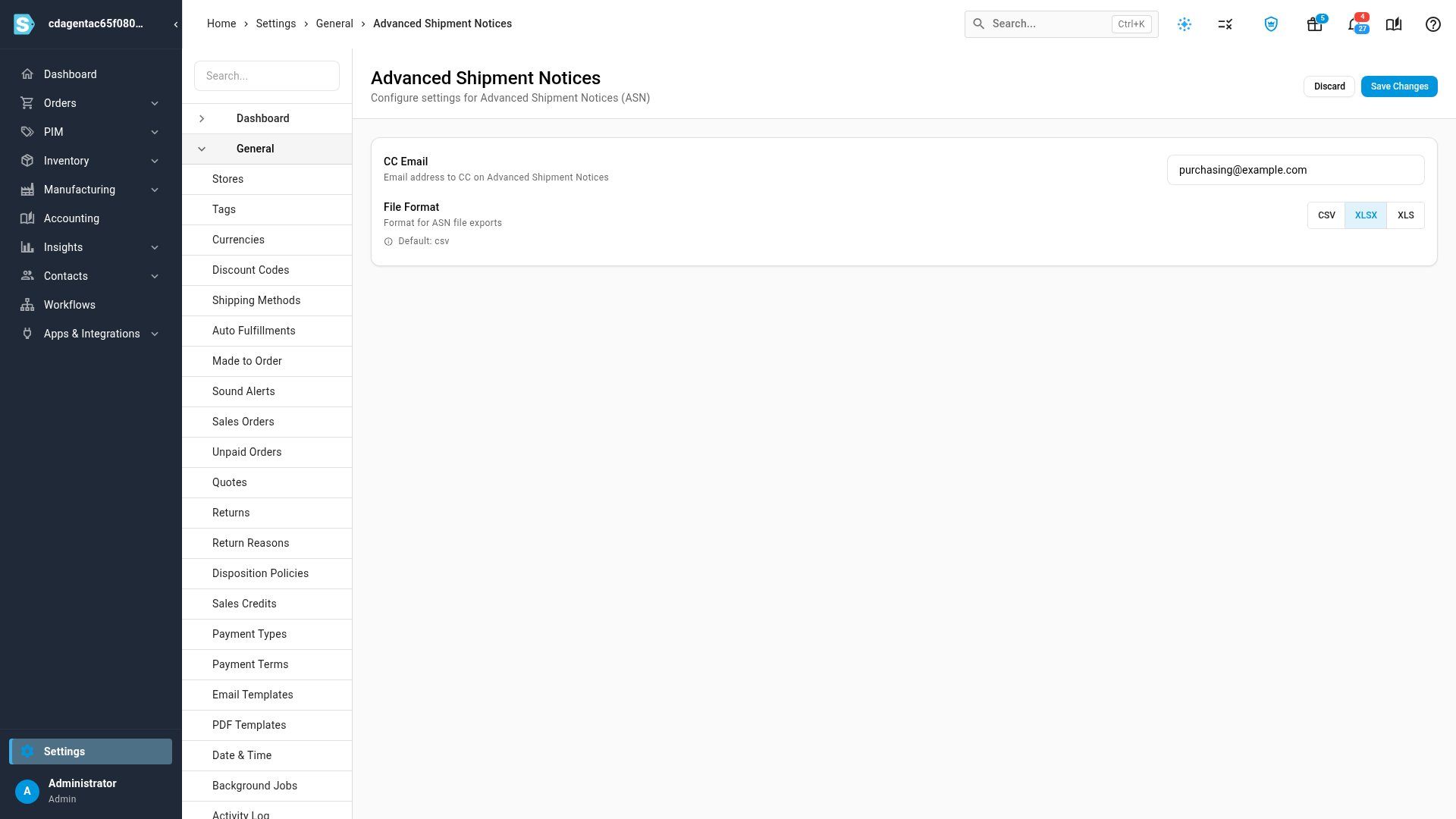
In CC Email, enter one address to copy on every notice, such as your purchasing inbox. Leave it empty to copy no one.
-
Under File Format, choose CSV, XLSX or XLS. Pick XLSX or XLS if your warehouse wants an Excel file.
-
Click Save Changes. Settings saved successfully confirms it.
Send a notice
| From | How |
|---|---|
| A warehouse transfer to a 3PL | Open the transfer and click Send ASN in the action bar. See Ship a warehouse transfer. |
| A purchase order delivered to a 3PL | Open the purchase order, open the More menu, and click Send ASN to 3PL. See Receive stock against a purchase order. |
After the first send, the action reads Resend ASN (or Resend ASN to 3PL), and the record shows when the notice was last sent. You can send it again at any time, and each send uses the settings as they are then.
What the email contains
- To: the email address on the destination warehouse.
- CC: the CC Email above. Addresses under Settings → General → Outbound Email, Always copy on every outgoing email, are copied as well.
- Subject and body: from the ASN email template, for example Advanced Shipment Notice (ASN) #PO-0042.
- Attachment: a file named
ASN <reference>.csv(or.xlsx/.xls), with one row per product on the transfer or purchase order.
Attachment columns
Most 3PLs get these columns, in this order:
| Column | What it holds |
|---|---|
SKU | The product's SKU |
UPC | The product's barcode |
Product Name | The product's name |
Qty | The quantity on the transfer or purchase order line |
New SKU | Left empty, for the warehouse to fill in |
Commodity | Left empty |
Declared Value | The product's unit cost |
Bundle | Always N |
Country of Origin | The country of the product's default supplier, or US if none is set |
A transfer of stock coming back from Amazon FBA adds two more columns: FNSKU and Amazon Condition Evaluated As, taken from Amazon's removal shipment.
Some 3PL integrations receive their own column set instead, because their import matches column names exactly. A ShipMyOrders warehouse, for example, gets PO Number, Vendor, Sku and Quantity.
If a notice won't send
| Message | What to do |
|---|---|
| Warehouse should be 3PL | The destination isn't a 3PL warehouse. ASNs are only for 3PL destinations. |
| Destination address must have an email | Add an email address to the destination warehouse's address. |
| … has no product lines, so there is nothing to send an ASN for. | Add products to the transfer or purchase order first. |
| The ASN email template is turned off… | Turn the template on under Settings → General → Email Templates, then send again. |
Next steps
- Ship a warehouse transfer: ship the stock, then send the notice.
- Set transfer numbering and shipping defaults: the other settings that shape your transfers.
Video transcript
An advanced shipment notice tells a third-party warehouse what stock is on its way. You send one from a transfer or a purchase order, and these settings shape every one. To get there, open Settings at the bottom of the left sidebar. Click the General card to expand it. Its list is long, so scroll right down to the bottom. Then click Advanced Shipment Notices to open its settings page. Each notice goes to the email address on the destination warehouse. Add a CC Email to copy one more address on every notice, such as your purchasing inbox. Every notice attaches a list of the products on the way, with their quantities. File Format decides what that file is. Keep CSV, or pick XLSX or XLS if your warehouse wants a spreadsheet file. Click Save Changes at the top right of the page. The next notice you send uses these settings.