Settle consignment and share the report
Settling a consignment turns the consigned units that sold into a bill you owe the supplier. Alongside the bill, SKU.io prepares an Account Sales Report: what sold, at what price, how much is owed and when it's due. You can email it to the supplier, give them a link to it, or both. SKU.io also settles on the term's schedule, so you only do this by hand to settle early or between cycles.
Before you begin
- The purchase order uses a consignment payment term and has received stock. See Receive and track consigned stock.
- Some of its consigned units have sold and shipped. Units count as sold once a shipment uses them.
Settle the units that sold
-
Open the consignment purchase order.
-
In the Consignment panel, click Settle Consignment.
What you'll see: a preview lists each product's Sold (unsettled) units, its Unit cost, the Amount and a Total. Only units that sold and haven't been settled yet are included.
-
Check the Settlement date. The bill's due date is counted from it, using the term's net days.
-
To keep a copy of the preview, click Export CSV.
-
Click Create Bill.
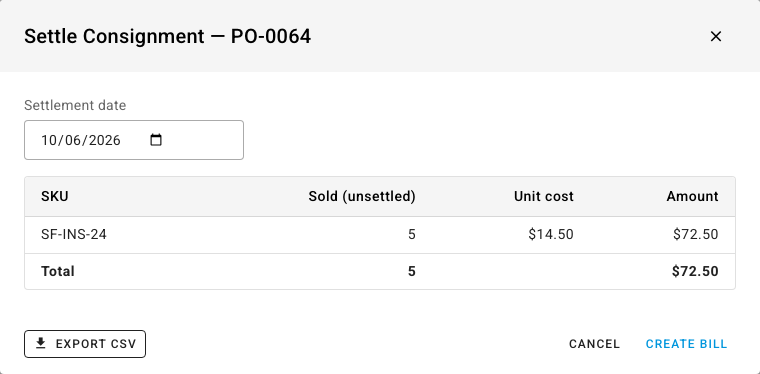
What you'll see: "Settlement bill created." The purchase order's Consignment panel changes to Partially settled, or to Fully settled once every received unit is settled or returned. The bill is an ordinary supplier bill: you pay it, and it syncs to your accounting provider, like any other.
Share the Account Sales Report
The share step opens right after you create the bill.
- Under How to share, choose:
- Email to send the report to the supplier.
- Portal link to create a private web link to the report.
- Both to do both.
- For Email or Both, enter a Supplier email, or leave it blank to use the supplier's contact email.
- Click Share with supplier. With Portal link or Both, copy the Portal link that appears and send it to the supplier.
- Click Done.
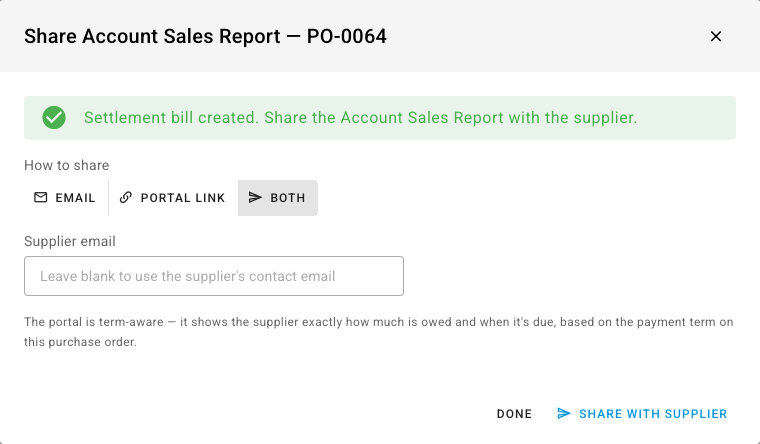
The share step only appears straight after you create the settlement bill. If you close it with Done first, there's no button to open it again later.
What the supplier sees
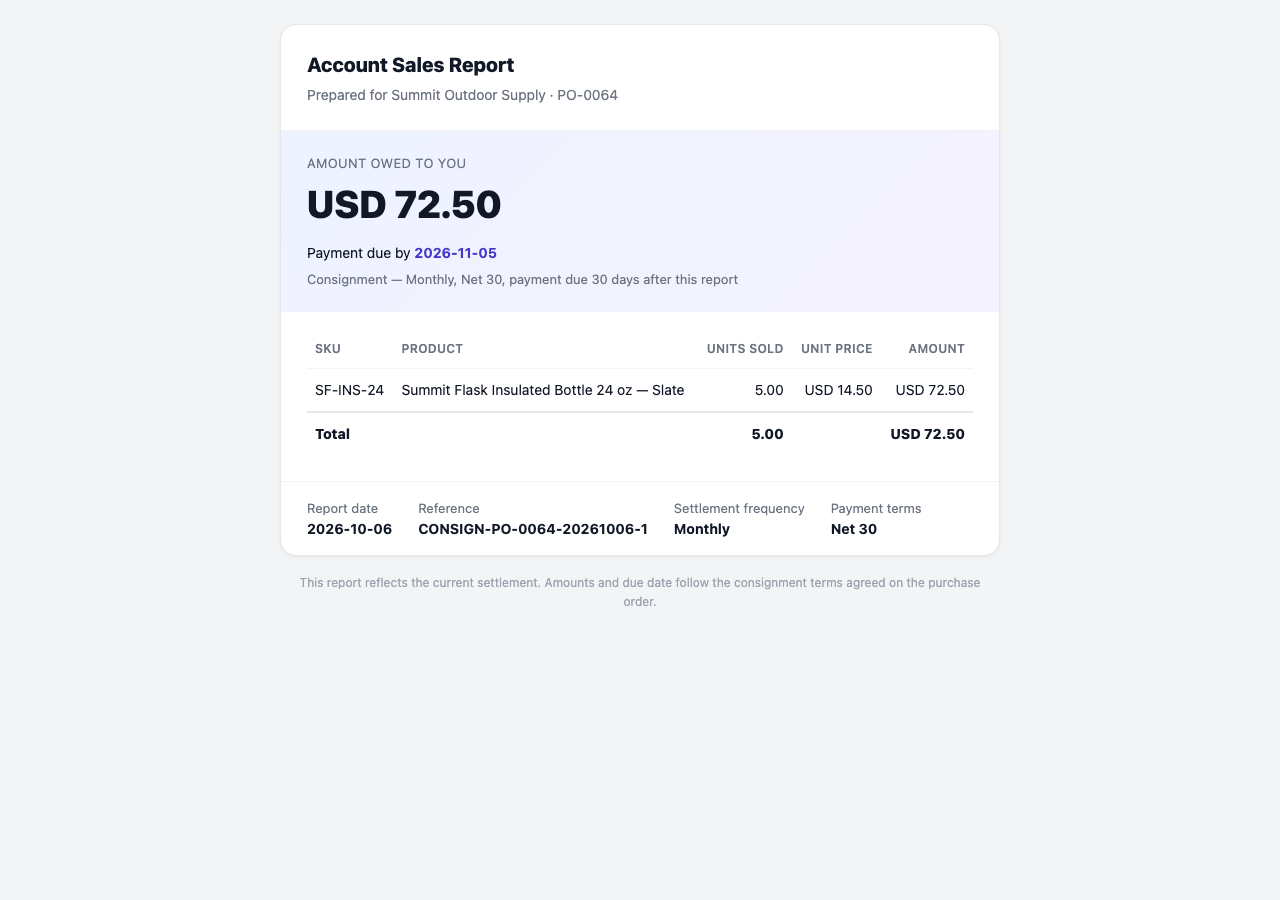
The portal link opens without a login. It shows the Amount owed to you, the payment due date and the terms behind it, then every product that sold with its Units sold, Unit price and Amount. It closes with the report date, the settlement reference, the Settlement frequency and the Payment terms.
Check the supplier's consignment statement
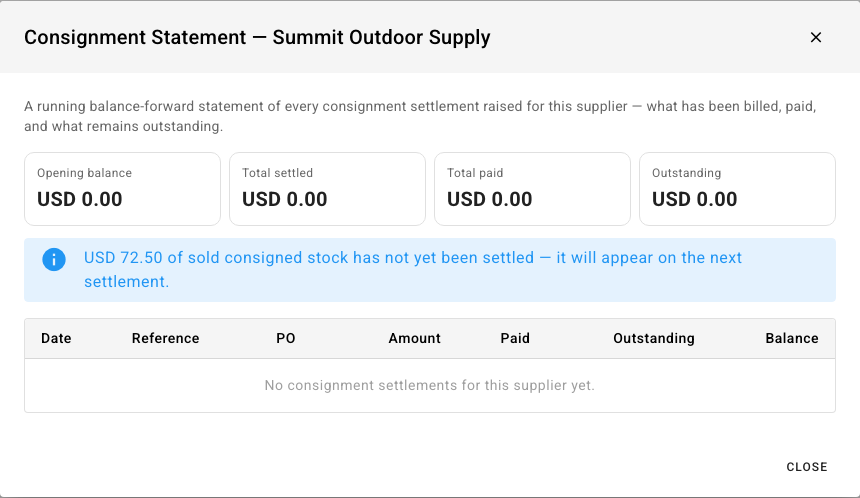
The statement is a running account of every settlement for one supplier: what you've billed, what you've paid and what's still outstanding.
- Go to Inventory → Consignment.
- On any of the supplier's rows, click the statement icon (View this supplier's consignment statement of account).
What you'll see: the Consignment Statement with an Opening balance, Total settled, Total paid and Outstanding, then one line per settlement with its Date, Reference, PO, Amount, Paid, Outstanding and running Balance. A notice tells you how much sold stock hasn't been settled yet. That amount goes on the next settlement.
Next steps
- How consignment works: the settlement schedule and what each step posts.
- Record a supplier invoice: how supplier bills are paid and tracked.