Receive and track consigned stock
This page takes a consignment from the first agreement to the shelf. You create a consignment payment term, put it on the supplier and the purchase order, receive the stock, and then use Inventory → Consignment to see what you're holding and send back what doesn't sell. For the model behind it, see How consignment works.
The examples use the supplier Summit Outdoor Supply, who consigns insulated flasks.
Before you begin
- You can create payment terms and purchase orders.
- The supplier and its products exist in SKU.io.
- Decide where the consigned stock will live. A warehouse of its own keeps it apart from stock you own, because sales use the oldest stock in a warehouse first.
Create a consignment payment term
- Go to Settings → General → Payment Terms and click Create Payment Term.
- Enter a Name that says how the deal works, for example
Consignment — Monthly, Net 30. - Set Net Days to how long after each settlement you pay the supplier, for example
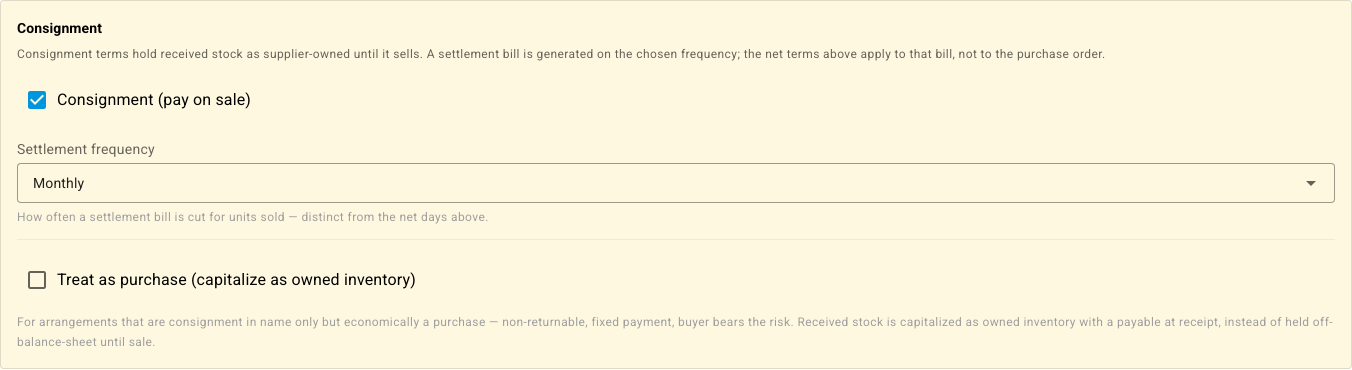
30. - Under Consignment, tick Consignment (pay on sale). Applies to switches to Purchasing.
- Choose a Settlement frequency: On demand, Weekly, Biweekly, Monthly or Quarterly.
- Leave Treat as purchase (capitalize as owned inventory) unticked, unless the deal is a purchase in all but name.
- Click Save.
Make it the supplier's default
- Go to Contacts → Suppliers, open the supplier and click Edit.
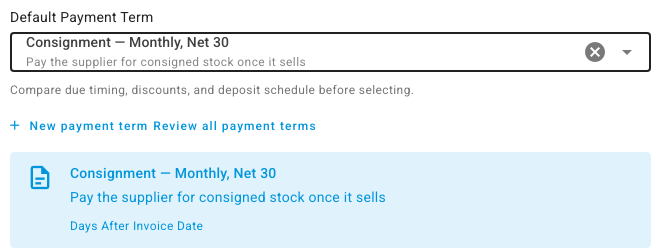
- Under Purchasing Defaults, set Default Payment Term to the consignment term.
- Click Save.
Raise and receive the consignment purchase order
-
Create the purchase order for the supplier as usual. See Create a purchase order.
-
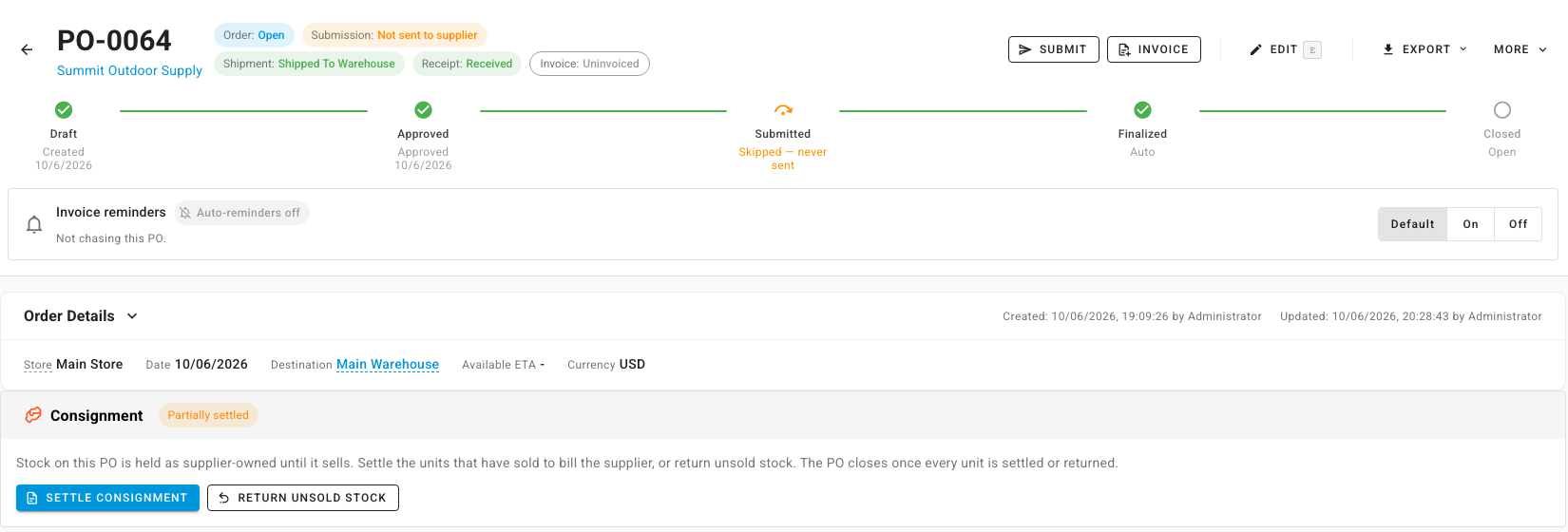
On the purchase order, check that Payment Term under Order Details is the consignment term. If it isn't, click Edit, choose it, and click Save.
What you'll see: a Consignment panel appears under Order Details, with Settle Consignment and Return Unsold Stock.
-
Add the lines and approve the purchase order.
-
Click Receive and receive the stock the normal way. See Receive stock against a purchase order.
The payment term decides whether received stock is consigned. Stock received while the purchase order has an ordinary term is received as stock you own.
See what you're holding
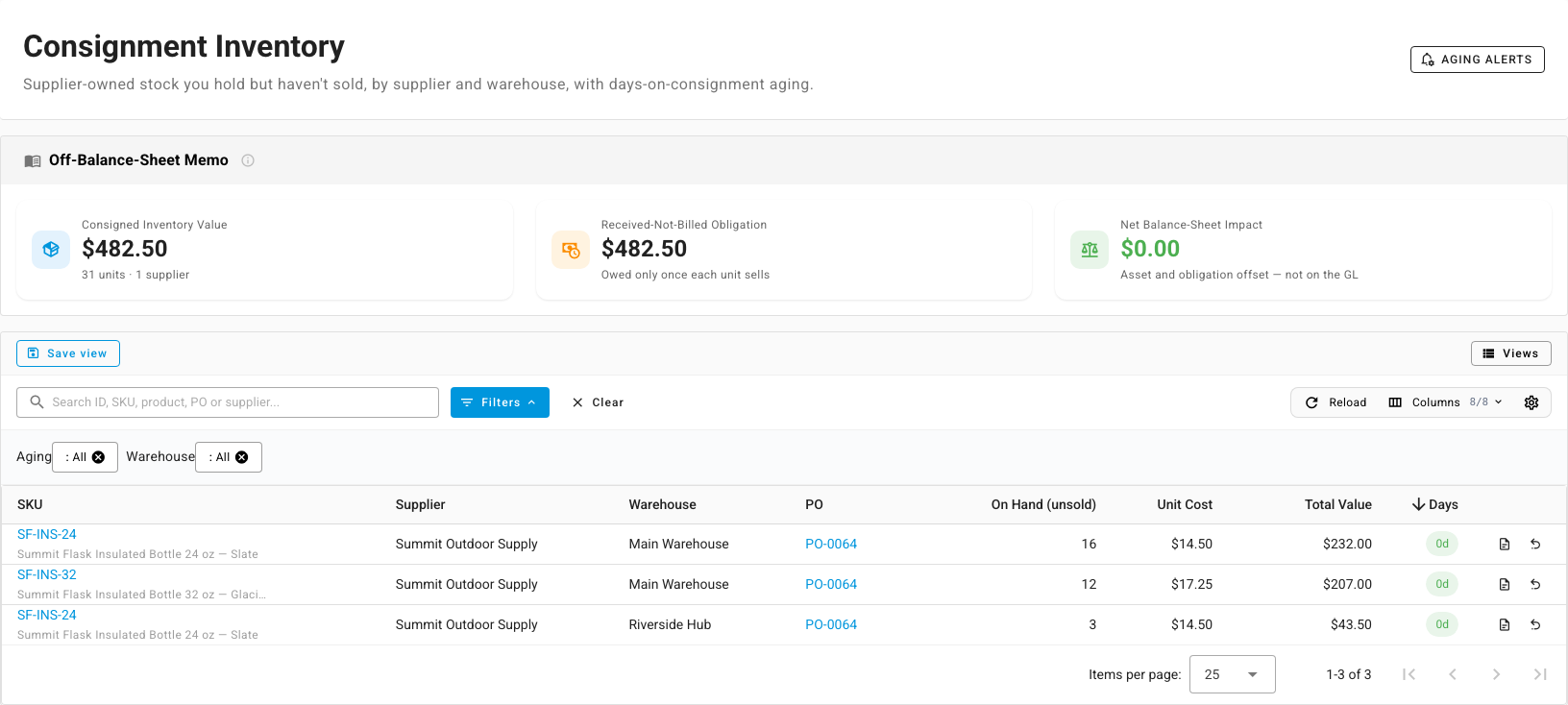
Go to Inventory → Consignment. The Consignment Inventory page lists every batch of unsold consigned stock, by supplier, warehouse and purchase order:
- On Hand (unsold): units still on your shelves.
- Unit Cost and Total Value: what those units will cost you if they sell.
- Days: days on consignment since receipt, colored as it ages.
Above the table, the Off-Balance-Sheet Memo totals the Consigned Inventory Value and the matching Received-Not-Billed Obligation. Their Net Balance-Sheet Impact is always zero, because this stock isn't on your books.
Use the Aging filter (0–30 days, 31–60 days, 61–90 days or 90+ days) and the Warehouse filter to narrow the list.
Set up aging alerts
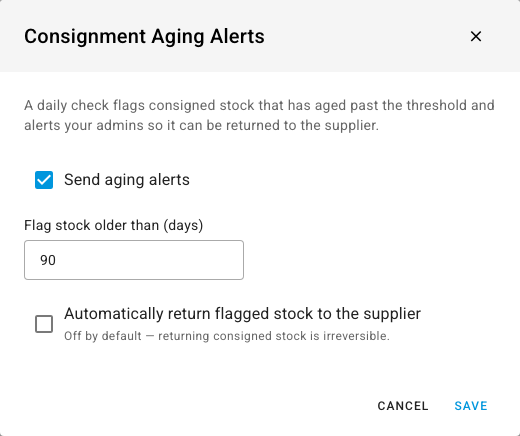
- On Inventory → Consignment, click Aging Alerts.
- Keep Send aging alerts on, and set Flag stock older than (days). The default is
90. - Tick Automatically return flagged stock to the supplier only if you want aged stock sent back without review. Returns can't be undone.
- Click Save.
What you'll see: each day, your admins get an email listing consigned stock older than the threshold.
Return unsold stock to the supplier
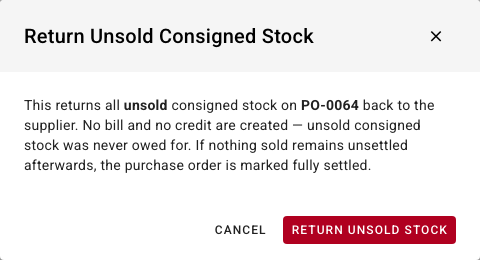
- Open the consignment purchase order and click Return Unsold Stock in its Consignment panel. You can also click the return icon on the purchase order's row in Inventory → Consignment.
- Read the summary. It returns all of the purchase order's unsold consigned stock. No bill and no credit are created.
- Click Return Unsold Stock.
What you'll see: the units leave your stock. If nothing sold is left unsettled, the purchase order becomes Fully settled and closes.