Reserve incoming PO stock for a sales channel
When part of a purchase order is meant for one sales channel, reserve those units before they arrive. For example, 600 rings are coming in: 500 are for your online store and 100 are reserved for a wholesale order. When the PO is received, the channel's units go straight onto a stock hold that only that channel can sell from. Without a reservation, they would go to other backorders by priority, and then to free stock for every channel.
Before you begin
- You need the Purchase Orders Edit permission (
purchase_orders.update) and the Sales Orders Edit permission (sales_orders.update). Without both, the reserve actions are disabled. - The sales channel is connected under Apps & Integrations.
- The purchase order is submitted and still open. A draft, closed, cancelled or dropship PO can't be reserved.
- The PO line is for a product and still has units to receive.
- The PO is received into a warehouse where SKU.io keeps the stock records. Amazon FBA, Walmart WFS and other warehouses that keep their own stock records can't hold units for a channel.
Steps
-
Open the purchase order from Purchasing → Purchase Orders.
-
On the Lines grid, open the line's ⋮ menu and click Reserve for a sales channel…. If the line already has allocations, you can also click its Allocations chip and then Channel.
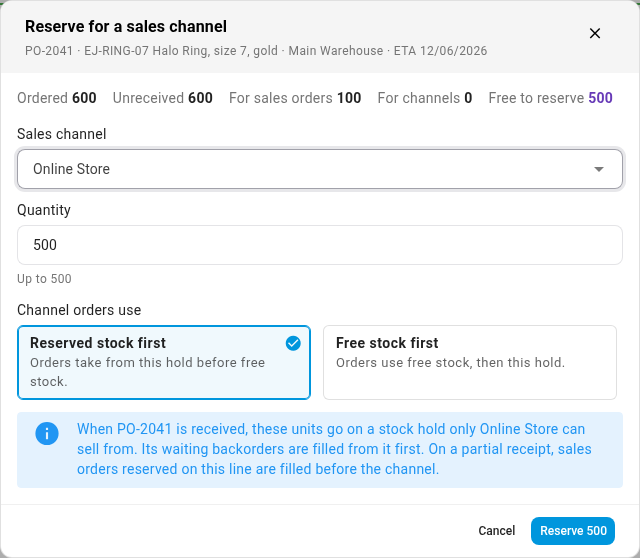
The Reserve for a sales channel dialog opens. The top row shows the line's Ordered and Unreceived units, the units already reserved For sales orders and For channels, and Free to reserve. Sales orders and channels share the Free to reserve figure, so the same unit can't be promised twice.
-
Choose the Sales channel.
-
Check the Quantity. It starts at everything that's free. To keep fewer units, type a new number. The hint under the box shows the most you can reserve (Up to).
-
Under Channel orders use, choose what that channel's orders take first once the units are on the shelf:
- Reserved stock first: orders take from the hold before free stock.
- Free stock first: orders use free stock, then the hold.
-
Click Reserve. The button shows your quantity.
What you'll see: a message such as "Reserved 500 × EJ-RING-07 for Online Store". The line's Allocations chip turns solid purple with a lock icon and counts both kinds of reservation, for example 1 SO · 100 reserved · 500 for Online Store. Hover it to see each order and channel with its units.
If a channel already has units reserved on the line, the dialog says so, and reserving again adds to them.
See and change reservations
Click the line's Allocations chip. Free to reserve shows what's left of the unreceived units, and each channel has its own row marked Sales channel. Hover its Reserved chip to see who reserved the units and when.
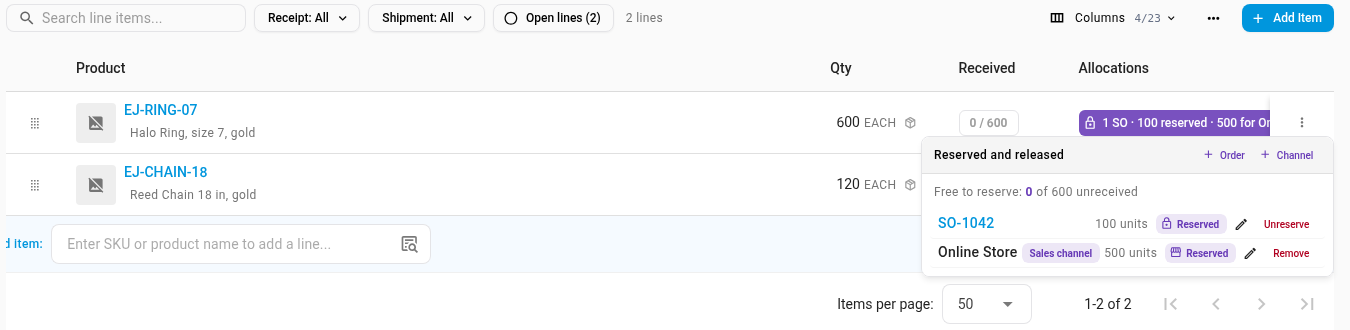
- To change the quantity or Channel orders use, click the pencil (Edit reserved quantity), make the change and click Save.
- To end the reservation, click Remove, then Remove again to confirm. The units then go to backorders and free stock like any other. Units already received stay on the channel's stock hold.
Every reservation, change and ending is listed on the PO's Activity tab.
Receive the units
Wherever you receive the PO, the split shows under the product: in the PO's Receive Items drawer, in an inbound shipment's Receive Items dialog, and on Floor receive.
-
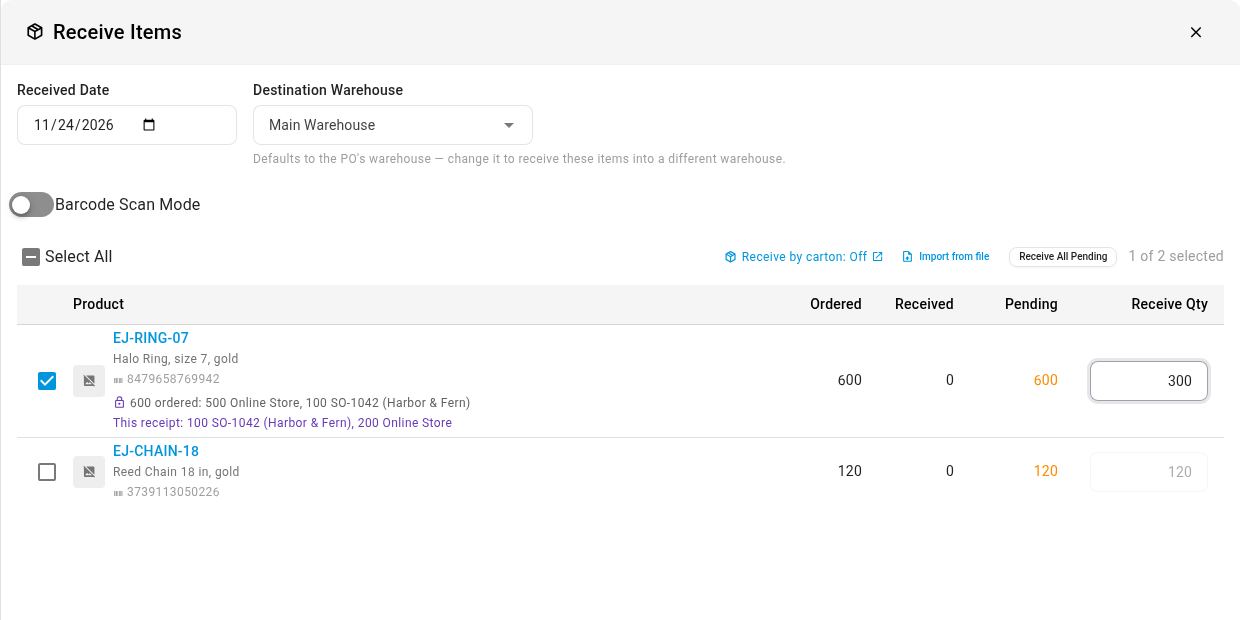
Open the purchase order and click Receive. Under each product with reservations, a caption says who the units are for, for example "600 ordered: 500 Online Store, 100 SO-1042 (Harbor & Fern)".
-
Type the Receive Qty. The caption follows it. For 300 of 600 units, it reads "This receipt: 100 SO-1042 (Harbor & Fern), 200 Online Store".
-
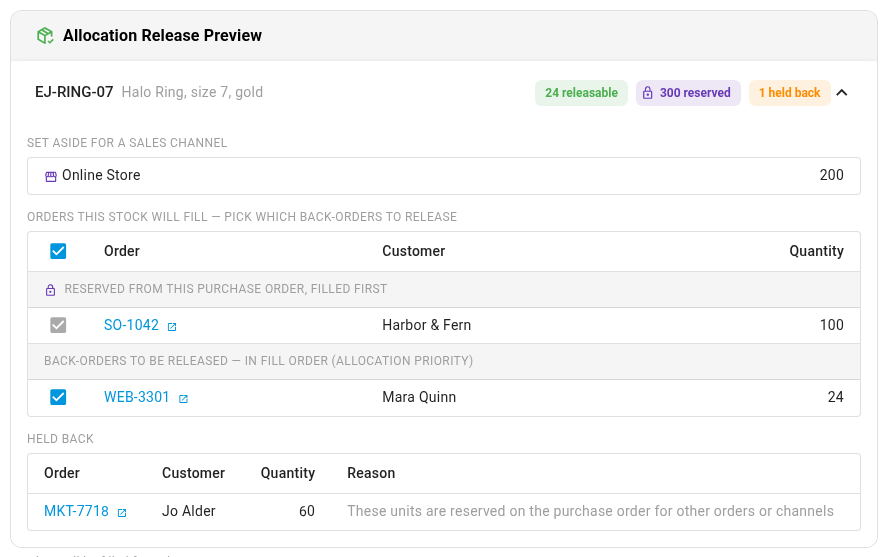
Click Receive Items and open the product in Allocation Release Preview. Set aside for a sales channel lists the channel's units. The sales orders reserved on the line are listed first and can't be deselected. Backorders that don't fit are held back, with the reason.
-
Click Confirm.
Each receipt fills in this order:
- Sales orders reserved on the line.
- Units set aside for orders that ship with a preorder.
- Sales channels, oldest reservation first.
- Other backorders by priority, and then free stock.
So a partial delivery can fill the sales order in full and the channel only in part. The rest of the channel's reservation waits for the next delivery.
What you'll see: the Allocations chip adds what arrived, for example 300 for Online Store · 200 received for Online Store. In its popover, the received row links to the stock hold. If the channel has backorders of its own waiting for the product, they're filled from the hold straight away, so the hold can show fewer units than you received. They move to Used by Channel.
Work with the stock hold
Each receipt line puts its channel units on a stock hold. Find it under Inventory → Stock Holds, with the reason Channel Reservation and a note that names the PO. It works like any hold reserved for a channel: edit it, release it, or give it an expiry date. See Reserve stock for one sales channel.
If you reduce or delete a receipt, units the channel hasn't used come back off the hold and return to the reservation.
When a reservation ends
SKU.io ends a channel reservation, or the part of it that no longer fits, when its units can't arrive as planned:
- The purchase order is closed, cancelled, voided, or sent back to draft.
- The PO line is deleted or closed short.
- The line's quantity is lowered so that its units still to come no longer cover the reservations. SKU.io asks End reservations? first. The newest channel reservation gives up units first, and sales order reservations last.
- The purchase order moves to another warehouse.
The ending is listed on the PO's Activity tab, and the person who made the reservation gets an email, "Reservation ended: Online Store · EJ-RING-07", with the reason and an Open the purchase order button. Changing or removing a reservation yourself sends no email.
A reservation belongs to the purchase order's warehouse. If you change the Destination Warehouse in the Receive Items drawer, the drawer warns you, and the line reads "Reserved at Main Warehouse. Receiving here fills none of it." See Receive stock against a PO.
The channel's units go on hold as soon as they're received, even when they land in a bin that isn't sellable. Until they're put away in a sellable bin, the warehouse's free stock reads lower by that amount. No channel is told to sell units that aren't sellable.
Next steps
- Reserve incoming PO stock for a sales order: promise units of the same line to one order.
- Place & manage stock holds: edit or release the channel's hold, or hold stock that's already on the shelf.
- Receive stock against a PO: the full receiving steps.
- Work the backorder queue: see what waits for the units that aren't reserved.
Video transcript
Six hundred rings are on their way, and five hundred are for your online store. Reserve them now, and nobody else can take them when they arrive. Open Purchasing in the menu on the left, and then choose Purchase Orders from the list. Click the order that brings the stock in, and it opens with its lines. Find the line for the product, and open its menu on the right. Click Reserve for a sales channel, and the dialog opens. The top row shows what is still to come, and what is already reserved. Free to reserve is the number sales orders and channels share. Click the box for the sales channel, which opens the list. It shows every store you have connected, so choose the one that gets the stock. The quantity starts at the most you can keep, and you can type less. Then choose whether the channel's orders use this stock first, or free stock first. Click Reserve, at the bottom of the dialog. On the line, the chip turns purple, and counts the units for each. Click the chip to see every reservation on the line. Use the pencil on its row to change it, or click Remove to end the reservation. When the stock arrives, click Receive, and the receive drawer opens. Under each product, you can see who the units are for. Only three hundred came today, so type three hundred in the box. Sales orders fill first, then the channel. Click Receive Items, at the bottom of the drawer. Expand the product in the release preview, to check where its units go. First come the units that are set aside for your sales channel. Below them, already ticked, is the reserved sales order. When everything looks right, click Confirm, and the stock is received. The units for the channel are now kept aside for it. Open Inventory in the menu on the left, and then choose Stock Holds from the list. Only the online store can sell these rings. What is still reserved waits for the next delivery.