Set up a subscription offering
A subscription offering lets you sell one item, such as a monthly box, while the product that actually ships changes from period to period. You create the offering once, then add an edition for each period: October's box ships one product, November's ships another. When an order line for the offering comes in, SKU.io looks at the order's date and picks the edition, and that edition's product is what gets allocated and shipped.
Before you begin
- Create the products each edition will ship first. An edition points at a real product, with its own stock.
- Pick a default product for the offering. SKU.io falls back to it when no edition fits an order, so orders never arrive without a product.
- An offering decides what ships for an order. It doesn't create repeat orders on a schedule. The orders themselves still come from your sales channels, or you add them by hand.
Create the offering
-
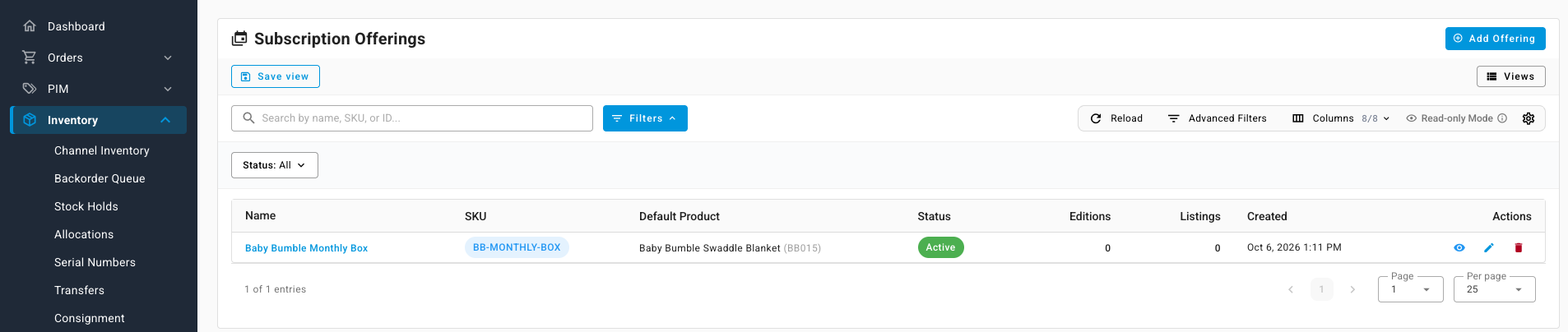
Go to Inventory → Subscription Offerings. The list shows each offering's SKU, Default Product, Status, and how many Editions and Listings it has.
-
Click Add Offering.
-
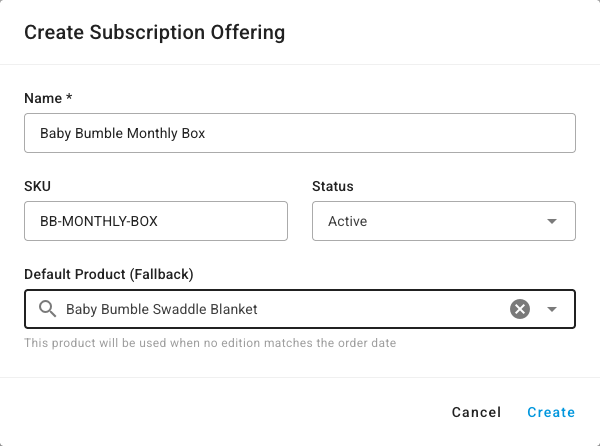
Enter a Name, such as Baby Bumble Monthly Box, and a SKU.
-
Leave Status as Active. Choose Paused or Archived later to take an offering out of use.
-
Under Default Product (Fallback), search for and pick the product to ship when no edition matches the order date.
-
Click Create, then click the offering's name to open it.
Add an edition for each period
- On the offering's Editions tab, click Add Edition.
- Enter an Edition Name, such as October 2026.
- Search for and pick the Product this edition ships. A Stock Visibility panel shows that product's on-hand stock and open purchase orders, so you can check you have enough.
- Set the Effective Date. Orders placed on or after this date use this edition.
- Optionally set a Cutoff Date. Orders placed after it skip to the next edition. Leave it empty for no cutoff.
- Leave Priority at
1unless editions overlap. When more than one edition fits an order date, the lowest number wins. - Optionally set an Allocated Quantity, the most units this edition can fill. Leave it empty for no limit.
- Click Create Edition.
The edition appears in the list with its dates and an Allocation bar, such as 0 / 100, that fills as orders use it.
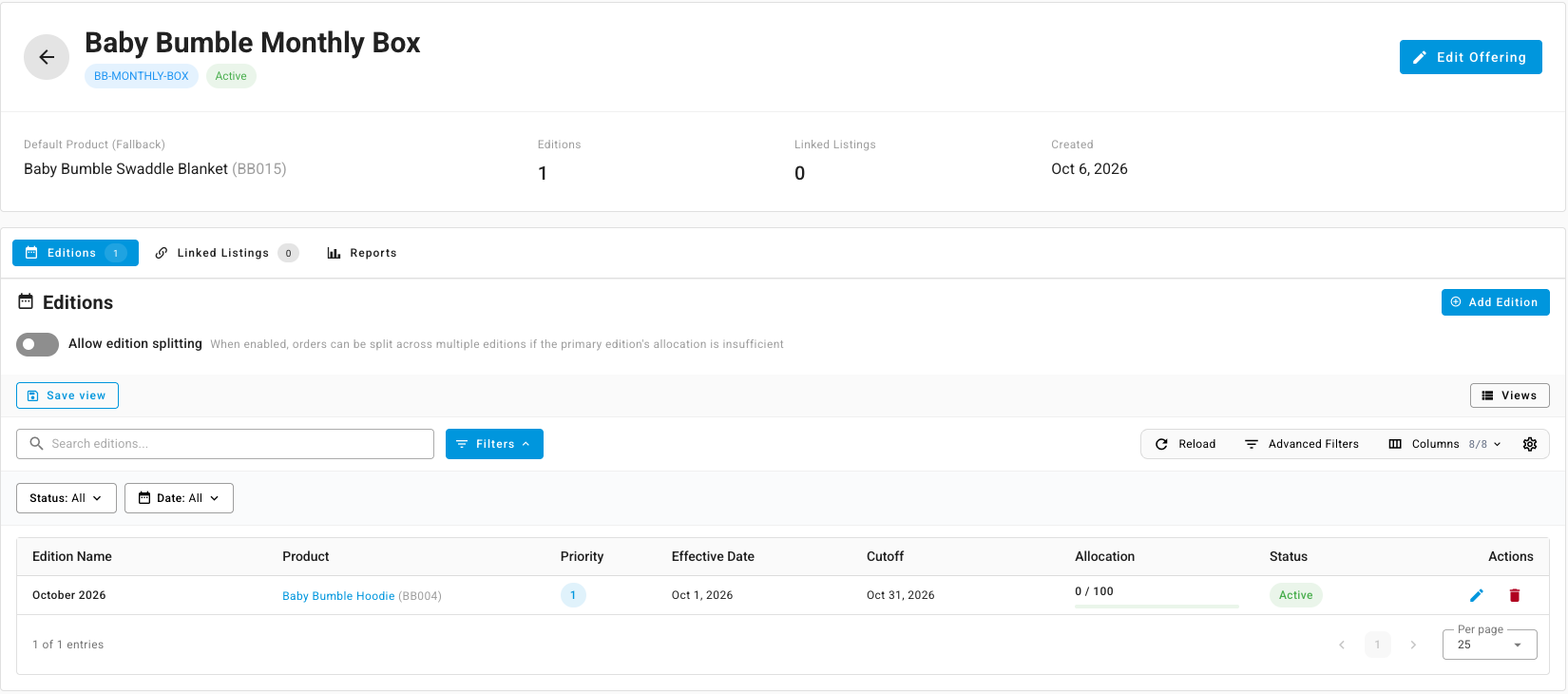
Repeat for each period. The offering's header counts its editions and linked listings.
How SKU.io picks the edition
For each order line, SKU.io works through these rules in order and uses the first one that gives an answer:
- A manual override on the order line, if someone picked the edition by hand.
- The editions in effect on the order date, lowest Priority first, skipping any whose Allocated Quantity is used up.
- The next edition, when an order lands after one edition's cutoff but before the next one starts.
- The default product, when no edition fits.
Split a line across editions
When an edition has some allocation left but not enough for the whole line, SKU.io skips it by default. Turn on Allow edition splitting, at the top of the Editions tab, to split the line instead: part of it fills the rest of that edition and the remainder goes to the next one.
Link channel listings
The Linked Listings tab shows the sales channel listings that sell this offering. A listing is linked when you map the channel product to the offering, rather than to a single product, so orders from that listing resolve to the right edition automatically.
Watch how editions sell
The Reports tab sums up the last 90 days: total orders, revenue, units sold, and active editions. It also lists Alerts & Reminders, such as an edition's cutoff coming up, a demand forecast that estimates the orders still to come before the cutoff, and an Edition Comparison table you can export.
Next steps
- Manage order lines — add an offering to a sales order, or override a line's edition.
- Allocations & Backorders — how the edition's product is allocated once it's picked.