Write down inventory at year end
At the end of a financial year you value your stock at the lower of what it cost and what it will sell for. A write-down lowers the value of stock you still hold, without changing how many units you have. Use it for stock that is discontinued, slow-moving, shop-worn or priced below cost. SKU.io records each write-down as a dated document with a reason, a note and its own journal entry, and you can reverse it later if your accounting standard allows it.
Before you begin
- Permissions. You need the Inventory Write-Downs permissions on your role: view and create to prepare a write-down, Post to post it, approve to approve someone else's, and Reverse to reverse one. Roles that can adjust inventory get view, create and post automatically.
- A write-down account. In Accounting → Settings → Nominal Code Mappings, map Inventory Write-Downs (NRV) to the Expense or Direct Costs account where write-downs should post (for example, "Inventory Write-Downs"). If you leave it unmapped, write-downs post to your cost of goods sold account.
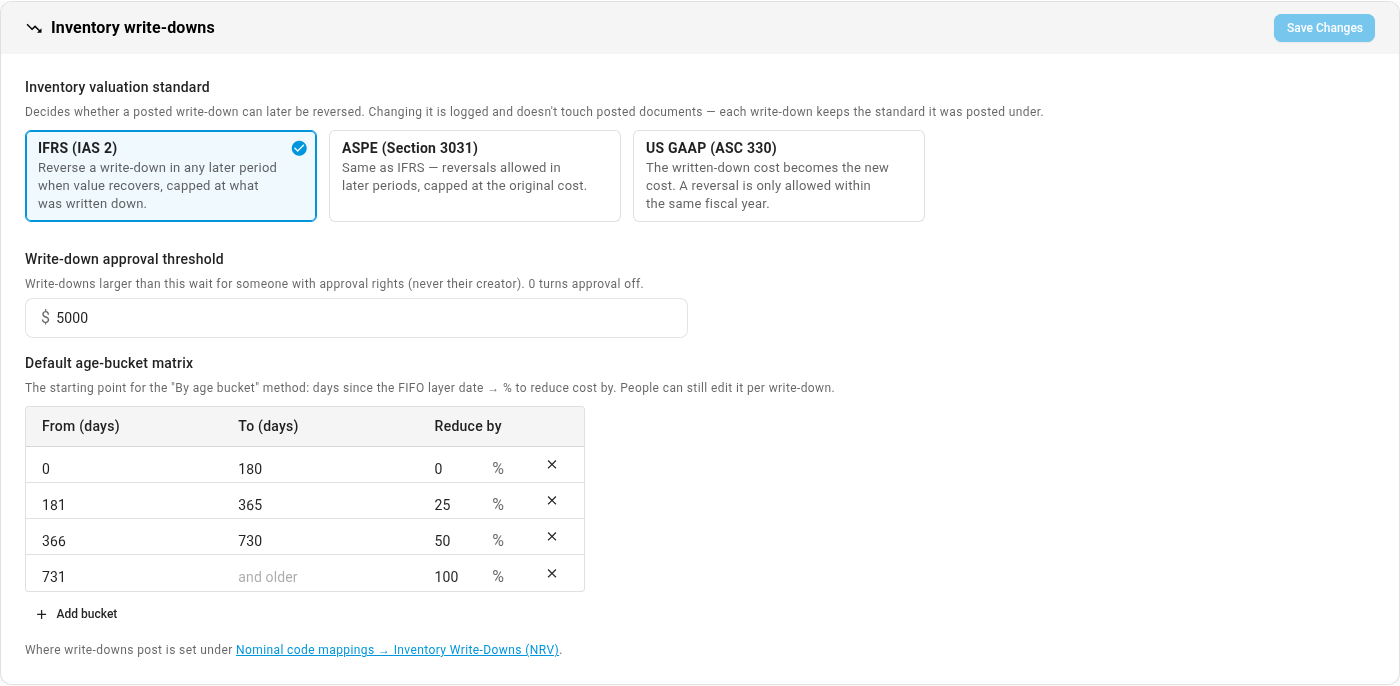
- Your valuation standard and approval threshold. In Accounting → Settings → General, the Inventory write-downs card holds your Inventory valuation standard (IFRS, ASPE or US GAAP), the Write-down approval threshold, and the default age buckets. The standard decides whether you can reverse a write-down later.
- An open period. The effective date must not be in a locked period, and it can't be in the future.
- Selling prices, if you want to write down to net realisable value: a default selling price on each product, a price list in your base currency, or recent sales.
Steps
-
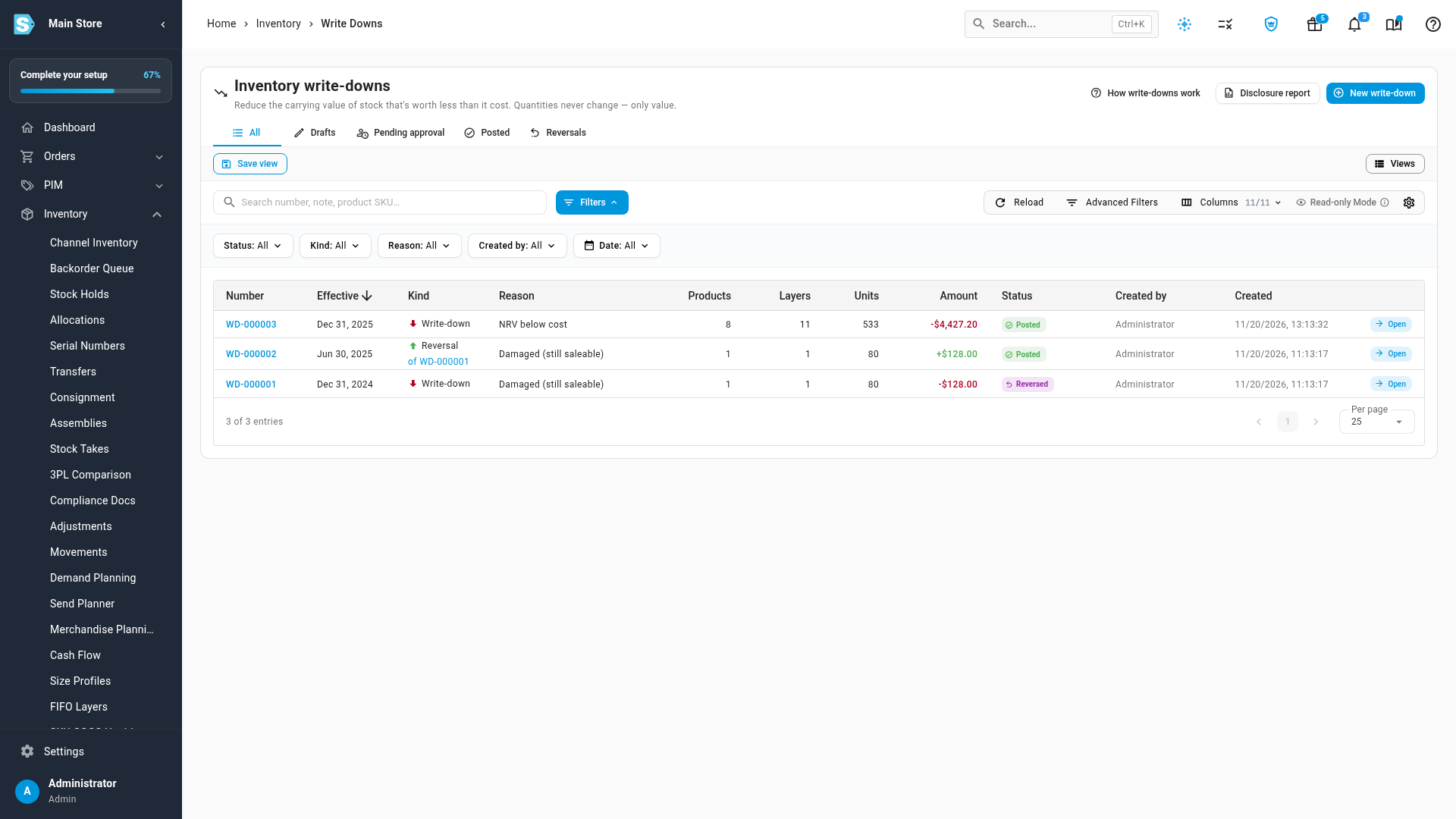
Go to Inventory → Write-Downs. Every write-down and reversal you've posted is listed here, newest first.
-
Click New write-down.
-
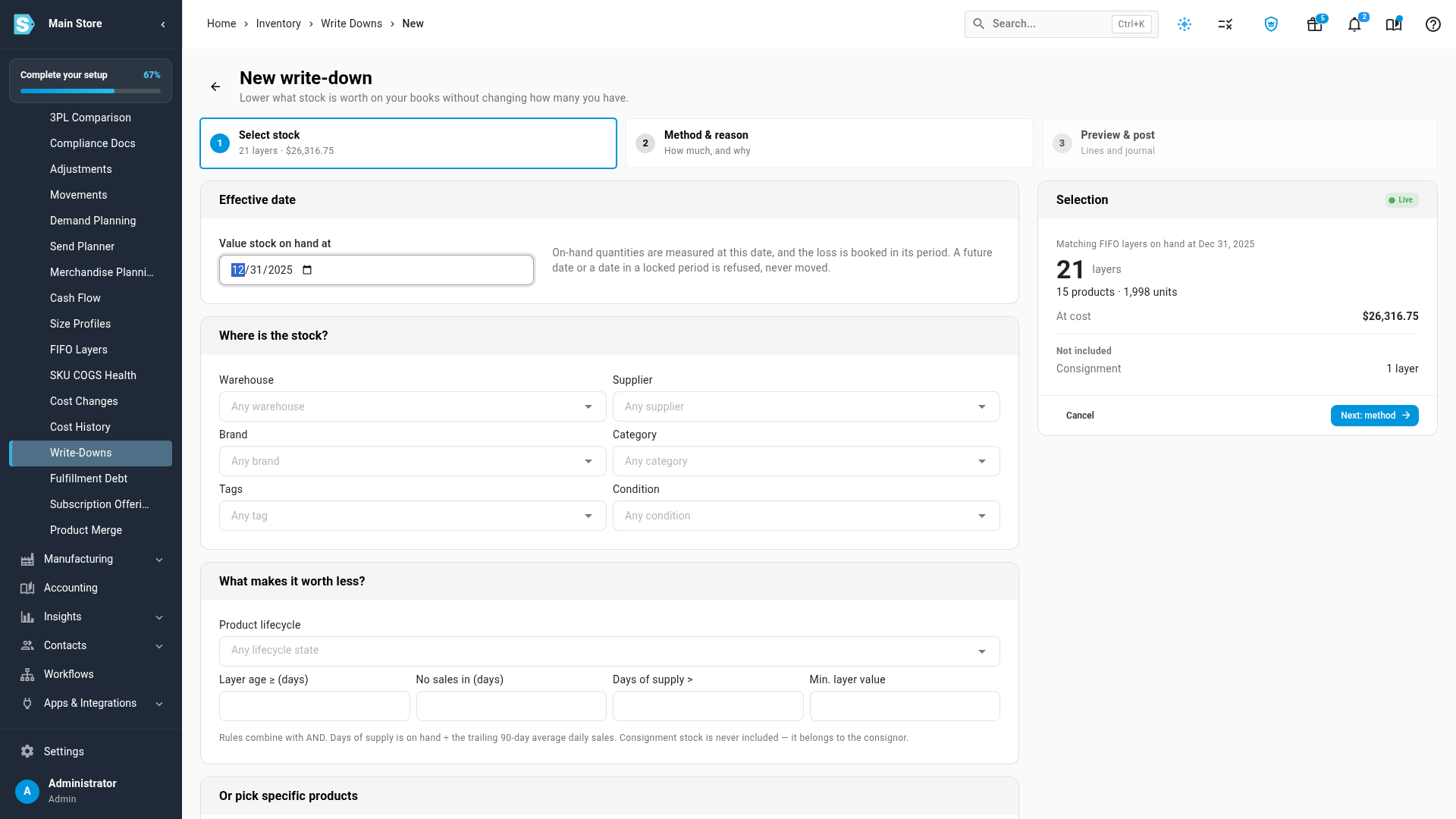
Under Effective date, set Value stock on hand at to the date you're valuing, usually the last day of your financial year. SKU.io measures each layer's on-hand quantity on this date and books the loss in that period. A future date, or a date in a locked period, is refused rather than moved.
-
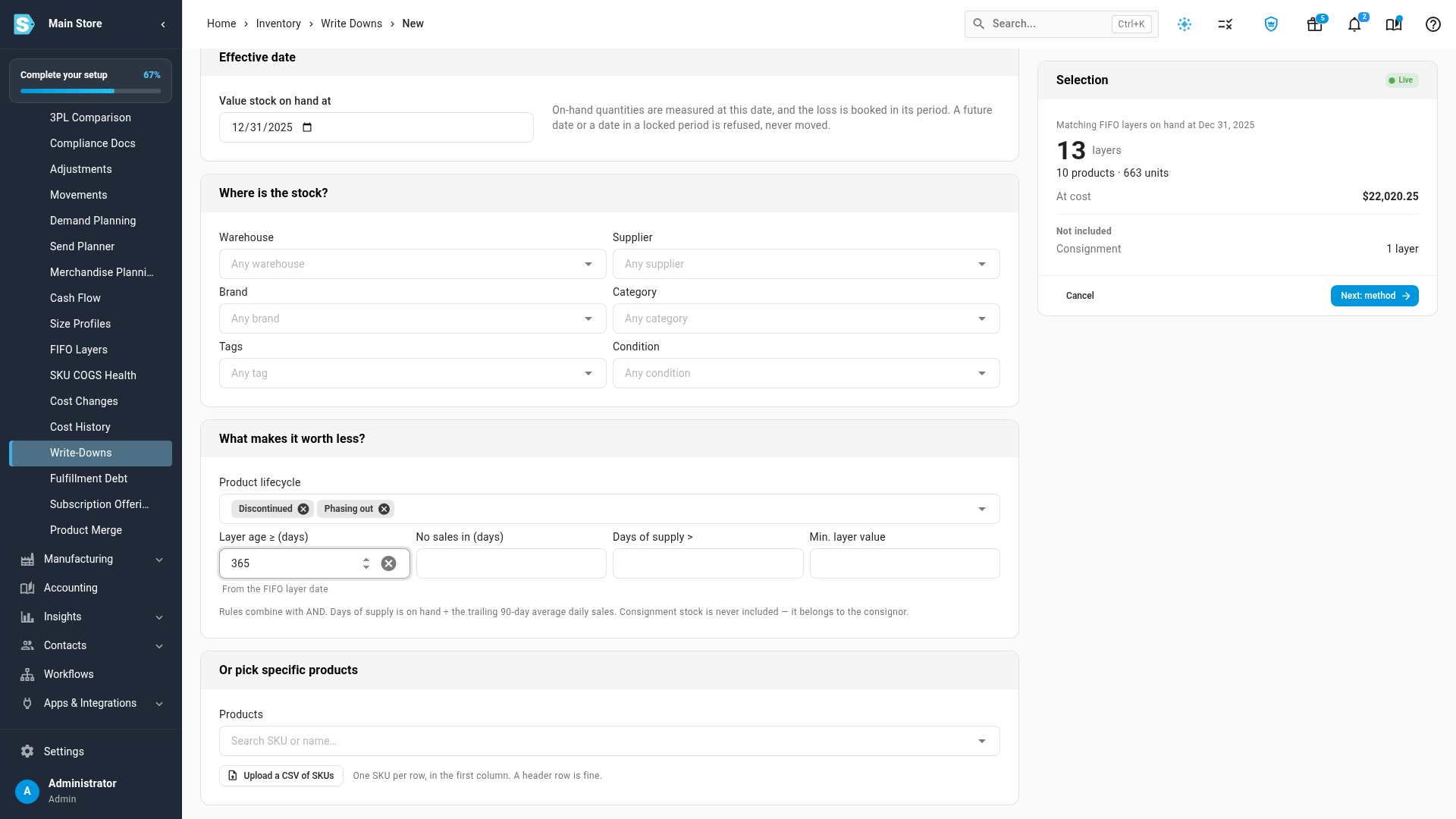
Choose the stock to review. Under Where is the stock? you can narrow it by Warehouse, Supplier, Brand, Category, Tags and Condition. Under What makes it worth less?:
- Product lifecycle: for example, Discontinued and Phasing out.
- Layer age ≥ (days): how old a FIFO layer must be, counted from the layer's date to the effective date.
- No sales in (days): products with no sales in that many days.
- Days of supply >: on hand divided by the average daily sales of the last 90 days.
- Min. layer value: skip layers worth less than this.
Rules combine with AND. To pick products directly instead, use Or pick specific products, or upload a CSV of SKUs (one SKU per row, in the first column). The Selection panel on the right counts the matching layers, products, units and value at cost as you go. Consignment stock is never included, because it belongs to the consignor.
-
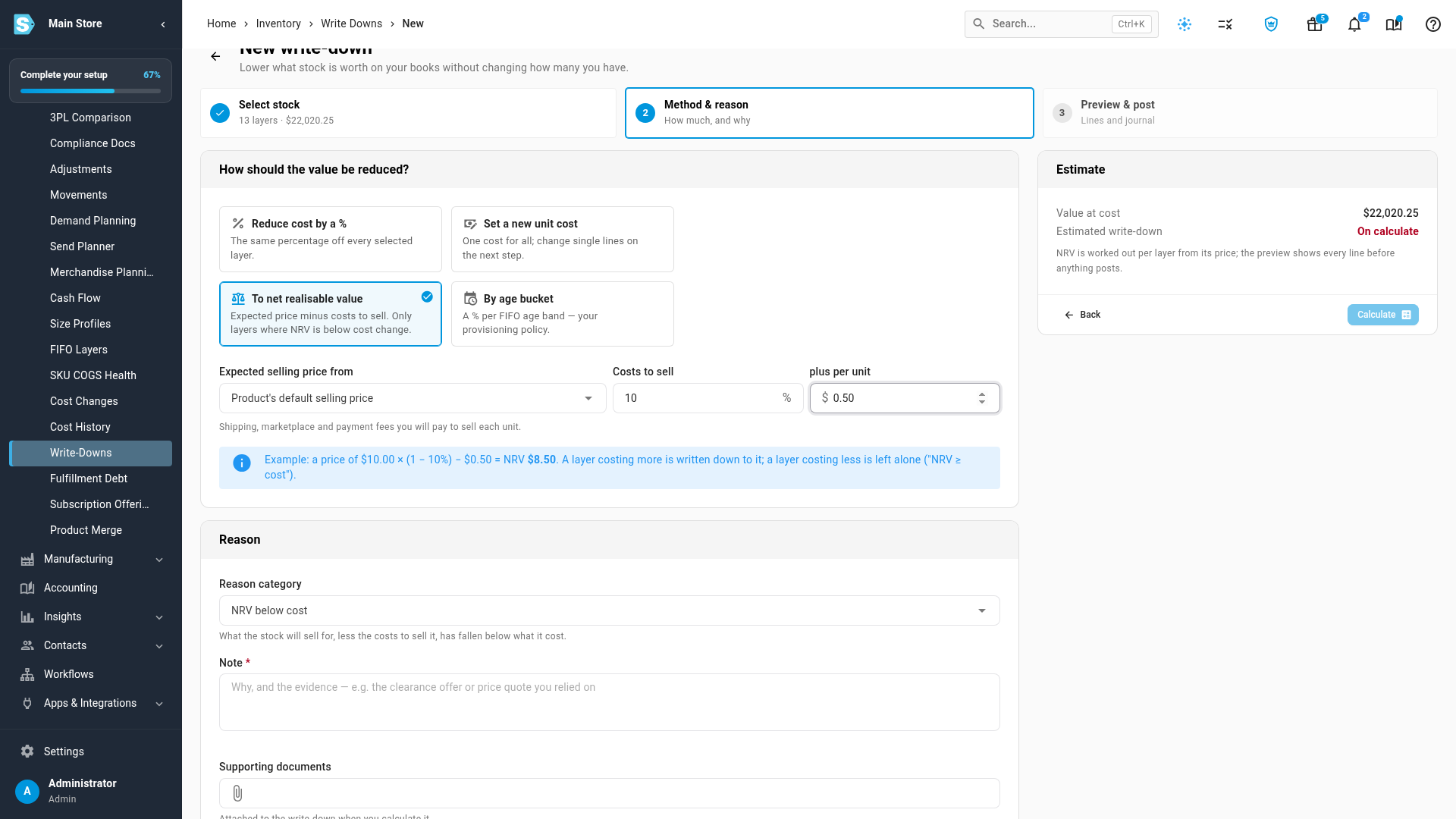
Click Next: method, then choose how to lower the value (see The four methods below). For net realisable value, choose To net realisable value, pick where the Expected selling price from comes from, and enter your Costs to sell as a percentage plus an amount per unit.
-
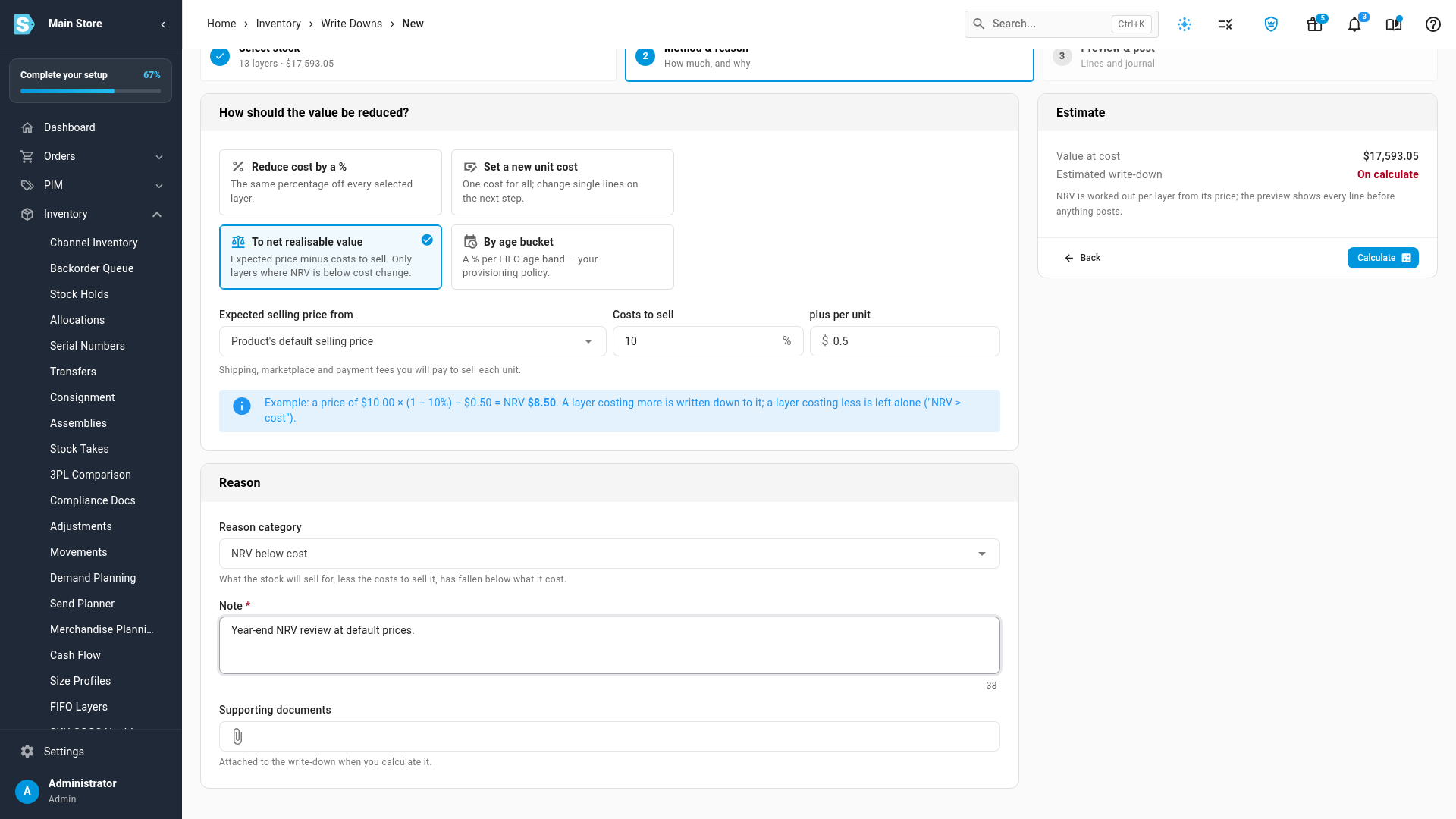
Pick a Reason category and write a Note that explains the decision and the evidence you relied on, such as a price list, a clearance offer or a remainder quote. The note needs at least 10 characters. You can attach the evidence under Supporting documents.
-
Click Calculate. SKU.io saves a draft and opens Preview & post.
-
Review the preview:
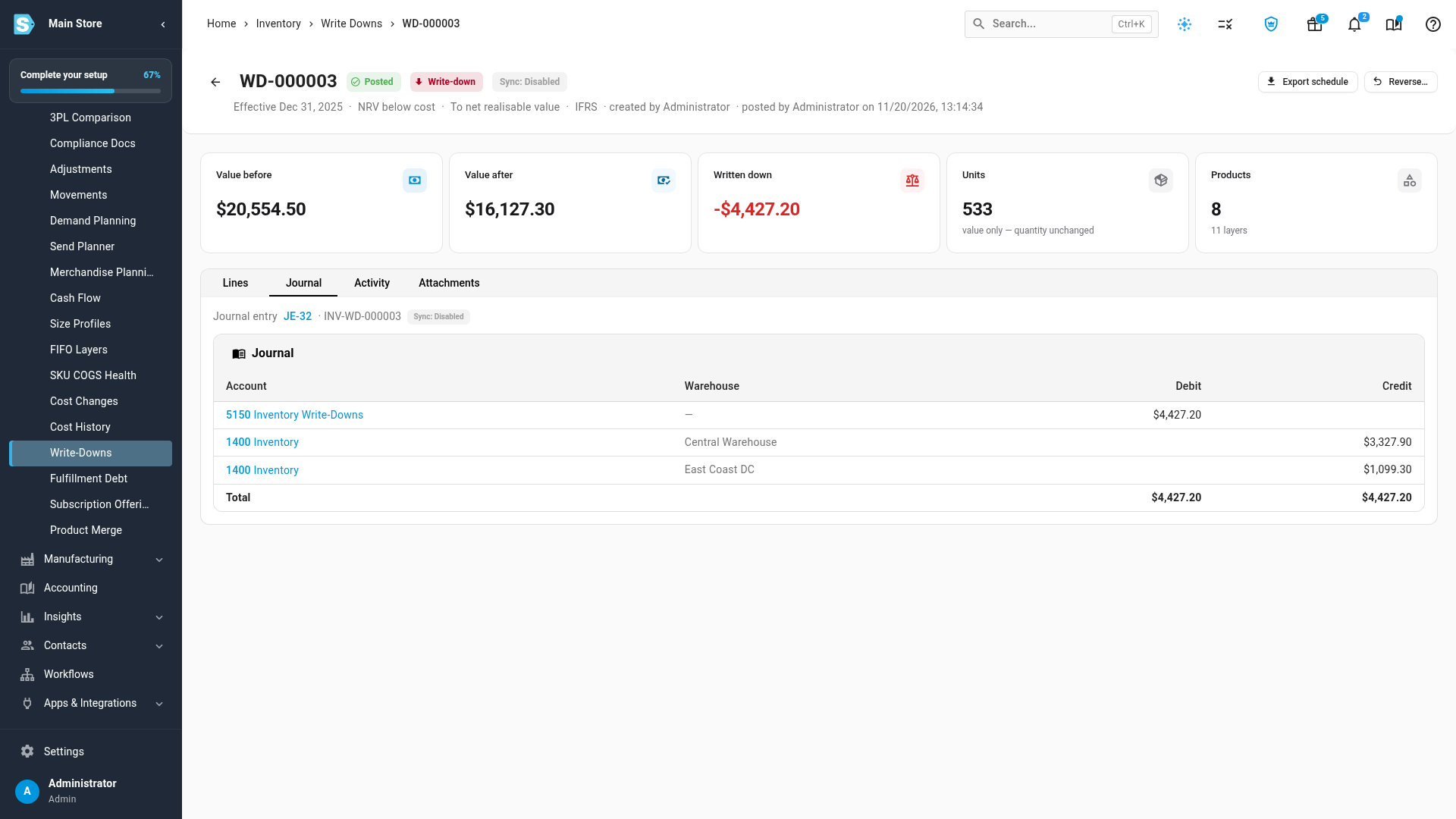
- The cards show Value before, Value after, the Write-down, the Units (unchanged) and the Products.
- A blue note lists layers that were skipped and why: for example, NRV at or above cost, or consignment stock.
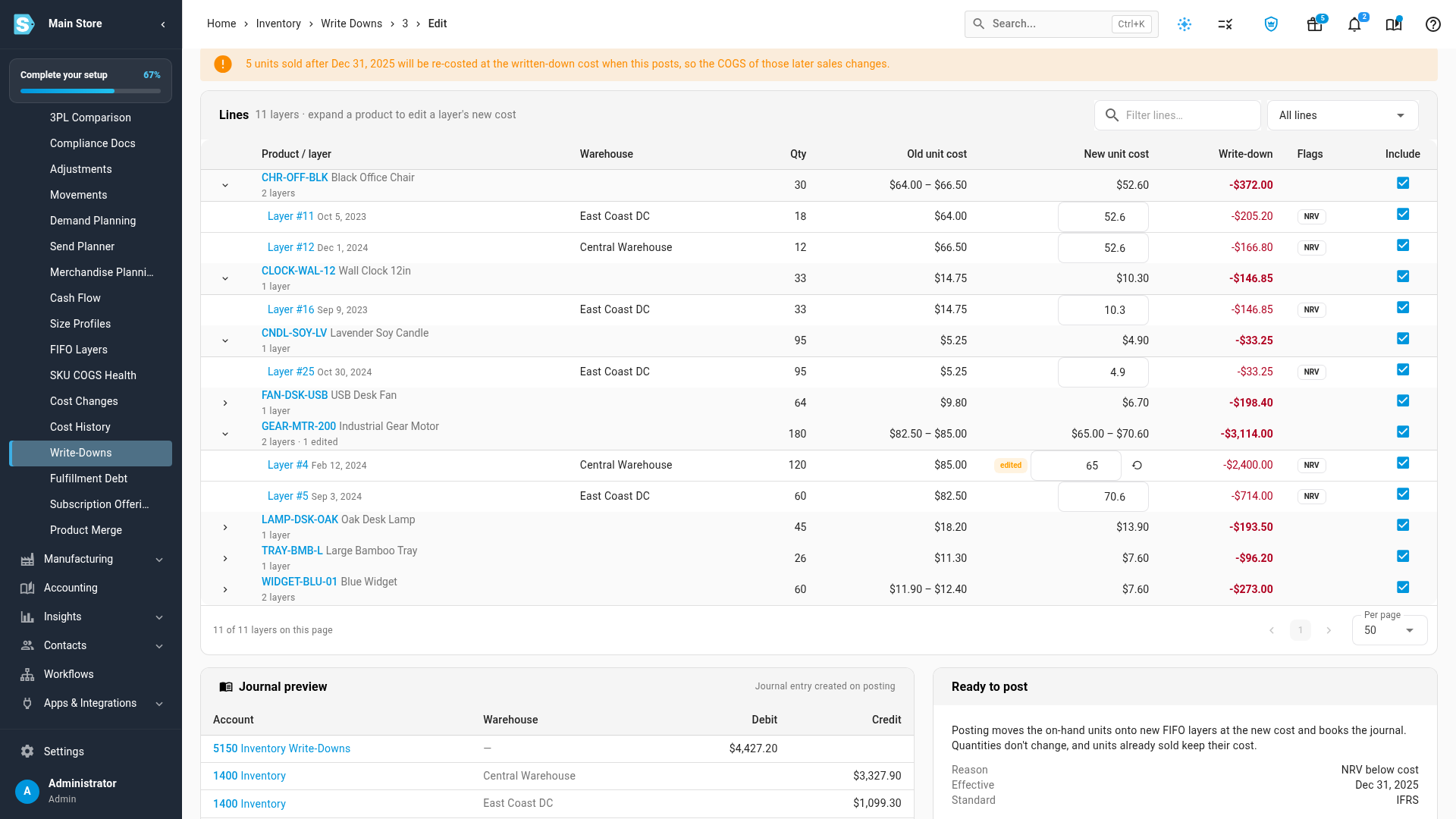
- An orange warning appears when units were sold after the effective date. Those later sales are re-costed at the written-down cost when you post, so their cost of goods sold changes.
- A line is blocked when units from that layer were sold in a locked period after the effective date. Unlock the period, choose a later date, or untick Include on that line.

-
To change one layer, expand its product and type a new value in New unit cost. The line, the product subtotal, the cards and the journal preview update straight away, and the line is marked edited. A cost at or above the current cost, or below zero, is refused. To leave a layer out, untick Include.
-
Scroll to Journal preview and check the entry: a debit to your write-down account and a credit to Inventory for each warehouse, dated on the effective date.

-
Click Post and confirm. If the write-down is larger than your approval threshold, the button reads Submit for approval instead (see Approval).
-
The write-down posts in the background, and the page shows it as Posted. Open the Journal tab to see the journal entry and its sync status.
You can also start a write-down with the stock already chosen: Write down… on the Inventory Valuation report, Write down on a FIFO layer, Write down stock on a product's COGS tab, and the write-down action on the Inventory Aging report.
The four methods
| Method | What it does | Use it when |
|---|---|---|
| Reduce cost by a % | Takes the same percentage off every selected layer. 100% writes the stock down to zero. | You have one markdown for a group of stock, such as 50% off an obsolete range. |
| Set a new unit cost | Gives every selected layer the same new unit cost. You can still change single lines in the preview. | You know what a product is worth now, such as a firm offer from a liquidator. |
| To net realisable value | Works out NRV per product as the expected selling price minus the costs to sell. A layer that cost more than its NRV is written down to it; a layer that cost less is skipped. | You value stock at the lower of cost and net realisable value, the usual year-end test. |
| By age bucket | Applies a percentage per age band, counted from the FIFO layer's date. The default bands are 0–180 days 0%, 181–365 days 25%, 366–730 days 50%, and over 730 days 100%. | You have a provisioning policy based on age. The bands are a starting point to edit, not a standard. |
For To net realisable value, the Expected selling price from can be:
- Product's default selling price: the price on your default pricing tier.
- A price list: a pricing tier in your base currency.
- Trailing average realised price: the average net price from your sales orders over the last number of days you choose, after discounts.
- Prices I enter (or upload): a remainder or liquidation price per product, typed or uploaded.
Costs to sell are the shipping, marketplace and payment fees you'll pay to sell each unit, as a percentage of the price plus an amount per unit. SKU.io saves the price, costs and NRV on each line as evidence. With every method, a new cost below zero is set to zero.
Reasons
| Reason | Use it for |
|---|---|
| NRV below cost | What the stock will sell for, less the costs to sell it, has fallen below what it cost. |
| Obsolete / discontinued | A discontinued or superseded product you'll have to clear at a lower price. |
| Slow-moving | Stock selling far slower than planned, so it will need a markdown to clear. |
| Damaged (still saleable) | Shop-worn stock you can still sell at a lower value. |
| Other | Anything else. Explain it in the note. |
Approval above the threshold
When a write-down is larger than the Write-down approval threshold, the preview shows Submit for approval instead of Post. Submitting makes the write-down read-only and puts it in Pending approval. Someone with the approve permission, who isn't the person who created it, opens it and clicks Approve & post, or Reject with a note to send it back to draft. Set the threshold to 0 to turn approval off.
What happens to sold and unsold stock
Posting moves each layer's on-hand units onto a new FIFO layer at the new cost. The quantity doesn't change, and the new layer keeps the original layer's date, lot, expiry, bins and condition, so FIFO order and aging stay the same.
- Stock already sold before the effective date keeps its cost. Past orders' cost of goods sold and margins don't change.
- Stock sold after the effective date is re-costed. If you post a December 31 write-down in January, the January sales of that stock were on hand on December 31, so their cost of goods sold moves to the written-down cost. The preview warns you how many units this affects. If those sales are in a locked period, the line is blocked.
- A posted write-down can't be edited or deleted. To change it, reverse it or post another write-down.
Reverse a write-down
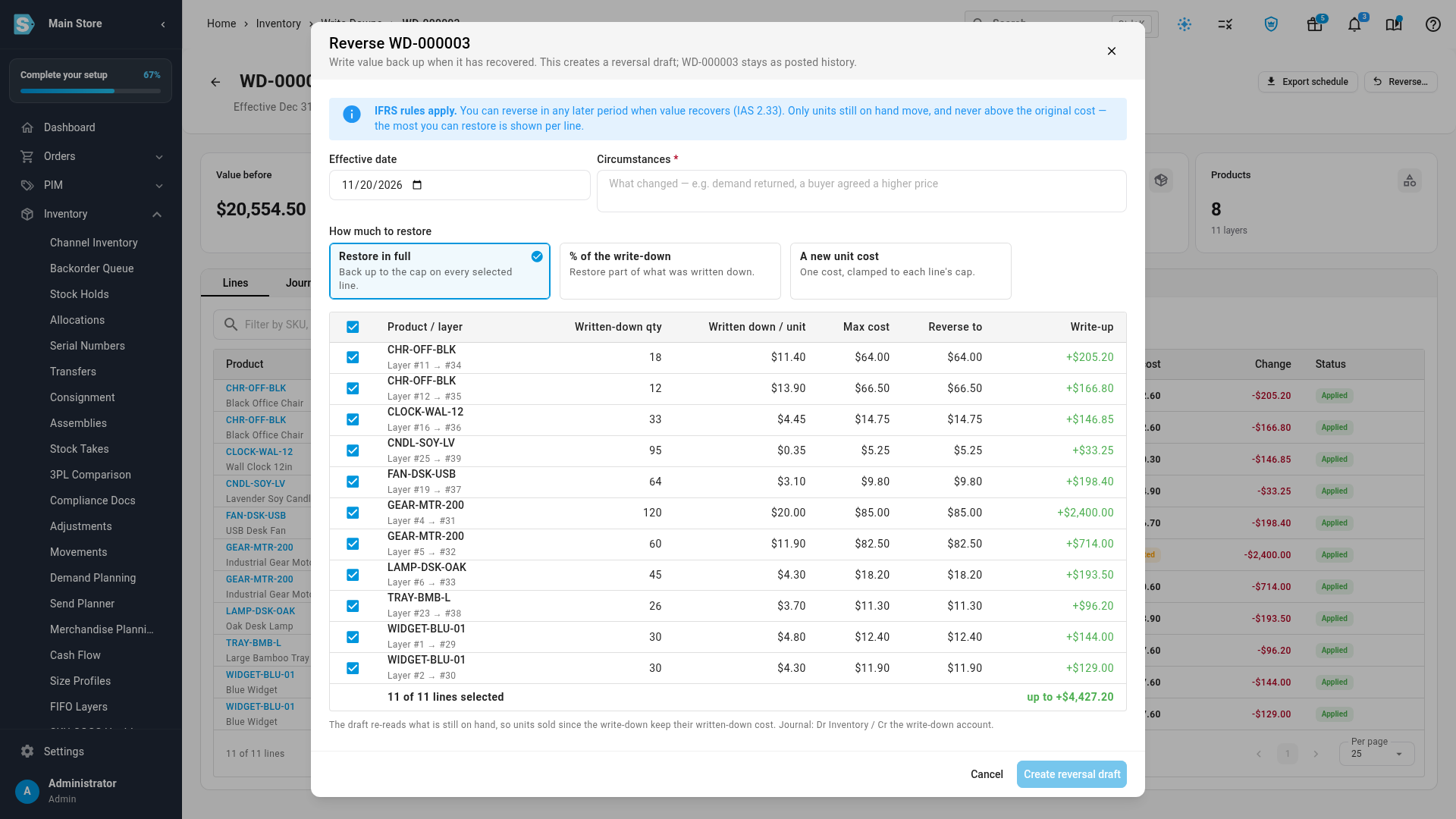
When the value recovers, for example because a price goes back up, open the posted write-down and click Reverse…. Enter the effective date and the Circumstances that changed, and choose Restore in full, % of the write-down, or A new unit cost. SKU.io creates a reversal draft that you review and post like a write-down.
| Standard | Can you reverse? |
|---|---|
| IFRS (IAS 2) and ASPE (Section 3031) | Yes, in any later period, once the reason for the write-down no longer applies. |
| US GAAP (ASC 330) | Only within the same fiscal year. After the year end, the written-down cost is the new cost, and Reverse… is turned off. |
Under every standard, a reversal never takes a unit above its original cost, and never restores more than was written down. Only units still on hand move: units sold in between keep their written-down cost. Each write-down keeps the standard it was posted under, so changing the setting later doesn't change what you can reverse.
A cost that was simply entered wrong isn't a reversal. Correct it with a revaluation instead.
The journal and your accounting software
| Debit | Credit | |
|---|---|---|
| Write-down | Your Inventory Write-Downs (NRV) account | Inventory, one line per warehouse |
| Reversal | Inventory | Your Inventory Write-Downs (NRV) account |
The entry is dated on the effective date, with the reference INV-WD- and the write-down number. When Xero or QuickBooks Online is connected, it syncs in that month's inventory write-down journal. Because the journal and your stock valuation move together, the inventory value in SKU.io still matches your inventory account afterwards.
The disclosure report
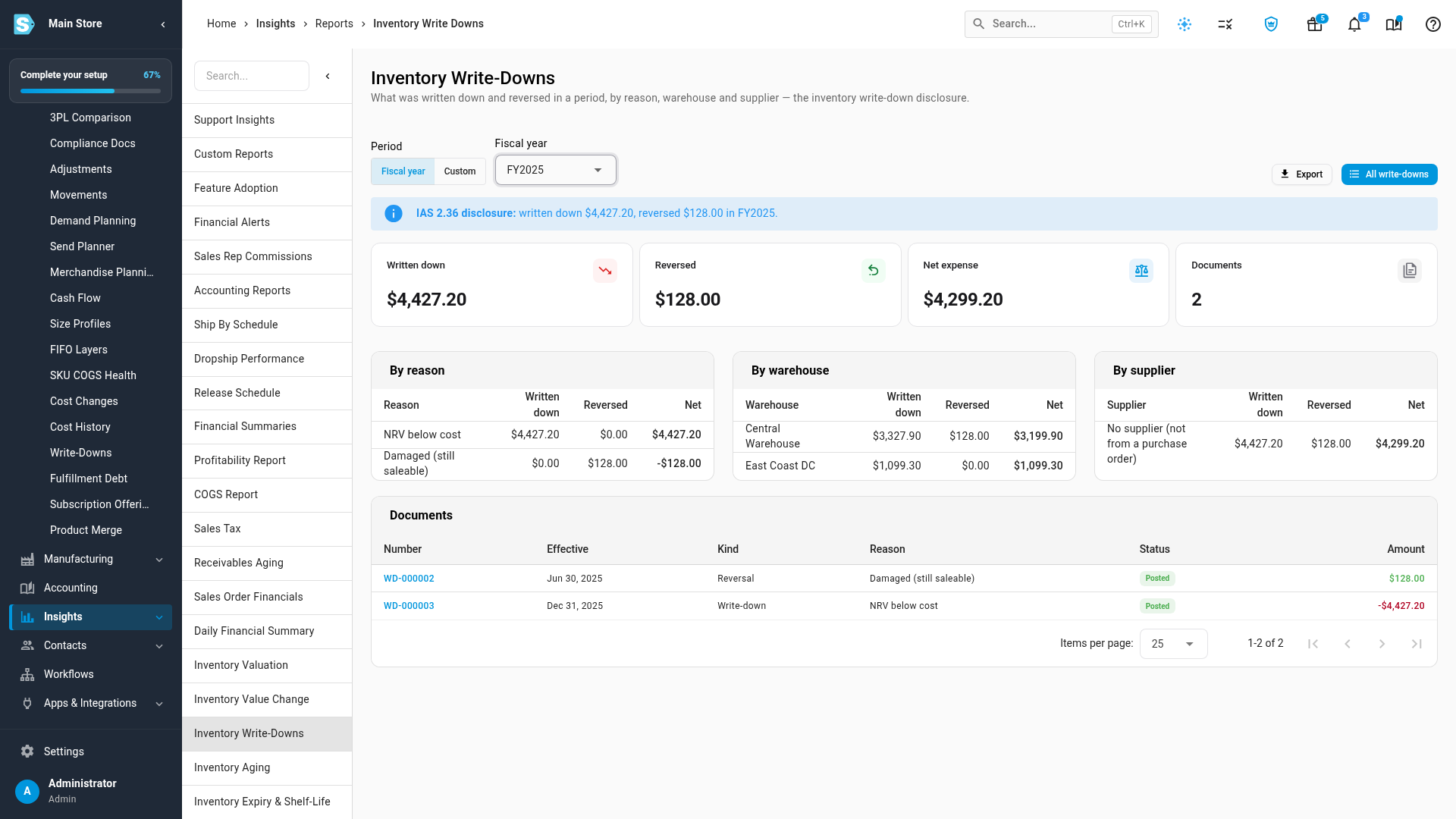
On Inventory → Write-Downs, click Disclosure report. Choose a Fiscal year or a custom period to see what was written down and reversed, and the net expense, by reason, by warehouse and by supplier, with every document listed. Use Export to give your accountant the figures, and Export schedule on a write-down for its line-by-line schedule, including the selling-price evidence.
FAQ
Why not clear the stock with a sales order and receive it again at a lower cost?
It changes your books in ways a write-down doesn't. A fake sales order records revenue and a customer that don't exist, and moves the loss into your cost of goods sold alongside real sales. When you receive the stock again, its age resets to today, so aging reports and FIFO order are wrong, and the trail an auditor needs is gone. A write-down keeps the quantity, the layer dates and the sales history, and posts the loss to its own account with a reason and a note.
Should I write down damaged stock, or adjust it out?
It depends on whether you can still sell it. If it's shop-worn but saleable at a lower price, write it down with the Damaged (still saleable) reason. If it can no longer be sold, record an inventory adjustment with a damaged or loss reason instead, which removes the quantity.
Can I keep a reserve (allowance) instead of lowering the cost?
Not in SKU.io. Your stock value in SKU.io is the sum of its FIFO layers, and it's compared with your inventory account, so a reserve posted only in your accounting software would never reconcile. If you want to present a reserve, map how the write-down account appears on your balance sheet in your accounting software.
Is a write-down deductible for tax?
Not always. A write-down is for your books. Tax rules can differ: in the US, for example, writing down excess stock is generally not deductible unless the goods are actually offered at the lower price. Your book and tax values can therefore differ. The write-down's exported schedule includes the selling-price evidence on each line, which your tax preparer can use. Check with your accountant.
Can I write down stock that's in transit or managed by Amazon?
Not yet. Stock on a transfer that hasn't been received, and Amazon-managed layers, are left out and counted as skipped. Write in-transit stock down after it's received, or use a later date.
Next steps
- FIFO layers & how COGS is realized
- Correcting COGS: revalue vs rebuild vs recalculate
- Reconciling with your accounting provider
Video transcript
At year end, some of your stock is worth less than it cost. A write-down lowers its value on your books, without changing how many units you hold. In the main menu, click Inventory, and scroll down its list to Write-Downs, which sits just below the costing pages. Every write-down and reversal you've posted is listed here, with its effective date, its reason, and its amount. To start a new one, click New write-down, at the top right. The form opens on its first step, Select stock.
Start with the effective date, at the top of the form. This is usually the last day of your financial year. Stock on hand is measured on this date, and the loss is booked in that period. A future date, or a date in a locked period, is refused.
Next, choose the stock to review. You can narrow it by warehouse, supplier, brand, category, or tag. Then, under What makes it worth less, click Product lifecycle, and tick each state you're reviewing, such as discontinued, and phasing out. Click the card's heading to close the list. Then set Layer age to how many days old the stock must be. Here, that's three hundred and sixty five days. The Selection panel counts the matching layers, units, and value at cost, as you go. Consignment stock is never included, because that stock isn't yours to value.
When the count looks right, move on with Next: method, at the foot of the panel. Now choose how to lower the value. You can reduce cost by a percentage, set a new unit cost, or use age buckets. Or write it down to net realisable value. That's the expected selling price, minus the costs to sell. Choose To net realisable value. For the price, click the list, and choose Product's default selling price. Then enter your costs to sell: a percentage of the price, and an amount for each unit you ship.
Scroll down to Reason, and click Reason category. Each reason has a short description of when it applies. Damaged is only for stock you can still sell. Choose the one that fits this stock. Then write a note with the evidence you relied on, such as a price list, or a clearance offer. Now click Calculate to build the preview. SKU.io saves a draft. Then it works out the new cost of each layer. For a large selection, this runs in the background, and the job tray shows its progress.
The preview shows the value before and after, and the write-down. Layers whose NRV is still at or above cost are skipped. Units sold after the date will be re-costed, and a warning tells you how many. Expand a product to see its layers. To override one layer, type a new unit cost. The line is marked as edited, and the totals and the journal update right away.
Scroll down to the Journal preview. It debits your Inventory Write-Downs account, and credits Inventory for each warehouse. When the total is over your approval threshold, this button reads Submit for approval, and someone else approves it. This one is under the threshold, so click Post. A dialog sums up the units that move, and the total. To confirm, use the Post button in the dialog. Posting runs in the background, and takes a moment. When it's done, the posted write-down opens on its own.
Each layer's units have moved onto a new layer at the new cost. The quantity and the layer date don't change, and units you'd already sold keep their old cost. To see the entry it booked, click the Journal tab. Once your books are connected, it syncs to Xero or QuickBooks Online.
If the value recovers later, click Reverse. The box at the top spells out the rules for your accounting standard. Under IFRS, you can reverse it in a later period, but never above the original cost. Each line shows the most you can restore. For now, close the dialog with Cancel, and nothing changes.
For your year-end disclosure, go back to the Write-Downs list, from the Inventory menu. At the top of the list, click Disclosure report, next to New write-down. It opens on the current financial year. Click the Fiscal year list, and choose the year you're closing. The cards at the top total what was written down, what was reversed, and the net expense. Below them, it's split by reason, by warehouse, and by supplier. To share the report with your accountant, use Export.