Review a late cost change and trace its impact
A freight bill for last month's container, an invoice with the real price, a price edited on a received purchase order: each one changes the cost of stock you already received, and some of that stock may already be sold. SKU.io records each of these as a cost change on Inventory → Cost Changes. You can open any of them, trace exactly which FIFO layers, sales and months it touches, and decide which month the extra cost belongs in.
Most cost changes apply on their own. A change waits in Needs review only when your cost change policies say it should. Every change, applied or waiting, keeps its impact tree and its decision history.
Before you begin
- A cost change exists. One appears when a document adds or changes cost on stock that was already received. Adding a landed cost to a received purchase order is the most common cause; see Add a landed cost after receiving.
- Know the two answers you can give:
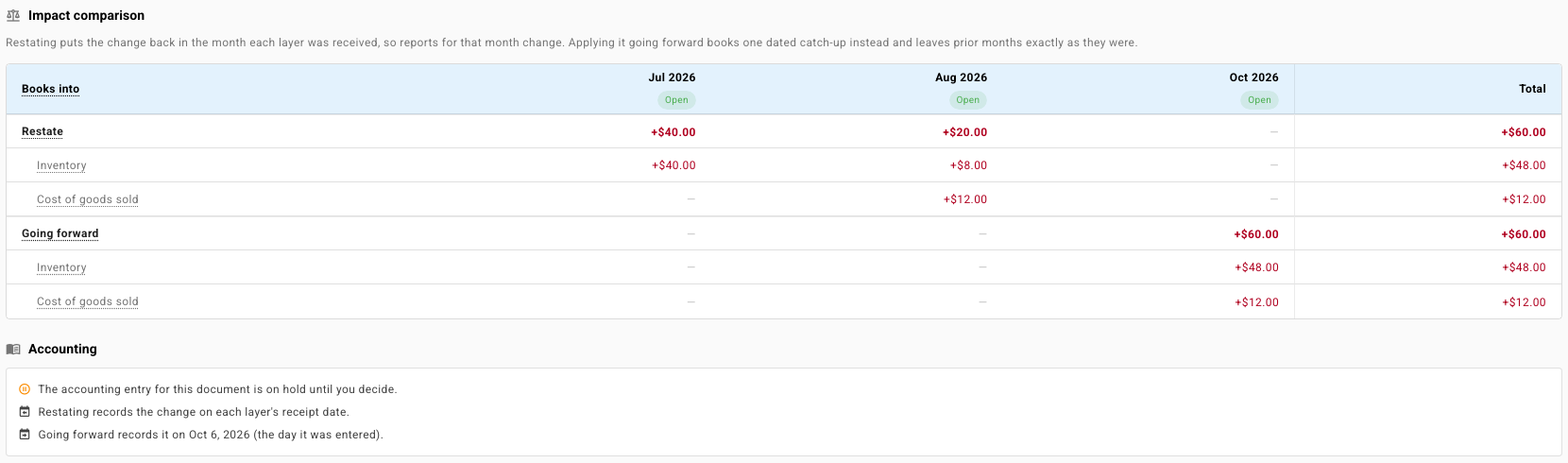
- Restate puts the cost back in the month each layer was received. Sales are re-costed in the month they shipped, so reports for those months change.
- Going forward books one dated catch-up entry and leaves earlier months exactly as they were.
Find the cost change
-
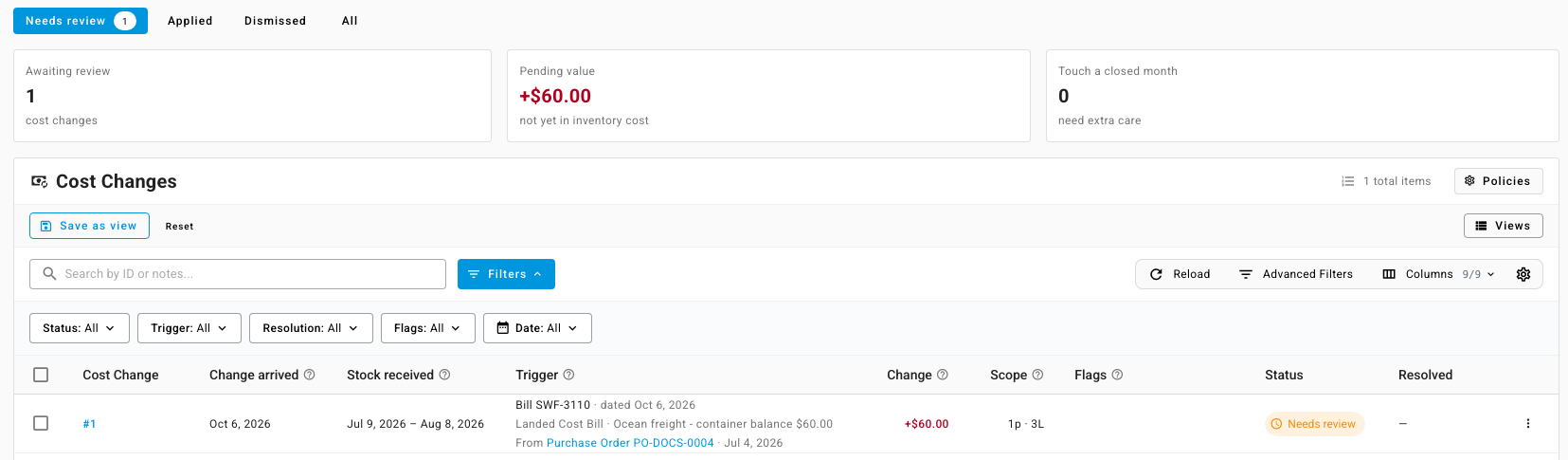
Go to Inventory → Cost Changes. The page opens on Needs review, and the nav item shows how many changes are waiting.
-
Read the three tiles: Awaiting review counts the waiting changes, Pending value is the cost not yet in inventory, and Touch a closed month counts the changes that reach into a month you've closed.
-
To see changes that already applied, click Applied. Dismissed and All work the same way.
-
Read the row. Change arrived is when the document was entered, Stock received is the range of receipt dates it affects, and Trigger names the document, such as Bill SWF-3110, and the purchase order it belongs to. Scope reads 1p · 3L for one product and three FIFO layers.
-
Check the Flags column before you decide:
Flag What it means Locked The original month is locked, so restating would post on the first open day instead. Restate isn't offered. Closed The original month is closed in your accounting periods. Restating changes numbers you may already have reported. Backfilled Recorded from history rather than captured when the document arrived. You can switch it but not send it back to the inbox. Rolled down The change also re-costed stock built or transferred from the affected layers, such as kits, assemblies or transfers. -
Click the change's ID to open it.
Read the review
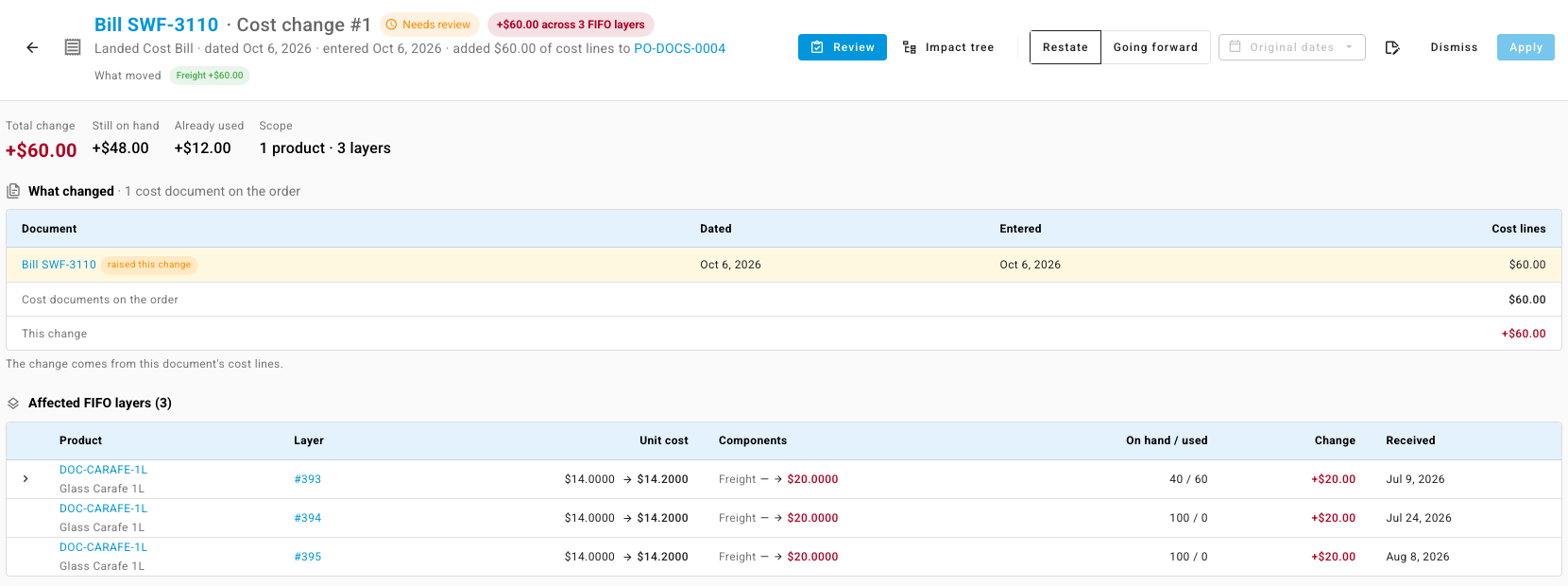
The Review view answers three questions: what changed, which stock it touches, and which months it lands in.
-
Read the header. It names the document, its date, the day it was entered, the purchase order it was added to, and the total, for example +$60.00 across 3 FIFO layers. What moved breaks the total into cost categories such as Freight.
-
Read the totals. Still on hand is the share that revalues stock you still hold. Already used is the share for units that already shipped, which becomes cost of goods sold.
-
Under What changed, check the document that raised this change and the cost documents already on the order.
-
Under Affected FIFO layers, each row shows the layer's Unit cost before and after, the Components that changed, On hand / used, and the layer's Change.
-
To see which sales a layer's units went to, click the arrow at the start of the row. Used by lists each order, its date, the units and the Cost of goods change.

-
Under Impact comparison, compare the two answers month by month. Each month shows whether it's Open or closed, and each answer splits into Inventory and Cost of goods sold.
-
Under Accounting, read what happens to the entries. While a change waits, the accounting entry for its document is on hold.
Trace it in the impact tree
The impact tree follows one layer from the document that valued it to every place its units went.
- Click Impact tree in the header.
- In Affected FIFO layers on the left, pick a layer.
- Read the tree from left to right:
- Valued by shows the purchase order line that set the base cost, and the document that triggered the change, with its share per unit.
- This FIFO layer shows the unit cost before and after, and how many units are on hand and used.
- Where the units are shows the units still in the warehouse and each sales order that used units, with the month each part lands in.
- Switch Per unit and Total to see the amounts per unit or in total.
- Switch Restate and Going forward to see where each answer books the change. The Lands in panel on the right totals it by month and account, and Net effect of this layer splits it into what stays in inventory and what's expensed as cost of goods.
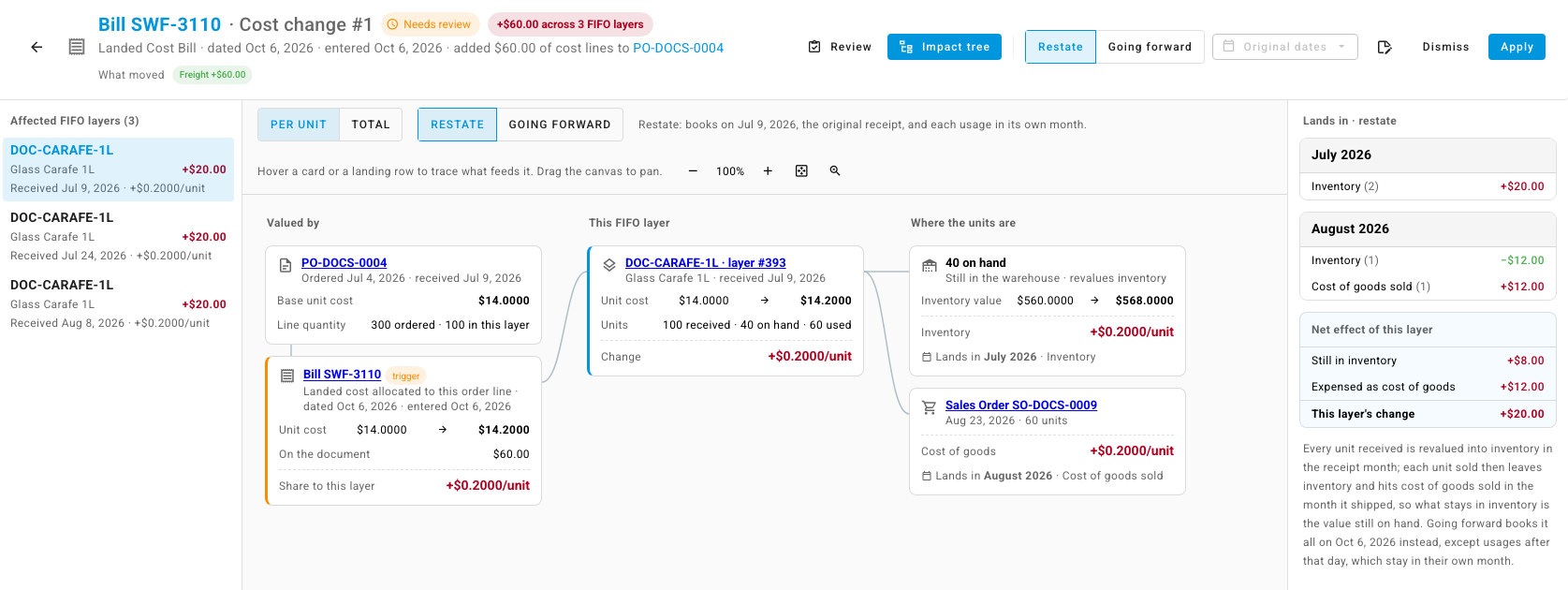
Hover a card or a Lands in row to highlight what feeds it. Drag the canvas to pan, and use the zoom buttons to fit a large tree.
Decide
-
In the header, click Restate or Going forward.
-
If you chose Going forward, open the date button next to it to choose the day the catch-up is dated: the day the change was entered, the document's own date when it's later than the original receipt, or Another day.
-
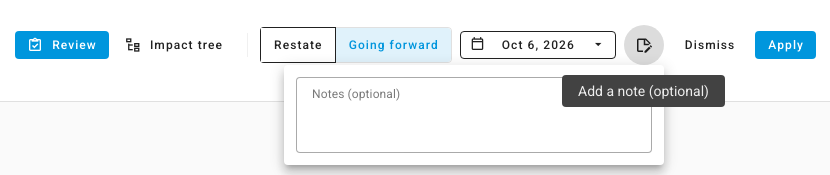
Optionally, click the notes button and type why you decided, for example "Freight balance for the July container. July is already reported, so carry it forward."
-
Click Apply. A confirmation explains where the change is recorded, for example "This records the change as a catch-up dated Oct 6, 2026 (the day it was entered). Earlier periods stay exactly as they are." Click Apply to confirm.
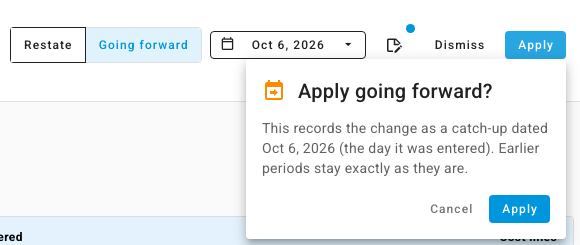
The change moves to Applied, the layers take their new cost, and the held accounting entry is released. To apply nothing, click Dismiss instead. Nothing is added to inventory cost, and the decision is recorded, so you can still apply it later.
From the list, the row's menu offers the same choices without opening the change: Apply as restate, Apply going forward and Dismiss. Select several rows to decide them together.
Change your mind later
An applied change can be switched or sent back:
- Switch to restate or Switch to going forward re-books the change under the other answer.
- Revert to inbox undoes it and puts it back in Needs review. A dismissed change can be reverted to the inbox too.
Each decision is kept under Decision history at the bottom of the review: what was decided, by whom, when, and the note you typed.

The Activity Log points here for that reason.
Next steps
- Choose which cost changes wait for review
- Correcting COGS: revalue vs rebuild vs recalculate
- Inventory and the close: how waiting cost changes affect a month you're about to close.
- Revalue COGS: the Cost History ledger, where every applied change appears as a dated row.