Choose which cost changes wait for review
When a cost arrives after the stock it belongs to was received, SKU.io has to decide two things: whether to apply it now, and which month it belongs in. Cost Change Policies is where you set both. Out of the box, every kind of document applies on its own as a dated catch-up, except a vendor credit's price adjustment, which always waits for review.
A change that waits is held: its cost doesn't reach inventory, and its accounting entry isn't posted, until someone decides on Inventory → Cost Changes. See Review a late cost change and trace its impact.
Before you begin
- You can edit settings.
- Decide how strict to be. Holding every change gives you control, but nothing reaches inventory until someone works the inbox. Many teams hold only the costs that touch a closed or locked month.
Set a policy for each kind of document
-
Go to Settings → Inventory → Cost Change Policies. You can also click Policies on Inventory → Cost Changes.
-
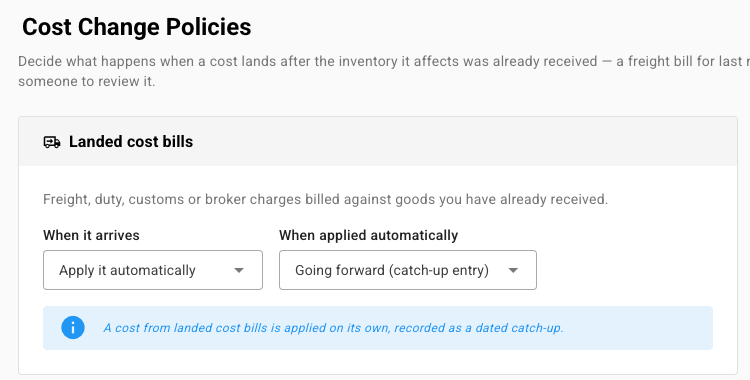
Find the card for the document. There's one for each:
Card When it applies Landed cost bills Freight, duty, customs or broker charges billed against goods already received. Invoice arrives after receipt The supplier's invoice arrived after receipt with a different price. Invoice edited A price, quantity or exchange rate changed on an existing invoice. Purchase order price edited A price, quantity or discount changed on an order whose goods already arrived. Purchase order charges edited Additional charges on the order itself were added or changed. Purchase order currency changed The currency or exchange rate changed, re-basing every cost on the order. Vendor credit price adjustment A supplier credit lowered the price of goods you're keeping. -
Under When it arrives, choose one:
- Apply it automatically.
- Always wait for review.
- Wait for review if it's significant. Two fields appear: Review above (value), an amount, and Review above (unit cost), a percentage. A change waits when it's worth more than the amount or moves a unit cost by more than the percentage, and applies on its own otherwise.
-
Under When applied automatically, choose where an automatic change lands: Going forward (catch-up entry), Restate the original periods, or Restate only while the month is open.
-
Read the note under the card. It restates the rule in a sentence, for example "A cost from landed cost bills will always wait in the inbox for someone to decide."
-
Click Save Changes.
Always ask before certain changes
Under Always ask me first, tick the conditions that should hold a change for review even when its card says to apply it automatically:
- When it would affect a locked period
- When it would affect a closed month
- When entries already sent to my accounting system would change. This applies when the change would book into a month whose inventory revaluation journal has already reached your accounting system, so that journal would be re-sent as a correction.
All three are off by default.
Choose which month a cost lands in
Which month the cost lands in sets the answer used when a change is applied for you.
- Set Default for every cost change to Carry it forward (catch-up entry) or Restate the original periods.
- To treat one cause differently, change its row from Use my default. The causes are Landed Cost Allocation, Purchase Price Variance, Purchase Order Cost Edited, Currency Revaluation and System Error. A cause can also be set to Restate only inside the soft-close window.
A common split: restate a supplier who mispriced one delivery, but carry freight forward, because freight arrives on nearly every shipment.
Report price differences on stock already sold
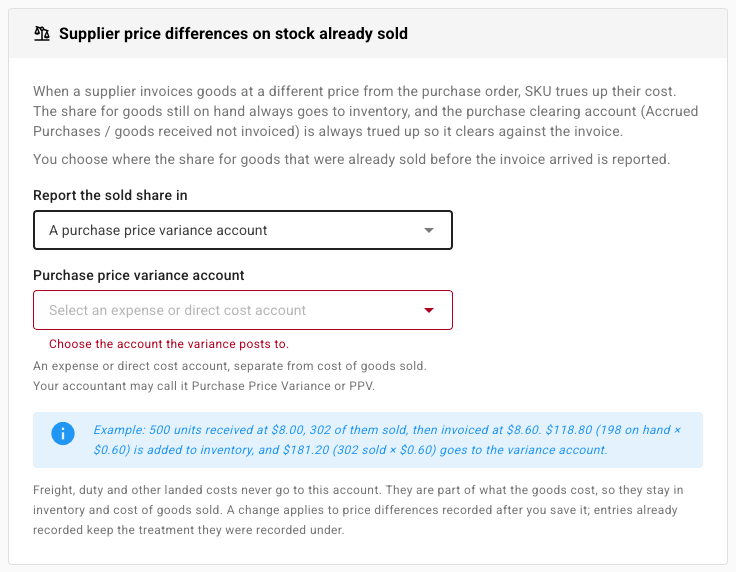
When a supplier invoices goods at a different price from the purchase order, the share for goods still on hand always goes to inventory. Under Supplier price differences on stock already sold, Report the sold share in chooses where the share for goods already sold goes: Cost of goods sold (default) or A purchase price variance account.
The card works an example: 500 units received at $8.00, 302 sold, then invoiced at $8.60. $118.80 (198 on hand × $0.60) is added to inventory, and $181.20 (302 sold × $0.60) goes to cost of goods sold, or to the variance account you pick. Freight, duty and other landed costs never use this setting. They're part of what the goods cost, so they stay in inventory and cost of goods sold.
Send the sold share to a variance account
A purchase price variance (PPV) account lets you report what supplier price changes cost you on its own line, instead of folding it into cost of goods sold.
-
Under Report the sold share in, choose A purchase price variance account.
-
Under Purchase price variance account, pick the account. The list offers only expense and direct cost accounts. If your chart has none suitable, add one first under Accounting → Settings → Nominal Codes.
-
Click Save Changes, read the confirmation, and confirm.
The account you pick must be:
- An expense or direct cost account. A balance-sheet account would hold the variance forever instead of reporting it.
- Separate from your Cost of Goods Sold, Accrued Purchases and Goods Received Not Invoiced accounts, so the variance shows on its own.
The setting also needs automatic accounting to be on. If it isn't, saving explains what's missing.
How the variance posts
- The on-hand share doesn't change. It still goes to inventory, and the purchase clearing account still clears against the invoice.
- Only the sold share moves. Its debit or credit lands on the variance account instead of cost of goods sold.
- Switching applies from now on. Price differences recorded before you save keep posting where they were recorded, so nothing already posted or sent to your accounting system is restated. Switching back to Cost of goods sold (default) works the same way: differences recorded while the variance account was in use keep posting there.
- The account locks once it's used. After a variance has posted to it, the account picker is greyed out and reads that it's locked, because those entries are rebuilt against it. The same account appears as Purchase Price Variance under Accounting → Settings → Nominal Code Mappings, and it's locked there too.
The last card, Soft-close grace window, decides which month a late invoice lands in around month-end. It's covered in Close settings and custom items.