Reserve incoming PO stock for a sales order
A reservation sets aside some of a purchase order line's incoming units for one sales order. For example, you might hold 200 of a 500-unit PO line for a wholesale order. When the PO is received, the reserved units go to that order first. You can start a reservation from the purchase order line or from the sales order line.
You need a reservation because ordinary coverage can't promise the units. A backorder covered by a PO, even one you pinned to that PO by hand, still waits its turn. When the stock arrives, SKU.io releases it by backorder priority, so an older order can take the units you meant for this one. A reserved backorder is released before any other backorder on that line, including lines that ship with a preorder.
Before you begin
- You need both the Purchase Orders Edit permission (
purchase_orders.update) and the Sales Orders Edit permission (sales_orders.update). Without both, the reserve actions don't appear or stay disabled. - The purchase order is submitted. It can't be a draft, closed, cancelled or voided. Dropship POs can't be reserved.
- The PO line is for a product and still has units to receive.
- The sales order has been processed (it isn't a draft) and is still open. Its line ships from the same warehouse the PO is received into.
- The sales order line is backordered. A line that already holds its units on the shelf can still be reserved: see step 5.
Steps
-
Open the purchase order from Orders → Purchase Orders.
-
On the Lines grid, open the line's ⋮ menu and click Reserve for sales order…. If the line already has allocations, you can also click its Allocations chip and click Reserve in the popover.
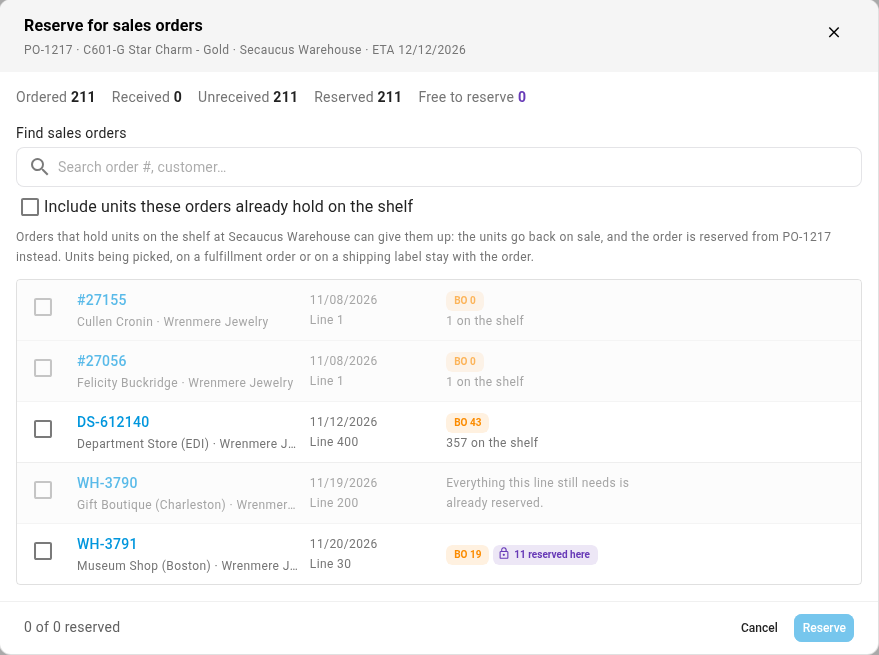
The Reserve for sales orders dialog opens. Across the top it shows the line's Ordered, Received, Unreceived and Reserved quantities, and Free to reserve: the units no other reservation has claimed yet.
-
To narrow the list, type an order number or customer in Find sales orders. Each row shows the order, its customer, its date, the line quantity, and how many units are backordered (BO). A row also says if some units are already reserved here or reserved on other POs.
-
Tick the order you want to reserve for. SKU.io fills in the largest quantity it can. To change it, type a new Qty. The hint under the box shows the most you can reserve for that order (Up to).
-
If the order already holds units on the shelf, tick Include units these orders already hold on the shelf. Those shelf units go back on sale and the order waits for this PO instead, and the hint shows how many units go back on sale. Units being picked, on a fulfillment order or on a label never move.
-
Repeat for any other orders. The total at the bottom shows how much of Free to reserve you've used, for example "200 of 492 reserved".
-
Click Reserve 200 (the button shows your total).
What you'll see: a message such as "Reserved 200 × TEE-BLK-M from PO-1234 for SO-1042". On the PO line, the Allocations chip turns solid purple with a lock icon and counts the reserved units, for example 1 SO · 200 reserved. Hover it to see each reserved order and its quantity. On the sales order, the line shows a purple Reserved from PO-1234 (200) chip. The reservation is also logged in the sales order's activity feed.
Reserve from the sales order
To start from the order instead, pick which incoming PO the line's units come from.
- Open the sales order and find the backordered line on the Lines tab.
- Open the line's ⋮ menu and click Reserve from incoming PO…. You can also click Reserve from a PO in the line's coverage popover.
- The Reserve from incoming PO dialog shows the line's Line quantity, Backordered, Already reserved and Can still reserve. Below that, each open PO that brings this product into the line's warehouse is listed with its ETA, Unreceived quantity, and how much is Free to reserve.
- If the line already holds units on the shelf, tick Include units this order already holds on the shelf. When everything left on the line is on the shelf, the dialog says so, for example "8 are on the shelf for this order — tick Include to move them to the PO." Click Include them to tick the box.
- Tick one or more PO lines, and set the Qty for each.
- Click Reserve (the button shows your total).
If no open PO brings the product into that warehouse, the dialog says so. Click Create a PO to start one for the line.
See and change reservations
You can find reserved units in these places:
- On the purchase order. Click the line's Allocations chip. Each reserved order shows a Reserved chip with a lock icon. Hover the chip to see who reserved the units and when.
- On the sales order. Click the line's Reserved from chip to see the PO, the reserved quantity and its ETA.
- In the Backorder Queue. On Inventory → Backorder Queue, the Reserved from PO column marks reserved rows, and the Reserved from PO filter shows only those rows (Yes) or leaves them out (No). See Work the backorder queue.
- In Product Analysis. A reserved row carries a Reserved · PO-1234 badge. It waits for that PO whatever its position in the release order.
To change a reservation, use the controls beside its Reserved chip, on the PO's Allocations popover or the sales order line's popover:
- To change the quantity, click the pencil icon (Edit reserved quantity), type the new quantity and click Save.
- To end it, click Unreserve, then Unreserve again to confirm. The order goes back to the normal backorder queue at its current priority.
On the Product Analysis tab, changing the PO coverage of a reserved row ends its reservation too. SKU.io asks End the reservation? first.
When a reservation ends
When the PO is received, the reserved units go to the reserved order first. If the receipt brings more than the line reserves, the rest is released to other backorders by priority as usual.
SKU.io also ends a reservation on its own when its units can no longer arrive as planned:
- The purchase order is closed, cancelled, voided, or sent back to draft.
- The PO line is deleted or closed short.
- The PO line's quantity is lowered so that its units still to come no longer cover the reservations. SKU.io asks End reservations? first and tells you how many units would end. Click Lower quantity to go ahead. Only the units that no longer fit end, and the rest stays reserved.
- The PO line is fully received before the reserved units could be released.
- The order or the purchase order moves to another warehouse.
The order then goes back to the normal backorder queue at its usual priority. The ending is logged in the sales order's activity feed, and the person who made the reservation gets an email: "Reservation ended: SO-1042 · TEE-BLK-M", with the reason and an Open the sales order button. Ending or changing a reservation yourself sends no email.
If the sales order is cancelled, its backorder goes away and the reserved units are free again.
A reservation only fills orders that ship from the warehouse the PO line is received into. If you change the Destination Warehouse in the Receive Items drawer, the drawer warns you, for example "TEE-BLK-M: 200 units on this line are reserved for orders at Main Warehouse. Receiving them elsewhere won't fill those orders." See Receive stock against a PO.
Next steps
- Work the backorder queue: find reserved rows and manage the rest of your backorders.
- Receive stock against a PO: receive the PO so the reserved units reach the order.
- Edit a purchase order and its line items: read a PO line's Allocations chip.
- Place & manage stock holds: set aside stock that's already on the shelf.
Video transcript
To set aside incoming stock for one sales order, start from the purchase order. Open Orders in the menu on the left, then choose Purchase Orders. This list shows every order you have placed with a supplier. Click the one that brings the stock in, and the order opens with its lines. Find the line for the product you want, and open its menu on the right. In the menu, click Reserve for sales order, and the dialog opens. The dialog shows what the line ordered, and what is still to come. It also shows how much is free to reserve. Below are the open orders that need this product, with their backordered units. Tick the order you want to hold units for. SKU fills in the largest quantity it can, and you can type a new one. The total at the bottom shows how much you have reserved. Now click Reserve, at the bottom of the dialog. On the line, the chip turns purple, shows a lock, and counts the reserved units. Click the chip to see each order the line covers, and which units are reserved. Use the pencil to change a reservation, or Unreserve to end it. When the stock arrives, the reserved units go to this order first.