Set pricing on multiple listings at once
Each listing can follow its channel's pricing settings, or carry a rule of its own: a Master of Price and, when SKU.io is the master, a pricing tier. Setting that one listing at a time is fine for an exception. When a whole group of listings needs the same rule — everything you ship yourself, a brand, a clearance range — Set Pricing on the listings table applies it to the selection in one go, and shows you every price that would change before anything is saved.
Before you begin
- The listings are on a connected channel, and you can change them.
- If you're pinning to SKU.io, the pricing tier you want to use already exists and has prices for these products. A listing whose product has no price at that tier is pinned all the same, and shows as Not priced on the channel's Pricing page.
Steps
-
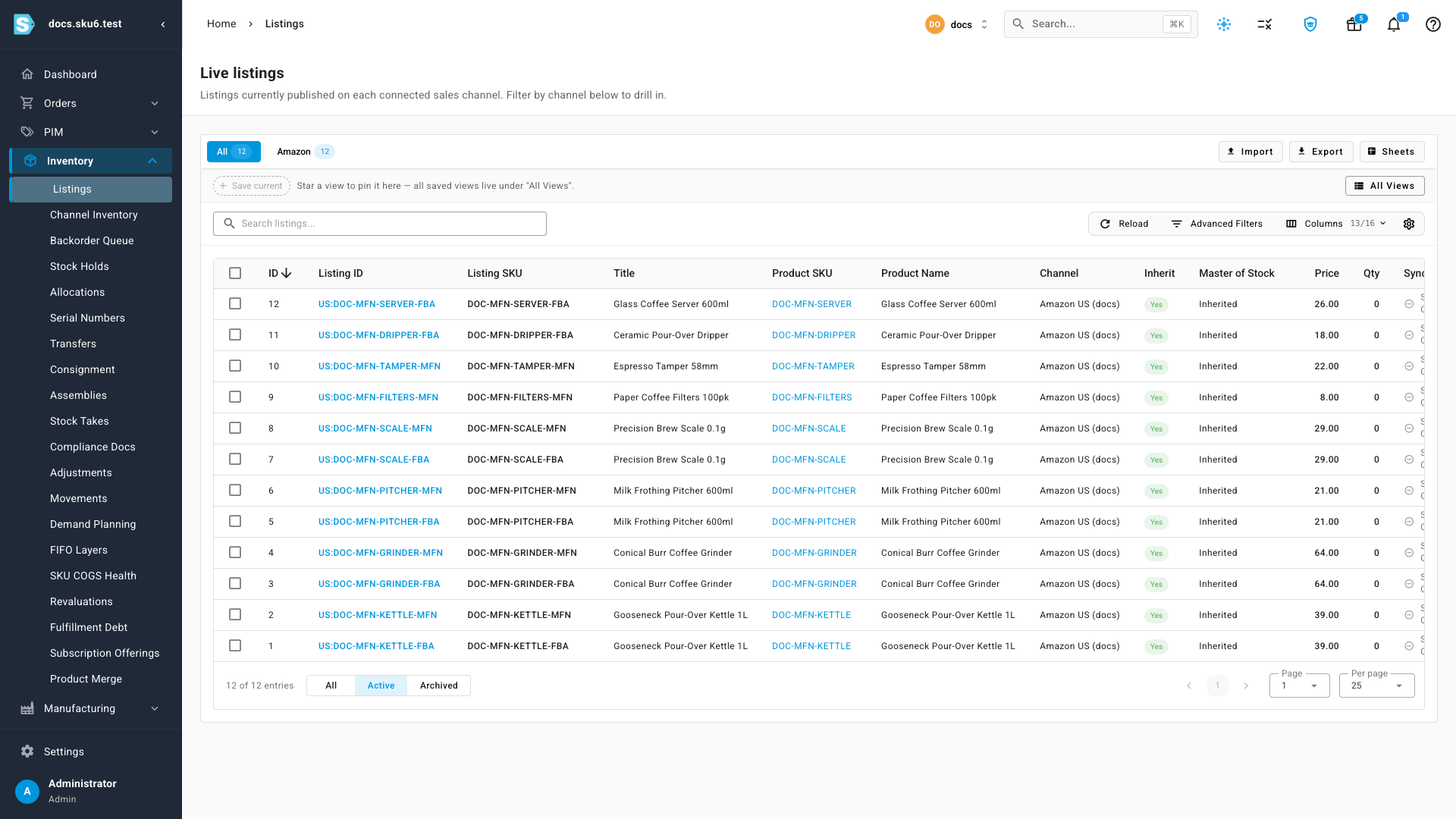
Go to Inventory → Listings.
-
Narrow the table first if you want to cover more than one page — the channel tabs, the search box and Advanced Filters all apply.
-
Tick the listings you want to change. A toolbar appears with the count and two scopes:
- Selected only changes just the rows you ticked.
- All filtered changes every listing that matches your current filters, across every page.

-
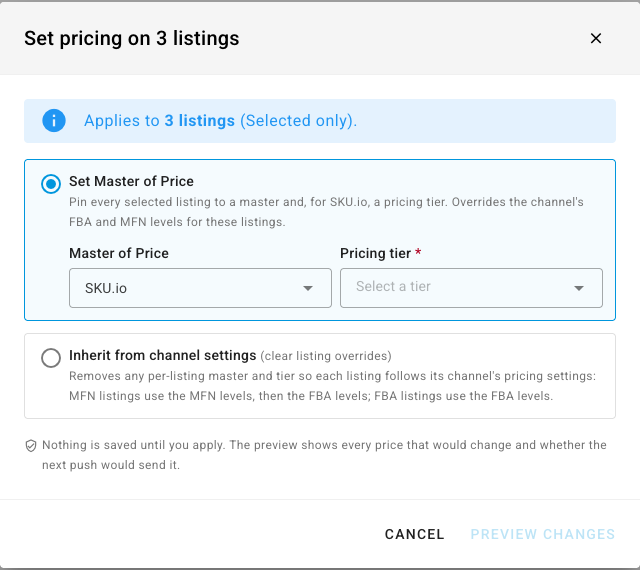
Click Set Pricing and choose what to do with the selection:
- Set Master of Price pins every selected listing to one master and, for SKU.io, one Pricing tier. This overrides the channel's FBA and MFN levels for these listings.
- Inherit from channel settings clears any override on the selected listings, so each one follows its channel's pricing settings again.
-
Click Preview changes. Nothing is saved yet.
-
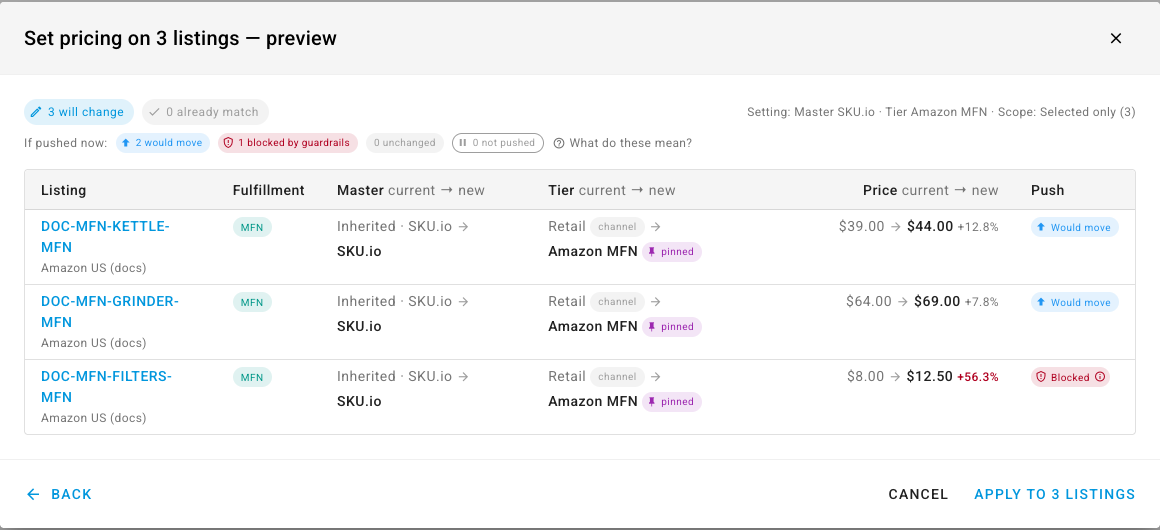
Read the preview:
- The header counts how many listings will change and how many already match.
- If pushed now sums up what the next price push would do with the new prices: would move, blocked by guardrails, unchanged, or not pushed (the channel isn't sending prices).
- Each row shows the Master, the Tier and the Price, current → new, with a chip on the tier saying where it comes from — pinned for a listing-level rule, MFN default for the channel's MFN lane. The Push column gives that row's verdict; hover a Blocked chip for the guardrail that stops it.
-
Click Apply to N listings. Up to 25 listings are updated straight away and the table refreshes. A larger selection runs as a background job named Listing Pricing Bulk Update — follow it in the job tray, where the completion card reports how many were updated, unchanged and failed.
-
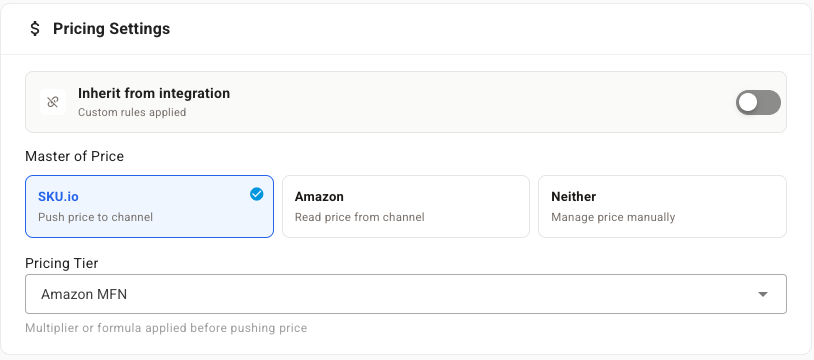
Open any of the listings to confirm. Under Pricing Settings the Inherit from integration switch is off with Custom rules applied, and the Master of Price and Pricing Tier you chose are shown.
The listings table has a Master of Price column that's off by default. Turn it on under Columns to see each listing's master without opening it.
Undo it
Select the same listings, click Set Pricing, choose Inherit from channel settings and apply. The preview reads the other way round — SKU.io → Inherited — and the listings follow their channel's levels again. Listings that never had an override show as already match and are left alone.
Next steps
- Price Amazon MFN listings differently — give every MFN listing on the channel a lane of its own instead of pinning them one by one.
- Sync prices with your sales channels — master of price, the channel sequence, guardrails and the push itself.
- Browse your channel listings — the listings table, its tabs and a single listing's page.
Video transcript
When several listings need the same pricing rule, set it once for the whole group. Go to Inventory in the sidebar, then choose Listings, which shows every listing on every channel.
Check the box on each listing you want to change, one row at a time, for the whole group. A toolbar appears with the count. Selected only changes just the rows you checked, and nothing else. All filtered covers every listing that matches your current filters, across every page.
In the toolbar, click Set Pricing, which brings up the dialog. Set Master of Price pins every selected listing to one master and, for SKU.io, one pricing tier. The second option, Inherit from channel settings, does the opposite. It clears any override on these listings, so the channel's own levels apply again.
Leave the master as it is, and choose the pricing tier these listings should use. Nothing is saved yet. Then click Preview changes to see the effect before anything is saved.
The preview lists every listing the change touches. The header counts how many will change and how many already match. Each row shows the master, the tier, and the price, current and new. The Push column says what would happen on the next price push. Would move means the new price goes out. Blocked means a guardrail stops that price.
When the preview looks right, click Apply. A small selection is updated on the spot. A large one runs as a background job you can follow in the job tray. To confirm the result, open one of the listings. Its pricing settings now show custom rules applied, with the master and tier you chose.