Track order buckets on the dashboard
If you work your orders in buckets (on hold, waiting on a 3PL, ready to pick, and so on), you can keep a live count of each bucket on your Dashboard. Every count opens the orders behind it, so the number and the list always agree.
There are two kinds of bucket tile:
- Built-in buckets that need no setup: Orders on hold, Awaiting 3PL shipment, Unfulfilled orders, Past ship-by date and Orders with unallocated lines.
- Saved view count, which counts any saved view you made on Sales Orders or Fulfillment Orders. Add one tile per view.
Before you begin
- Your dashboard is personal. Adding tiles doesn't change anyone else's dashboard.
- To count your own bucket, first save it as a view on Orders → Sales Orders or Orders → Fulfillment Orders: filter the list the way you work, then save the view. Views your team has shared with you can be counted too.
Add the built-in buckets
- Go to Dashboard and click Customize, then Add widget.
- Type buckets in the search box. The results include every order bucket widget.
- Click Add on each bucket you want, for example Orders on hold and Awaiting 3PL shipment. A widget that's already on your dashboard shows Added.
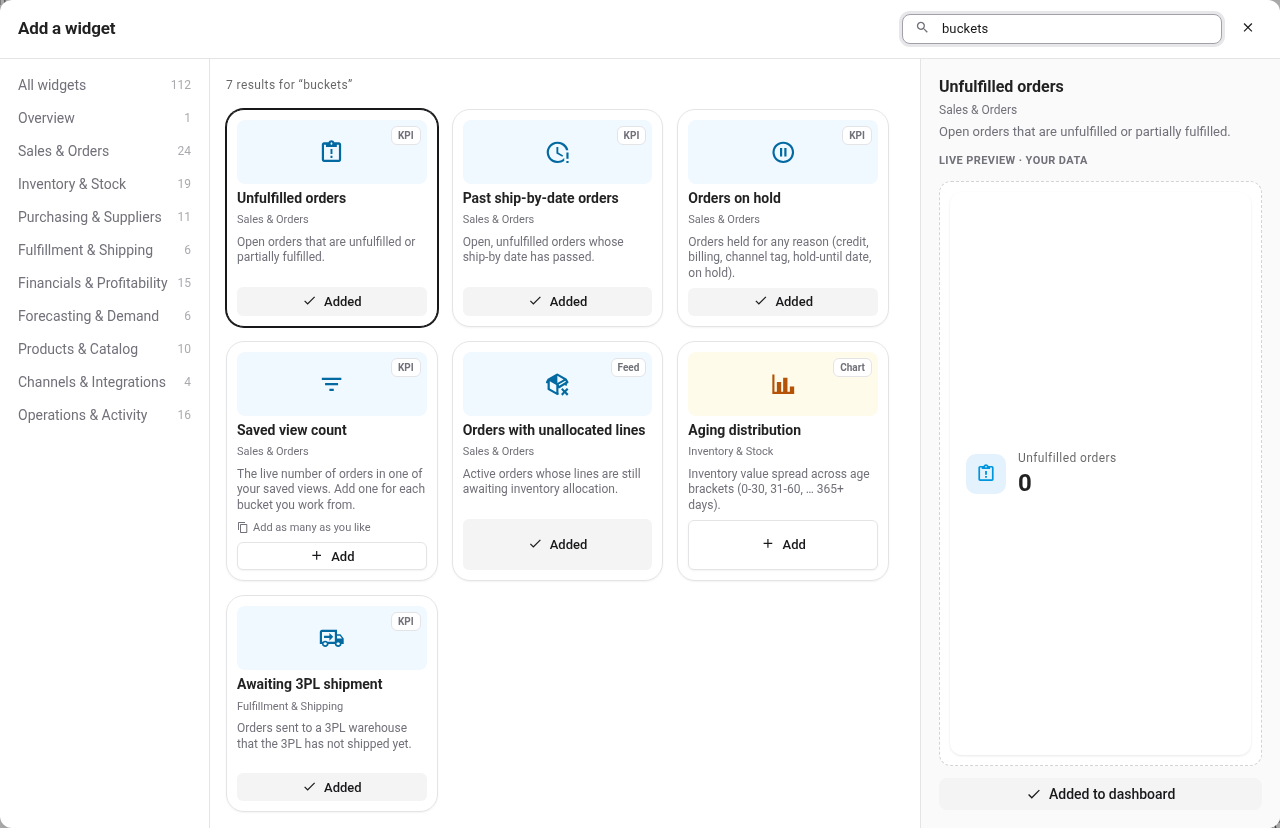
What each built-in bucket counts:
| Tile | Counts | Opens |
|---|---|---|
| Orders on hold | Orders on hold for any reason: credit hold, billing hold, a channel tag, a hold-until date, or a manual hold. The line under the count names the most common reason. | Sales orders filtered to Order Status is Reserved |
| Awaiting 3PL shipment | Orders sent to a 3PL warehouse that the 3PL hasn't shipped yet. The line under the count says how long the oldest has waited. | Sales orders filtered to Awaiting 3PL shipment is Yes |
| Unfulfilled orders | Open orders with units still to ship. | Open sales orders that are unfulfilled or partly fulfilled |
| Past ship-by date | Open orders whose ship-by date has passed. Orders held until a later date aren't counted. | Sales orders filtered to Past Ship-By Date? is Yes |
| Orders with unallocated lines | Orders with lines still waiting for stock. | The orders, listed in the tile |
Count one of your saved views
- In the picker, search for Saved view count and add it.
- In Saved view, pick the view to count. Views are listed with the list they belong to, Sales orders or Fulfillment orders.
- Optionally type a Tile title. If you leave it empty, the tile uses the view's name.
- Click Add widget.
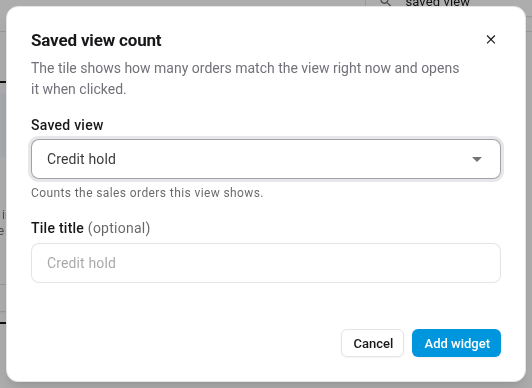
Repeat for every bucket you want to see. Then close the picker and click Save.

Open a bucket
Click any count to open its orders. A built-in bucket opens the sales orders list with the matching filter applied. A saved view count opens the view itself, so you can start working the bucket straight away.
The counts update on their own as orders move. A count can lag the list by up to 30 seconds.
Change or fix a saved view count
- To count a different view, click Customize, then the settings cog on the tile, and pick another view.
- If a tile says "Saved view unavailable", the view was deleted or is no longer shared with you. Use the settings cog to pick another view, or remove the tile.
- If a tile says "This view's filters can't be counted", open the view from the tile, fix or remove the filter that no longer works, and save the view again.
- A saved view count only appears if you can open the list it counts.
Next steps
- Customize your dashboard: arrange, resize and remove tiles, and keep separate dashboards for different jobs.
- Dashboard reference: what every tile shows.
Video transcript
If you run your day from order buckets, you can keep a live count of each one on your dashboard. Each count opens the orders behind it, so you always start from the right list. To set them up, click Customize at the top of the dashboard, and then open Add widget to see the full widget library. Type buckets into the search box. Every order bucket count comes up, from orders on hold and orders awaiting a 3PL shipment to unfulfilled orders and orders past their ship-by date. Add each one you want with its Add button. For a bucket of your own, count a saved view. Search the library for Saved view count, select it, and add it to your dashboard. A short form opens. Pick the sales order or fulfillment order view you want to count from the list of views you own and views your team has shared with you. You can give the tile its own title, or leave it empty to use the name of the view. Add as many saved view counts as you have buckets, one for each view. When you are done, close the library and save the dashboard. Your counts sit together at the end of the dashboard, and they keep themselves up to date as orders move from one bucket to the next. Click a count to open its orders. Orders on hold opens the sales orders list filtered to every order on hold, whatever the reason, and the total matches the count. Back on the dashboard, a saved view count works the same way. Clicking it opens the saved view itself, with all of its filters already applied, so you can start working that bucket straight away.