Choose whether publishing pushes stock
When you publish a listing, SKU.io can send the product's available stock to the channel at the same moment, so the listing goes live ready to sell. Push Quantity on Publish turns that on or off for every channel. It's on by default.
The quantity sent is worked out the same way as the channel's regular stock updates: from the warehouses the channel draws on, after its Max, Min, and buffer rules. See Set the stock each channel sees.
Before you begin
- You need permission to change settings.
- Stock is only sent to a channel where SKU.io is the Master of Stock, and where outbound inventory sync is turned on in the channel's Sync Controls. If either is off, publishing never sends stock to that channel, whatever this setting says.
Steps
-
Go to Settings, open Products, then click Listing Publishing.

-
Turn Push Quantity on Publish on or off.
-
Click Save Changes.
Leave it on, or turn it off
| What happens when you publish | |
|---|---|
| On | The listing goes live with the product's available stock for that channel. |
| Off | The listing goes live without a quantity from SKU.io, so it starts with whatever the channel uses by default. The channel's next regular stock update then sets the real quantity. |
Leave it on unless you want to check a listing on the channel before anyone can buy it.
Check the quantity before you publish
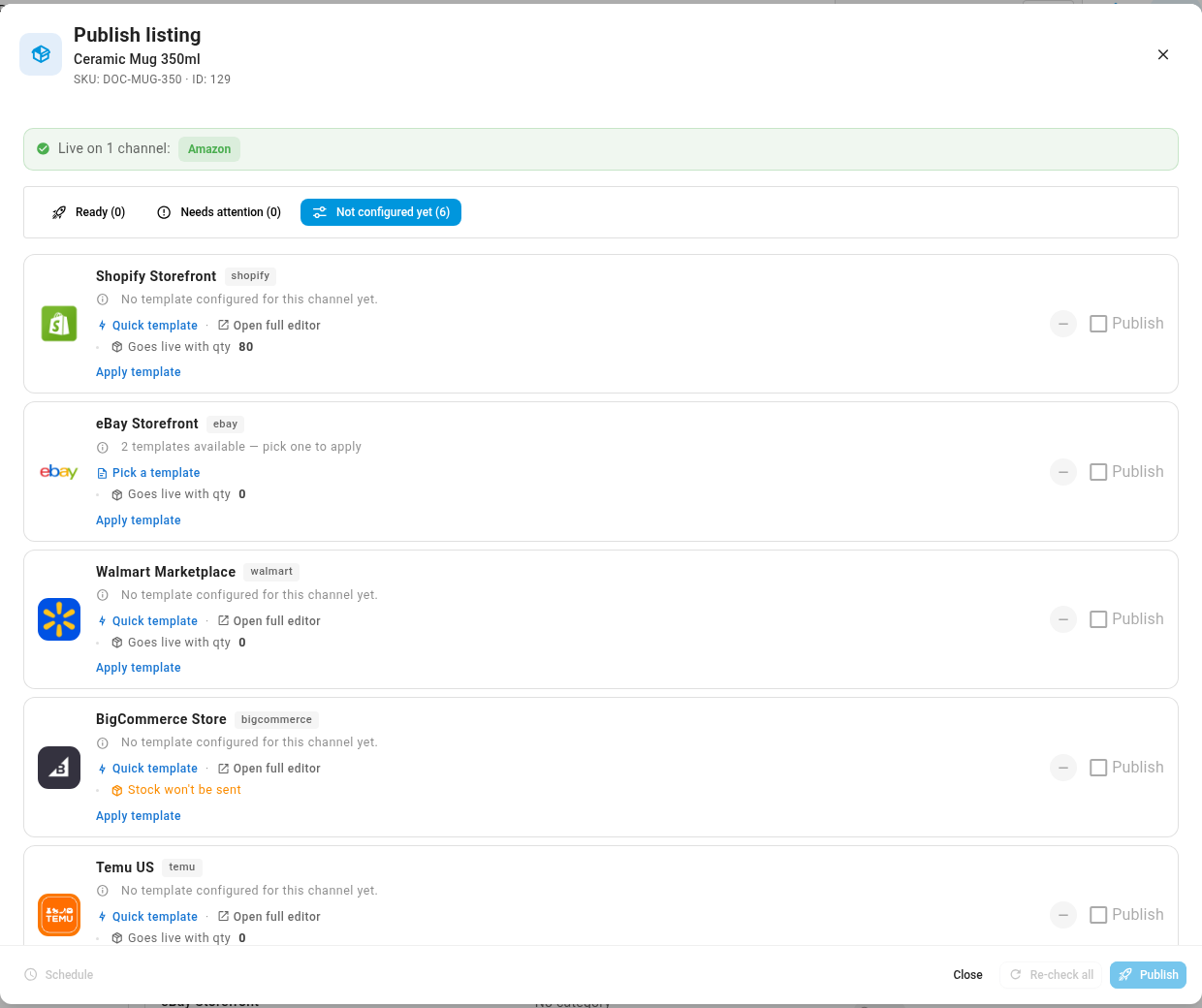
Open the product, go to its Listings section, and click Publish Listing. Each channel's row says what will happen to stock:
- Goes live with qty and a number: the stock that will be sent when you publish to that channel.
- Stock won't be sent: hover it to see why. The setting is off, SKU.io isn't the Master of Stock for that channel, or outbound inventory sync is off.
Next steps
- Work with listing drafts: review, schedule and publish your drafts.
- Set the stock each channel sees: choose the Master of Stock, warehouses and rules behind the quantity.
Video transcript
When you publish a listing, SKU.io can send your available stock to the channel at the same moment. Open Settings, at the bottom of the sidebar. Click the Products card to expand its list. Scroll down its list, and click Listing Publishing. Push Quantity on Publish is on by default, so a new listing goes live ready to sell. Turn it off if you'd rather check a listing on the channel first. Stock is only sent where SKU.io is the Master of Stock, and outbound inventory sync is on. To see what a channel will get, open PIM in the sidebar, then choose Products. Search for the product you're about to list. Click its SKU to open the product page. In the sections on the left, scroll down and click Listings. Then click Publish Listing, at the top of the listings table. Each channel in the list says what happens to stock. A line starting Goes live with shows the stock that will be sent when you publish. Stock won't be sent means that channel gets nothing, and hovering it tells you why.