Publish products from the publish matrix
PIM → Publish lines up every product in your catalog against every sales channel you've connected, and shows where each product and channel pair stands: live, ready to publish, blocked by missing data, removed by the channel, or not set up yet. It's where you spot the gaps and publish to fill them, one cell at a time or a whole selection at once.
Before you begin
- At least one sales channel is connected under Apps & Integrations.
- To publish to a channel, the channel needs a listing template (or a draft) that says which product fields fill the channel's fields. See Build a listing template.
Steps
-
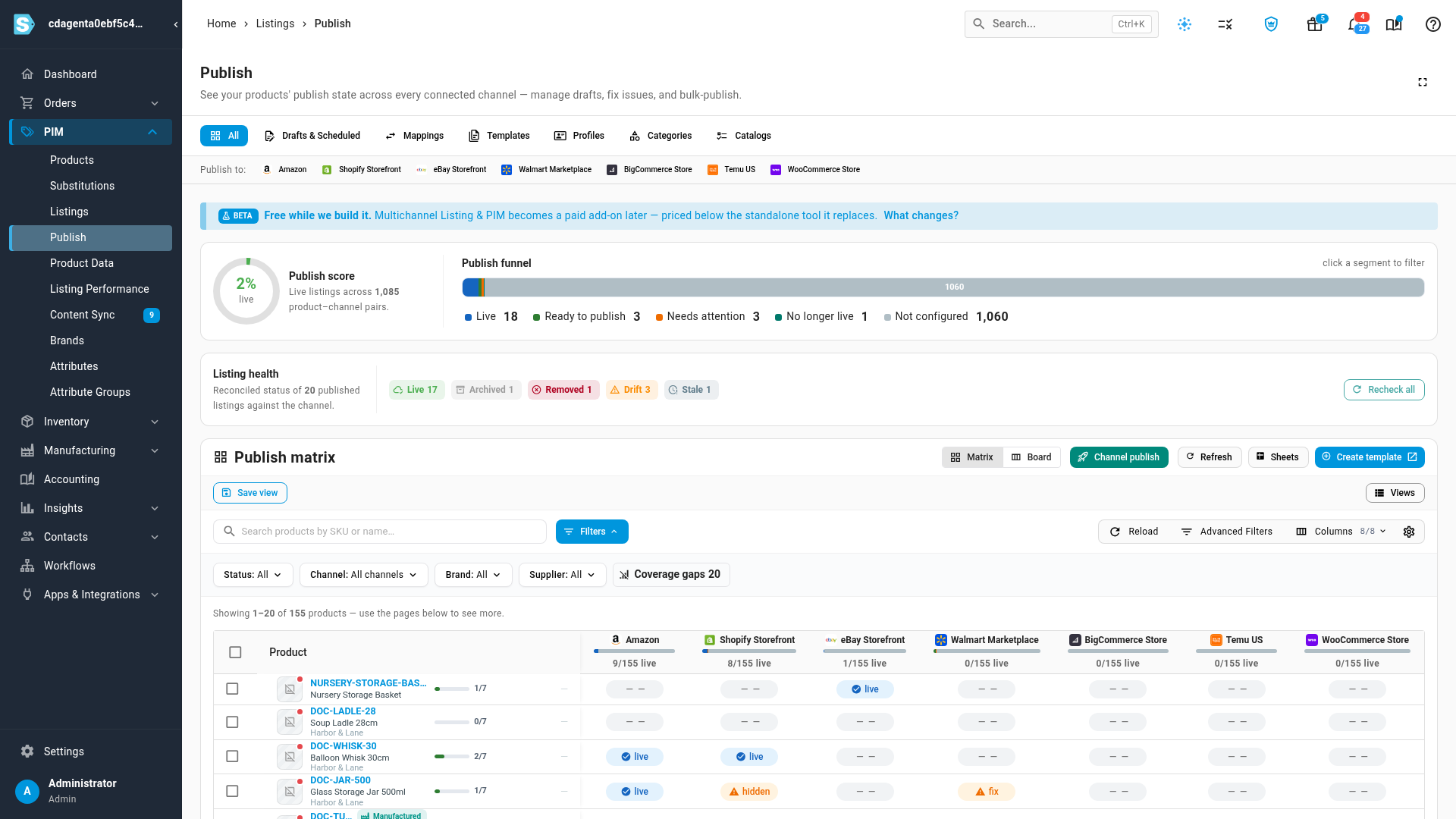
Go to PIM → Publish. The first time you visit, a New to listing? Here's the flow card walks through the steps; click Got it to hide it for good.
-
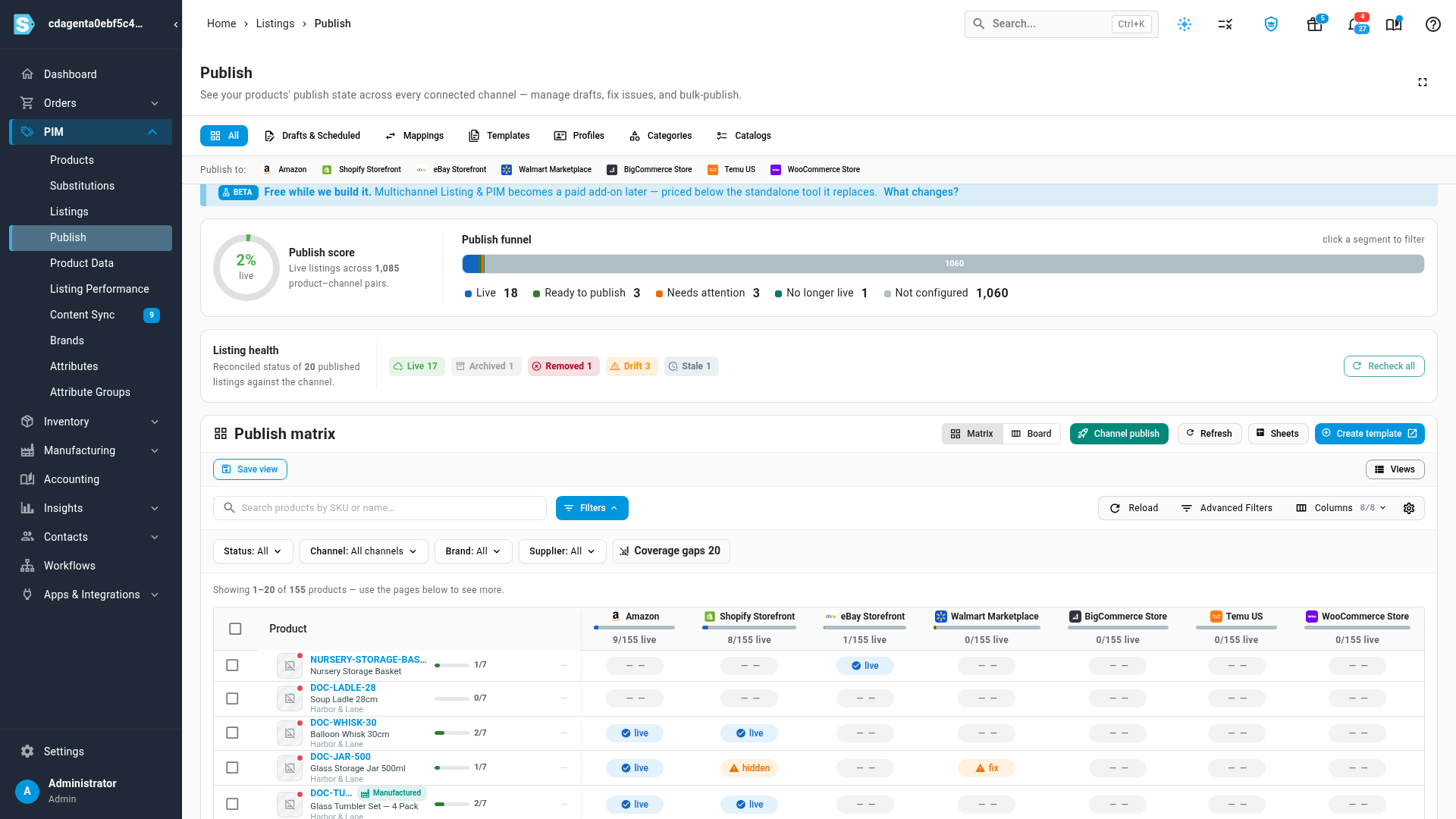
Read the Publish funnel. It counts every product and channel pair by state, and clicking a state filters the matrix to it:
State Meaning Live Published and active on the channel. Ready to publish A draft has passed every check and can go live now. Needs attention Something must be fixed first: a required field is missing, the channel rejected the listing, or the listing is hidden there. No longer live Was live, and the channel has since removed it. Not configured Not listed on that channel yet. Publish score is the share of pairs that are live. Below the funnel, Listing health reconciles your published listings against each channel (Live, Archived, Removed, Drift, Stale); click Recheck all to check them again in the background.
-
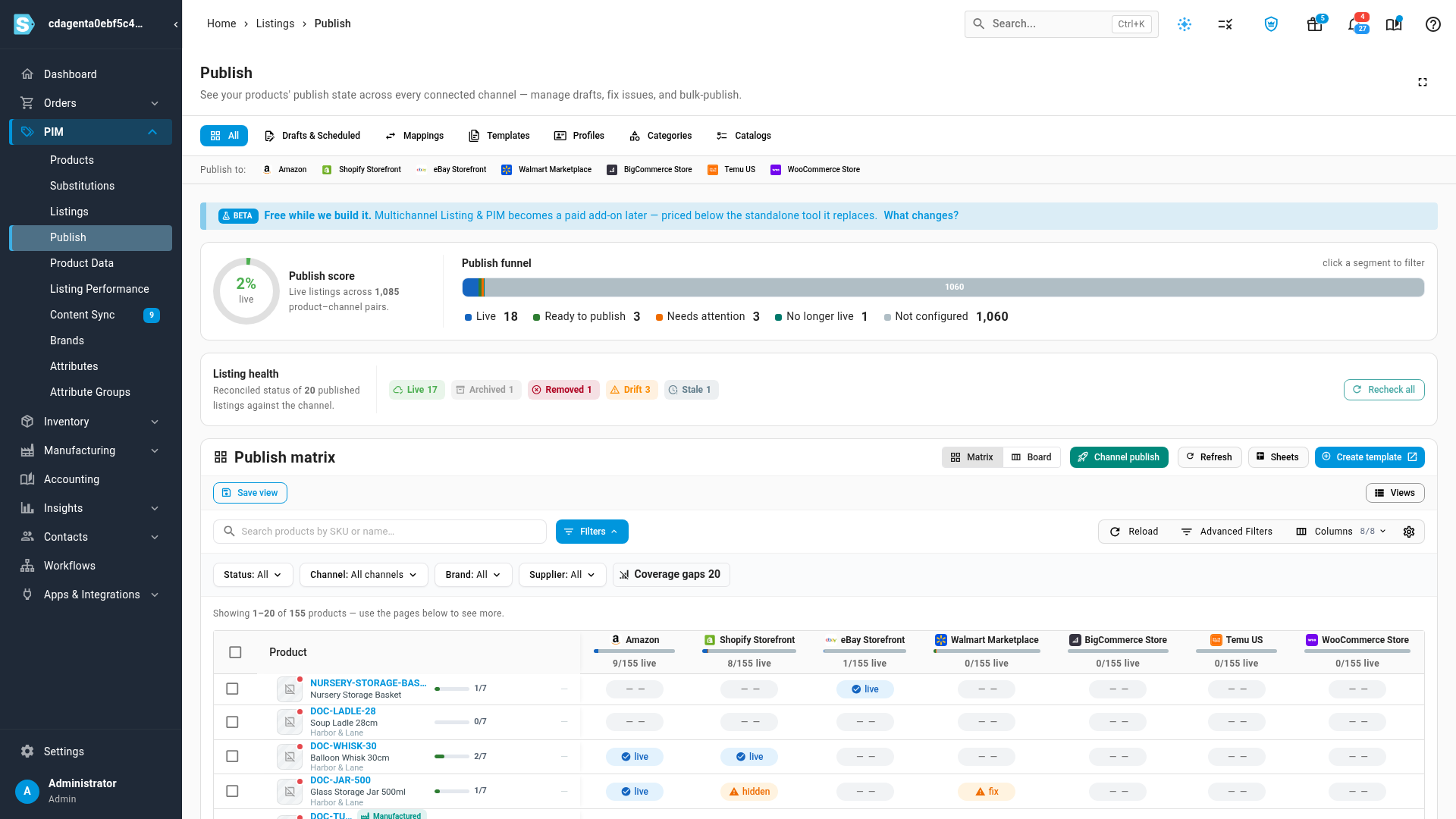
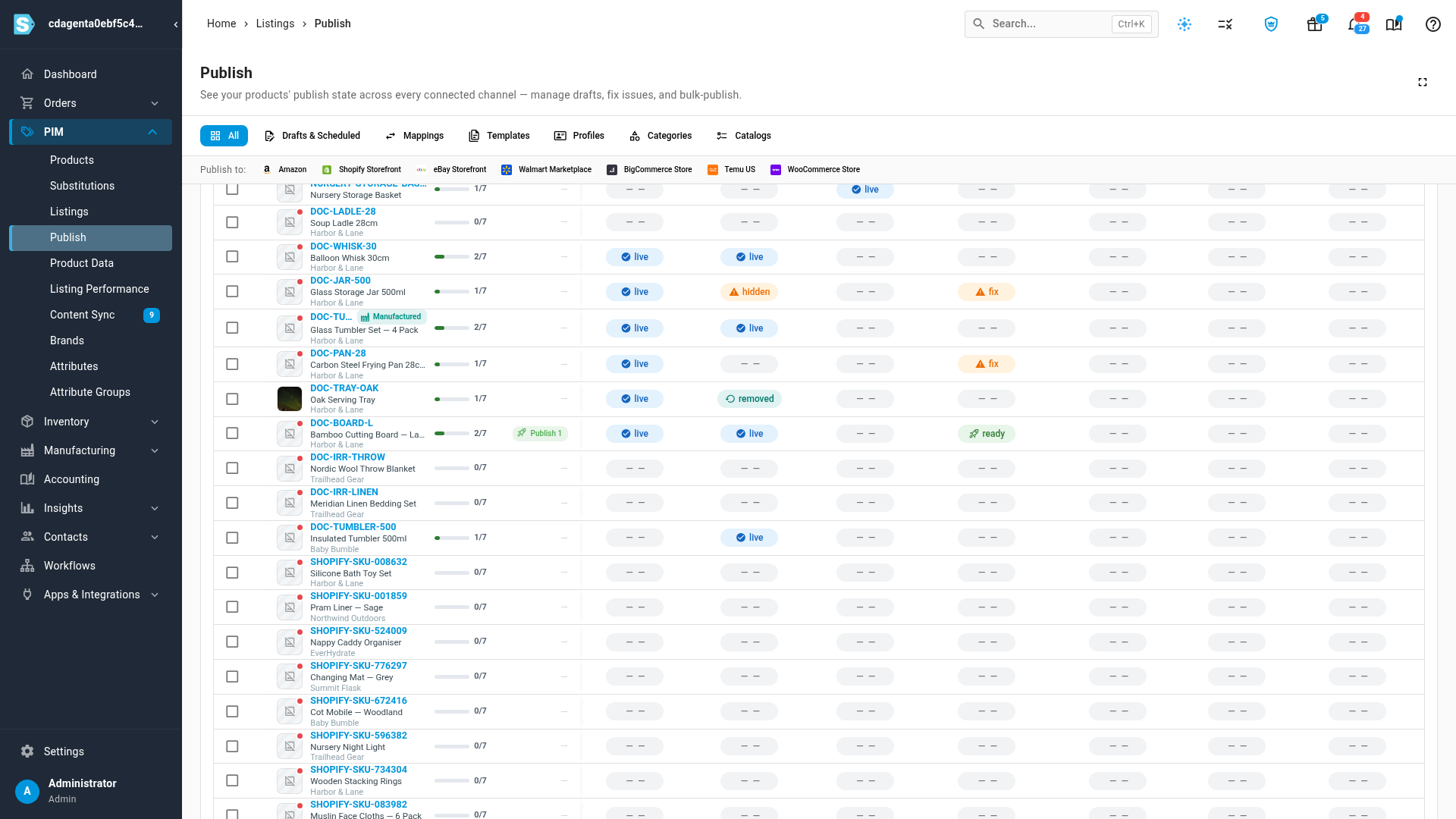
Scroll down to the Publish matrix. Each row is a product and each column a channel, with a pill in every cell. Hover a pill for the reason behind it:
- live: published. hidden: on the channel but not visible to shoppers.
- fix: a required field is missing; the tooltip names it.
- removed: the channel took the listing down.
- ready: passed validation and can be published.
Use Status, Channel, Brand, Supplier and Coverage gaps to narrow the rows, and Columns to show or hide channels.
-
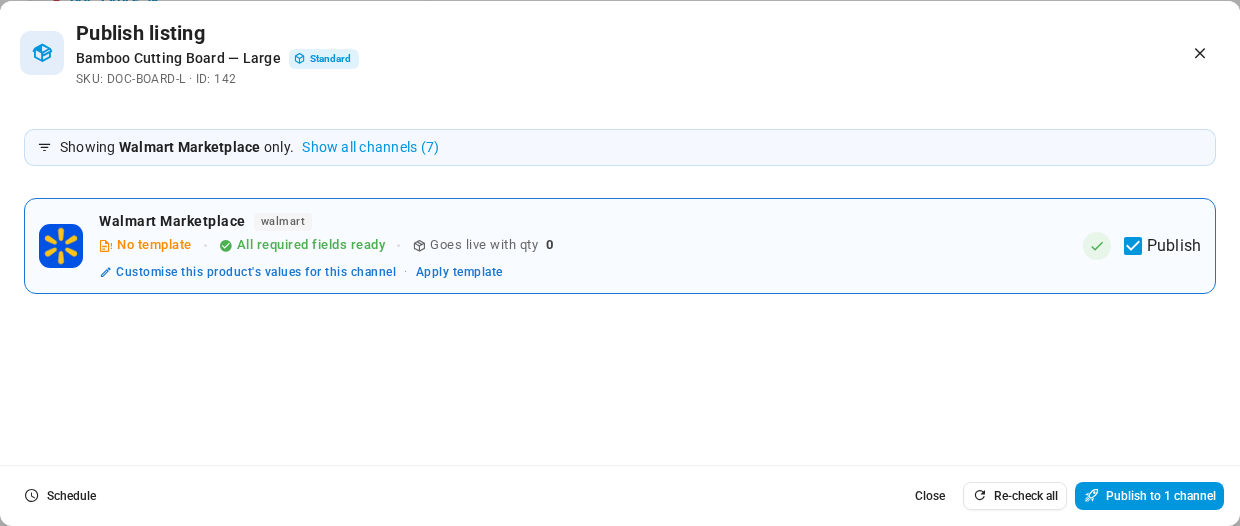
Click a cell to work on that product for that one channel. The Publish listing dialog shows whether every required field is ready, the quantity the listing goes live with, and which template applies (or No template, when the draft carries its own values). Click Publish to 1 channel to publish now, or Schedule to pick a time. Show all channels widens the dialog to every channel.
-
To work through problems first, switch from Matrix to Board. The same cells sit in columns, worst first: Needs attention, No longer live, Ready to publish, Ready to list, Not configured and Live. Ready to list holds products that a template already covers, so they only need a draft. Switch back to Matrix for the full grid.
-
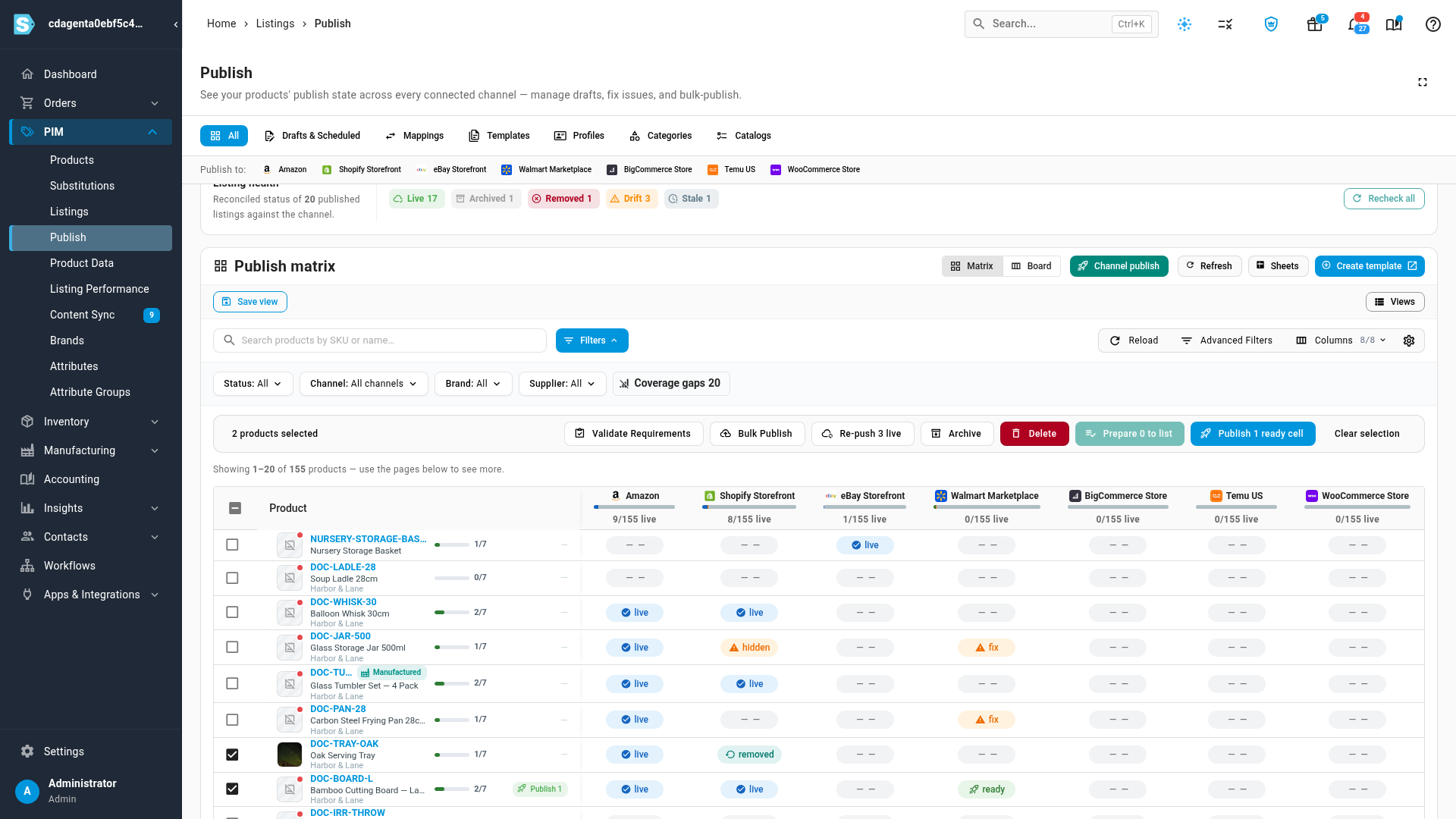
To act on several products, tick their rows. The buttons above the matrix count what your selection holds, which can differ from the number of products you ticked:
- Publish n ready cells publishes every cell in the selection that has passed validation.
- Republish n removed puts removed listings back on their channel, each with the template it last used. It appears only when the selection has removed cells.
- Re-push n live sends your current SKU.io content and prices to listings that are already live.
- Validate Requirements checks the selection against a template on a channel, field by field, without publishing anything.
- Bulk Publish opens the bulk publish wizard: pick a channel, category and template, then review and publish.
- Archive deactivates the selection's listings on a channel you pick (you can bring them back); Delete removes them from that channel permanently. Both run as background jobs.
-
To list many products quickly on one channel, choose that channel in the Channel filter, then click Prepare n to list. It creates a draft for every ready-to-list product, using the template that covers each product's type, so those cells become ready to publish.
-
Channel publish opens a one-channel view of the same work, and Create template opens the template editor. Click Clear selection when you're finished.
Publishing, re-pushing and preparing all run in the background; follow them in the job tray, and the matrix refreshes as they finish.
Next steps
- Work with listing drafts — review, schedule or discard drafts on the Drafts & Scheduled tab.
- Find missing product data for listings — fill the fields behind fix cells.
- Publish in bulk with resolved categories
- Browse and manage your channel listings — what's already live, listing by listing.
Video transcript
Open PIM in the sidebar, then choose Publish, the page for listing your products on every channel.
This page lines up every product against every sales channel you sell on, and shows where each pair stands.
The first time you visit, a card headed New to listing walks you through the flow.
Click Got it to put the guide away, and it stays hidden on your next visit.
The publish funnel counts every product and channel pair by its state.
Needs attention has a problem to fix before it can go live.
No longer live was on the channel, and has since been removed.
Ready to publish has passed every check and can go live now.
Not configured isn't listed on that channel yet.
Below the funnel, Listing health checks your published listings against each channel, and Recheck all runs that check again.
Scroll down to the publish matrix.
Each row is a product, and each column is one of your channels.
A pill in each cell gives that pair's state.
Removed means the channel took the listing down.
Fix means a required field is missing.
Ready means the listing can be published now.
Click any cell to work on that product for that one channel.
The dialog shows whether every required field is ready.
From here you can publish now, or schedule it for later.
When you have seen enough, close the dialog to return to the matrix.
To work through the problems first, switch the view from Matrix to Board.
The same cells sit in columns, with the work to do on the left and live listings on the right.
Ready to list holds products a template already covers, so they only need a draft.
Switch back to Matrix whenever you want to see the full grid again.
To act on several products at once, tick the box at the start of each row you want to include.
The buttons above the matrix count what your selection holds.
Publish ready cells sends every cell in your selection that has already passed validation.
Re-push live sends your current content and prices to listings that are already live.
Validate Requirements checks the selection against a template without publishing anything.
Archive and Delete take the selection off a channel you choose.
Prepare to list works once you focus on a single channel with the Channel filter.
It creates drafts for every product that is ready to list.
Channel publish opens a one-channel view, and Create template sets up the fields a channel needs.
Click Clear selection when you are finished.