The Close tab at a glance
Accounting → Close is one page laid out in two columns: a narrow Periods rail of months on the left, and everything about the month you have selected on the right. This page names each part of it, so you can look up a chip or a counter without reading a whole guide.
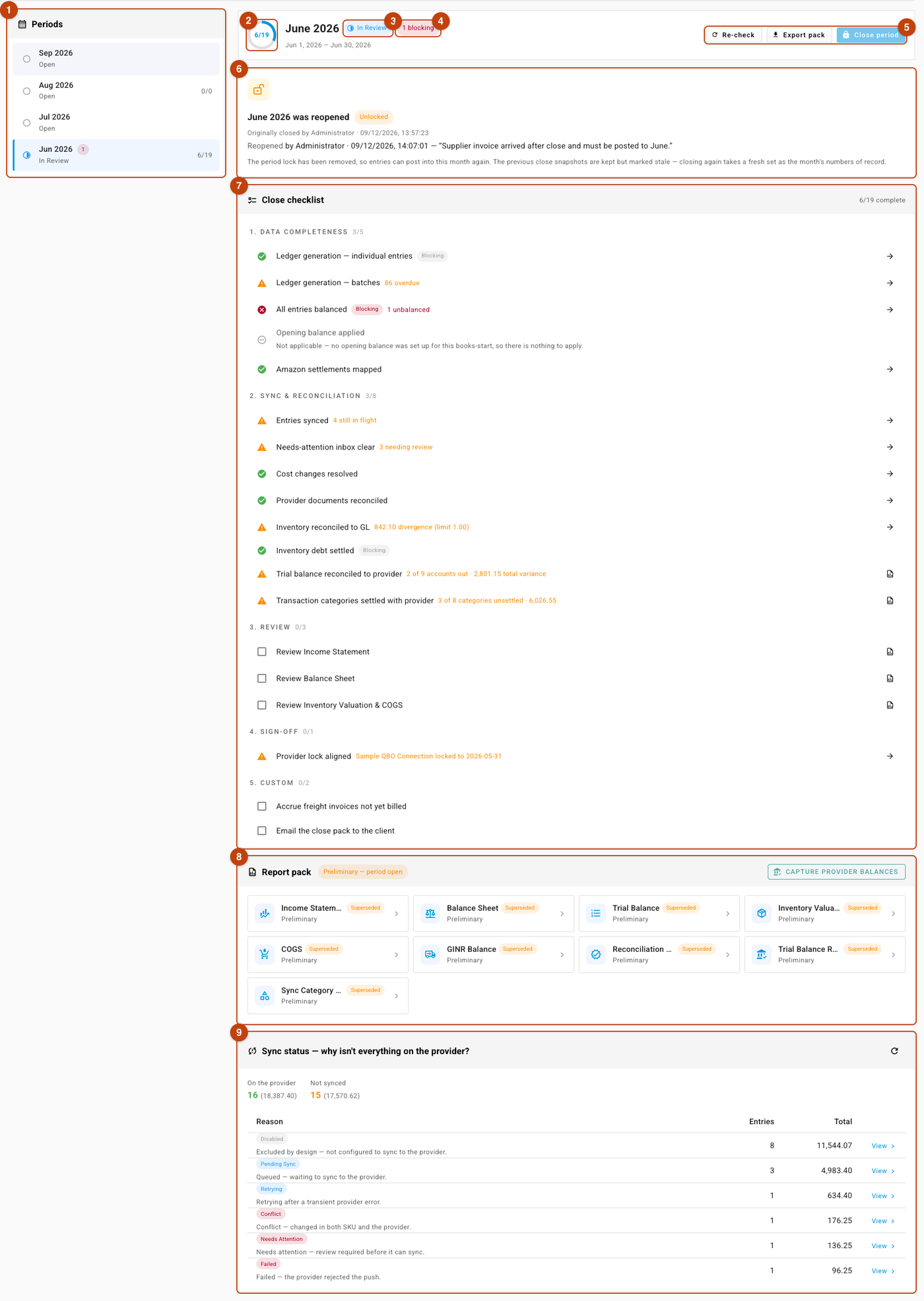
- The Periods rail — every month your books cover, newest first.
- The progress ring — checklist items complete, out of the month's total.
- The status chip — Open, In Review, Closing… or Closed.
- The blocking chip — how many blocking checks are currently failing.
- The action buttons — Re-check, Export pack, and Start close or Close period.
- The month's banner — the close, reopen or close-in-progress notice, when the month has one.
- The Close checklist — every check and manual item, in five groups.
- The Report pack — the nine month-end reports, each as a card.
- Sync status — why entries have not reached your accounting provider.
The picture is one month part-way through review, so its counts are that month's. The figures quoted in the text below are examples too; the parts themselves are always in these places.
The right-hand column always appears in that order: the month header, then any banner about the month's close, then the Close checklist, then the Report pack, then Sync status — why isn't everything on the provider?.
Three more surfaces open on top of that page rather than sitting on it — the Close period dialog, the Reopen dialog and the Verify results — and each has its own section below.
The Periods rail
The Periods card lists your months, newest at the top, back to the first month your books cover. Each row is a button that loads that month.
A row carries four things, left to right:
- A status icon — a grey hollow circle for an open month, a blue part-filled circle for one in review, a spinner while it closes, a green padlock once it is closed.
- The short month name — Jun 2026.
- A red count chip, only when the month has blocking failures. It shows the number alone; hovering it explains, for example, 3 blocking failures — the period can't close until they're resolved. The same number reappears beside the month name in the header as a 3 blocking chip.
- A completed/total counter on the right — 4/19 — counting the same things as the progress ring in the header.
Under the month name sits a one-line subtitle carrying the month's status: Open, Open — up next, In Review, Closing…, or Closed followed by the date it was closed. See statuses in the close.
The month you are looking at is tinted, with a coloured bar down its left edge.
A month with no record at all shows neither the red chip nor the counter — a plain row with an icon, a month name and Open underneath. That absence is a useful signal: it is how you spot, at a glance, which months have never been touched.
It is not quite the same as "nobody started the close", though. Running Export pack or Capture provider balances on an untouched month creates its record without starting the close, and from then on the rail shows a 0/0 counter beside a month that still reads Open.
If the list itself cannot load, the rail is replaced by a red message with a Retry button. When there are no months at all, the whole workspace is replaced by No accounting history yet.
The month header
The card at the top of the right-hand column identifies the month and holds its actions.
- The progress ring on the left, with 4/19 in its centre — the number of checklist items complete out of the total. Complete means a check that passed, a check that is not applicable, or a manual item you have ticked. The ring is blue while anything is outstanding and turns green when every item is complete.
- The month name in full — June 2026.
- The status chip beside it — Open, In Review, Closing… or Closed, with the matching icon.
- A red N blocking chip, when any blocking check is failing — 3 blocking.
- The date range underneath — Jun 1, 2026 – Jun 30, 2026.
- The lock note, when your books are locked at some date — · books locked through Jun 30, 2026 appended to the date range.
- The action buttons on the right.
The books-locked note
Hovering books locked through lists the locks behind that date under the heading Provider lock dates:, naming each connected accounting provider and the date it is locked to. That matters when the number surprises you: the effective lock is the strictest of everything in force, so a single connection locked further forward than the others is what you are reading.
When the lock does not come from a provider — for example a month SKU.io itself has closed — there is nothing to list, and the note shows the date on its own with no hover. See reconciling with your accounting provider.
The buttons
| Button | When it appears | What it does |
|---|---|---|
| Re-check | Only while the month is In Review | Re-runs every automated check against the books as they now stand. Its tooltip reads Re-run every automated check against the current state of the books. |
| Export pack | Always | Builds the month's full workbook. The tooltip explains it downloads cover sheet, checklist outcomes and all 9 reports, and adds Open periods export as PRELIMINARY on any month that is not closed. It is unavailable while the month is Closing…. |
| Start close | On an Open month | Starts the close: saves the checklist against the month and runs every automated check. |
| Close period | On a month In Review or Closing… | Opens the Close June 2026 dialog. |
Start close and Close period occupy the same place — the primary button on the right — so the header always offers exactly one next move.
Each button explains itself when it is greyed out rather than leaving you guessing:
| Tooltip on the disabled button | What to do |
|---|---|
| Close June 2026 first — periods close oldest-first. | Work the named month first; months close in order. |
| This month can't be closed yet — periods close oldest-first. | The same rule, shown when no month is currently up for closing. |
| 3 blocking failures must be resolved before this period can close. | Fix the rows carrying a red Blocking chip, then Re-check. |
| The close job is already running — track it in the job tray. | Wait for the close that is in progress. |
| You do not have permission to run close actions. | Ask someone who holds it, or have it granted. |
| You do not have permission to close or reopen a period. | The same, for the close and reopen actions specifically. |
See who can do what and fix a failing check.
Banners under the header
Directly below the header, one of these can appear:
- While the month is Closing… — The close job is running — progress shows in the job tray. The checklist re-validates, the report pack snapshots, then the period locks.
- On a closed month — the sign-off record: June 2026 is closed, a green Locked chip, Closed by Administrator with the date and time, your close notes if you left any (after the word Notes:), and the Verify and Reopen… buttons.
- On a month that was closed and then reopened — June 2026 was reopened, an Unlocked chip, and the history of who closed it and who reopened it, with the reason quoted.
The Close period dialog
Close period in the header opens a dialog headed Close June 2026, with a close cross in its title bar. Everything the close will record is on this one screen, in this order:
| Part | What it holds |
|---|---|
| A red panel, when a blocking check is failing | 1 blocking failure must be resolved before closing: and the check's title, with its count in parentheses. You rarely meet it: Close period is disabled while anything blocks, so the panel is a backstop rather than a step. |
| An amber panel, on a blocking check that can be closed over | The check's title with its count — Inventory debt settled (3) — the sentence explaining that you can close over it with the reason recorded, and a required reason box labelled Why is this being closed over?. Inventory debt settled is the only check that offers this; the flow is close over outstanding inventory debt. |
| The acknowledgement list | Headed Acknowledge each outstanding item to close the period with it unresolved:, then one tick box per warning-level check and per unticked manual item, each showing the item's title, its count in parentheses where it has one, and — on a manual item — — not checked off. |
| The ready line, when nothing needs acknowledging | All checks pass and every manual item is signed off — June 2026 is ready to close. in place of the list. |
| Close notes (optional) | A free-text box, suggesting "Anything worth recording with this close — accruals made, known issues, client context…". Notes are kept with the sign-off record and shown on the closed month's banner. |
| The locking note | Closing locks the period at Jun 30, 2026: new entries can no longer post on or before that date, and the report pack is snapshotted as the month's numbers of record. |
| The buttons | Cancel, and a primary Close June 2026. |
Cancelling clears the dialog: ticks, notes and any reason you typed are all discarded, and the next open starts from scratch against the items outstanding at that moment.
Close June 2026 stays disabled until the dialog is satisfied, and says which condition is unmet:
| Tooltip on the disabled button | What to do |
|---|---|
| Resolve the blocking failures first — a period can't close with blocking checks failing. | Close the dialog and clear the red rows. |
| Give a reason for closing over "Inventory debt settled" — it's recorded against this period. | Fill in the amber panel's reason box. |
| "Inventory debt settled" blocks the close, and you don't have permission to close over it. | Ask someone who holds the override permission to close the month. |
| Tick every acknowledgement above to confirm you're closing with these items outstanding. | Tick the remaining boxes. |
See close a month.
The Reopen dialog
Reopen… on a closed month's banner opens Reopen June 2026:
- The explanation — Reopening removes this period's lock so entries can post into it again. The close snapshots are kept but flagged stale. A reason is required for the audit trail.
- Reason — a free-text box, suggesting "e.g. Late freight bill for June needs to post". It is the one required field.
- Cancel and Reopen June 2026. The second stays disabled until you have typed a reason.
The Reopen… button itself is disabled on any closed month but the most recent one, and says why: Only the latest closed period can be reopened — reopen later months first.
It is unavailable for a second reason as well: while a close job is running anywhere in your books, no month can be reopened until that close finishes. The tooltip still shows the sentence above, so the month reading Closing… in the rail is what tells you which rule you have hit.
What the reason becomes is on the reopened month's banner — see reopen a closed month.
The Verify results panel
Verify on a closed month's banner — tooltip Recompute every report live and diff it against the close snapshot — proves the closed month's numbers haven't drifted. — expands its answer inside the same banner, under a divider. It never changes anything.
The panel has two parts. First one summary line, green or amber:
- No drift — every authoritative report that could be compared still matches its close snapshot. Informational reports may change as reconciliation continues.
- Drift detected — one or more reports no longer match their close snapshot (informational changes, e.g. reconciliation, are excluded).
Either can gain a sentence counting reports that could not be produced, and so were not verified.
Then one line per report, each an icon, the report's name and its verdict:
| Verdict | Meaning |
|---|---|
| matches | The live figures still equal the ones snapshotted at close. |
| drifted | An authoritative report's figures have moved. This is what the amber summary is reporting. |
| changed (informational) | A reconciliation report has moved, which is expected as reconciliation continues, and is not counted as drift. |
| could not be produced | The report holds no figures for the month, so nothing could be compared. The reason is printed underneath. |
| snapshot missing | Nothing was saved for that report at close, so there is nothing to compare against. |
A verdict can be followed by · snapshot stale, meaning the saved copy predates a reopen.
A report that drifted prints its own small table underneath, headed Figure, At close and Live now, with one row per figure that moved — Total Assets 28,558.58 against 30,058.58. Only figures that changed are listed.
If the check itself fails, the panel is replaced by a red message with a Retry button; verifying only reads and compares, so retrying is always safe.
The Close checklist card
The card is headed Close checklist, with 4/19 complete on the right of the title bar.
The total is seventeen built-in rows — fourteen automated checks and three review items — plus however many custom items your business has had added. 19 is what a business with two custom items sees, not a fixed number; see close settings and custom checklist items.
Inside, items are grouped in a fixed order, each group numbered and labelled in small capitals with its own counter beside it — 1. DATA COMPLETENESS 2/5, then 2. SYNC & RECONCILIATION, 3. REVIEW, 4. SIGN-OFF and 5. CUSTOM. A group with every item complete gains a small green tick after its counter. A group with no items is not shown at all, which is why a business with no custom items sees four groups rather than five.
A month with nothing to check reads No checklist items for this period.
What a checklist row shows
Reading a row left to right:
- The status indicator — a status icon on an automated check, a tick box on a manual item. Hovering the icon on a not-applicable row repeats the reason.
- The title — Inventory reconciled to GL. Hovering it reveals a longer explanation of what the check actually looks at.
- A Blocking chip, on automated checks whose failure would refuse the close. It is red while the check is failing and grey while it is passing, so the chip tells you the stakes even on a row that is currently fine. Hovering it reads This check must pass before the period can be closed — while it fails, the close is refused. A blocking check that is not applicable to the month drops the chip entirely, because in that month it blocks nothing.
- The one-line result summary — see below.
Underneath the title, a row can carry up to three more lines:
- The reason a check does not apply, printed in full rather than hidden on hover — Not applicable — no opening balance was set up for this books-start, so there is nothing to apply.
- The sign-off line on a ticked manual item — the name of the person who ticked it, then the date.
- Acknowledged at close, on a row that was outstanding when the month was signed off.
At the right-hand end sits one button, or none:
- An arrow, tooltip Open the fixing surface — it opens exactly the records the row's number refers to, already filtered to the month. A row reading 6 outstanding — 2 failed, 4 pending lands you on those six, not on a list of everything.
- The report icon, tooltip Open this report — on rows whose number describes a report, and on the three built-in review items. It opens that report in place, rather than sending you to another tab to find the figure yourself.
The one-line result on a check
Every automated check writes its own short summary, because only that check knows what its numbers mean. That is why the wording varies so much down the list:
- 1 overdue
- 2 unbalanced
- 6 outstanding — 2 failed, 4 pending
- 4 still in flight
- 5 needing review
- 842.10 divergence (limit 1.00)
- 3 still owed · 409.75 in clearing
- 2 of 9 accounts out · 1,301.15 total variance
- 4 of 8 categories unsettled · 6,783.55
- Sample QBO Connection locked to 2026-05-31
The colour carries the severity: red on a failing check, amber on a warning, and plain grey text on anything else — a passing check that still wants to tell you something, for instance.
A check reporting zero shows no summary line at all. A clean row is a title, a green tick and nothing else, which is what makes an unhappy row easy to spot while scrolling.
Where a check has no summary of its own, the row falls back to 3 flagged, and appends the money at stake when there is any — 3 flagged · 409.75 impact. There is no currency symbol, and the word is always "flagged"; the title tells you what the things are. You only see this on a month whose results predate the summaries — press Re-check and the row's own words come back.
When the tick box is disabled
You can only tick a manual item at the right moment. Hovering a disabled tick box tells you which rule is in force:
| Tooltip | Why | What to do |
|---|---|---|
| Start the close to check items off | The month's close has not been started, so the checklist you are looking at is a preview and nothing can be saved against it. | Click Start close. |
| This period is closed — the checklist is read-only | The month is closed, or is in the middle of closing. Its checklist is a record of the close now, not a working list. | Reopen the month if it genuinely needs changing — see reopen a closed month. |
| Working — one moment | Another close action is in flight — a start, a re-check, another tick, or a close. | Wait for it to finish; the boxes come back on their own. |
The Report pack and Sync status panels
Below the checklist sit the last two panels. Both have their own pages.
- Report pack — the nine month-end reports, each as a card. The chip that dates the pack sits in the panel's title bar, not on the cards: Preliminary — period open while the month is open, As at close — Sep 12, 2026 once it is closed. The Capture provider balances button sits beside it, and only while the month is open. Each card carries the report name, a caption reading Preliminary or As at close — Sep 12, 2026, and — on a month that was closed and then reopened — an amber Superseded chip. See read the month's reports and capture your provider's trial balance.
- Sync status — why isn't everything on the provider? — On the provider and Not synced totals, then a Reason / Entries / Total table with a View link on each row, and a refresh button in the title bar. See see why entries haven't reached your provider.
Loading placeholders
The page loads in pieces, and each piece shows its own placeholder rather than blocking the rest:
- The rail shows four grey skeleton rows the first time it loads.
- The month's detail shows a grey skeleton article while it is fetched.
- A report shows a spinner in the middle of its dialog until its figures arrive.
- The sync breakdown shows a spinner in place of its table.
- Every action button — Start close, Re-check, Export pack, Capture provider balances, Verify — shows a spinner inside itself while its work is in flight, and the rest of the close actions are unavailable meanwhile.
Switching months clears the previous month's detail before the new one arrives. You see the skeleton again rather than June's figures sitting under July's name, which is deliberate: a stale figure under the wrong month heading is worse than a brief blank. For the same reason, a slow answer for a month you have already navigated away from is discarded instead of being drawn.
If a month's detail cannot load, a red message with a Retry button appears in place of the whole right-hand column.
Next steps
- Statuses in the close — what each status icon and result means.
- The close checks — what each automated check measures.
- Close a month
- Fix a failing check
- How the close checklist works
- Who can do what
- Review the ledger